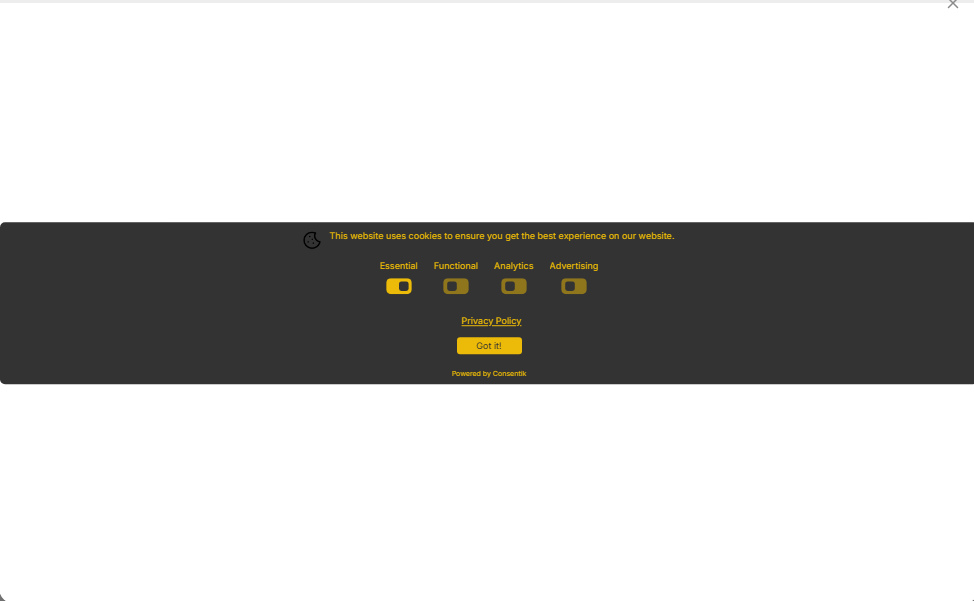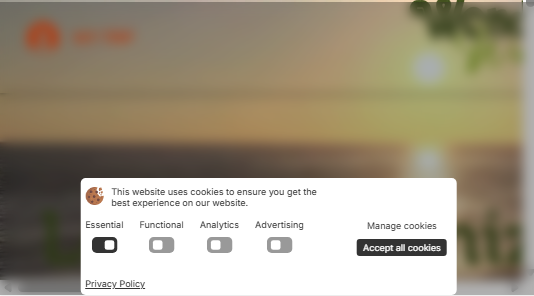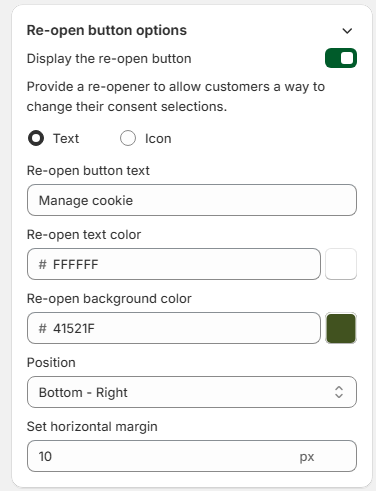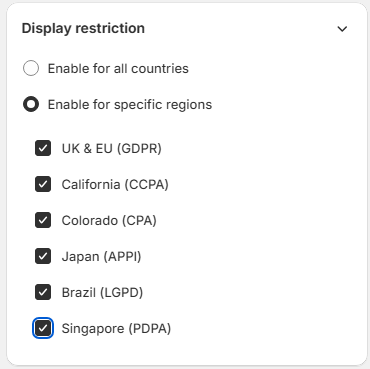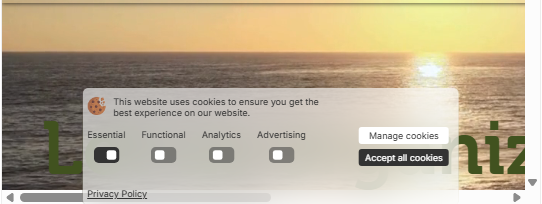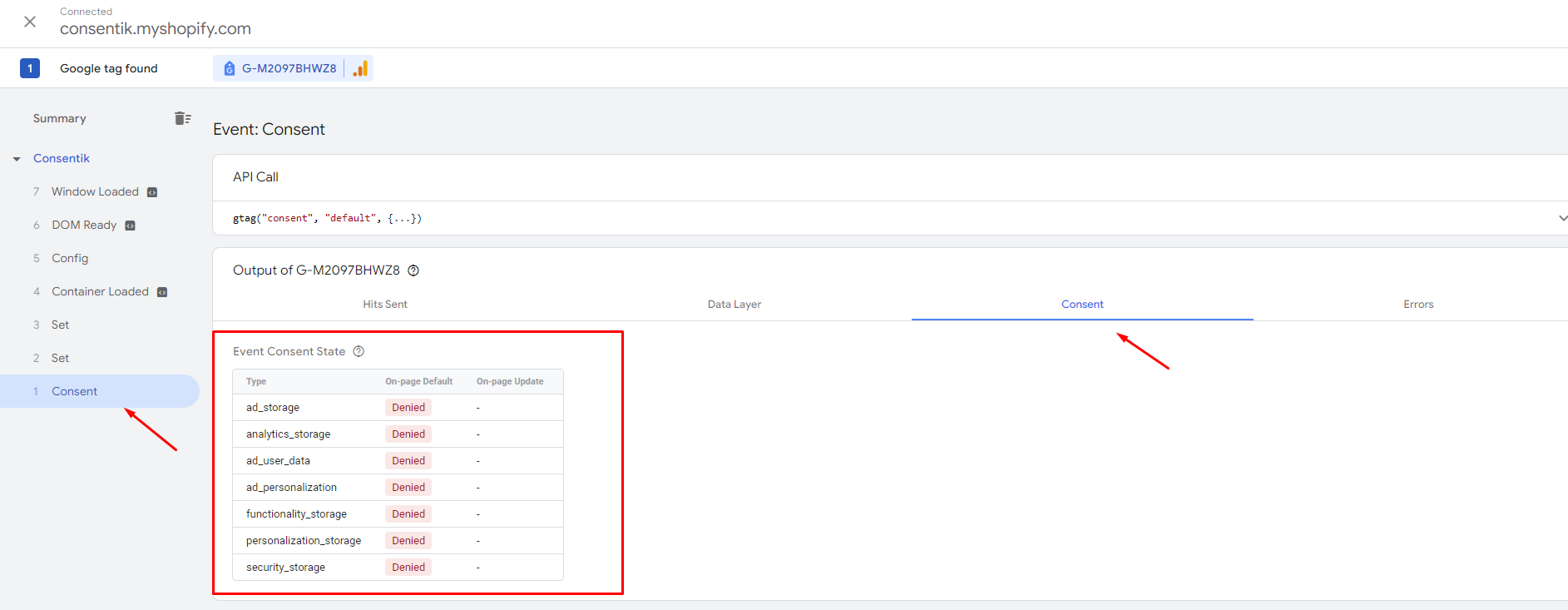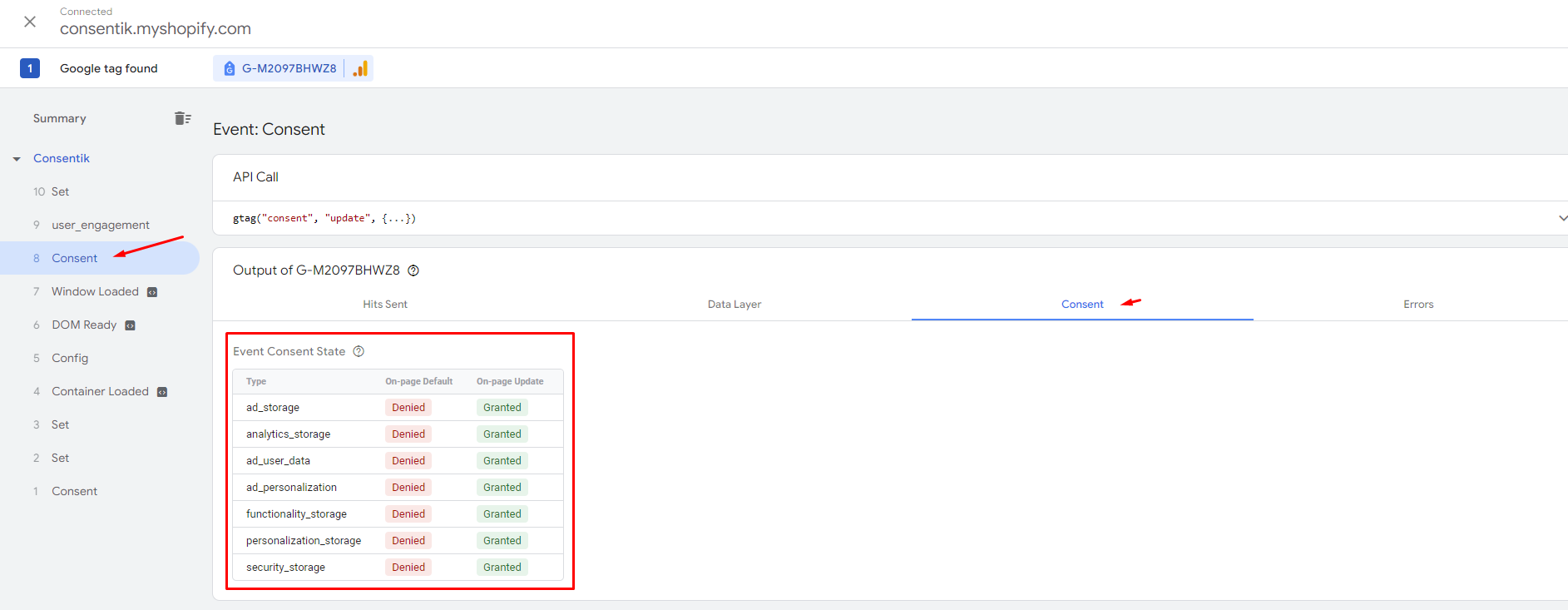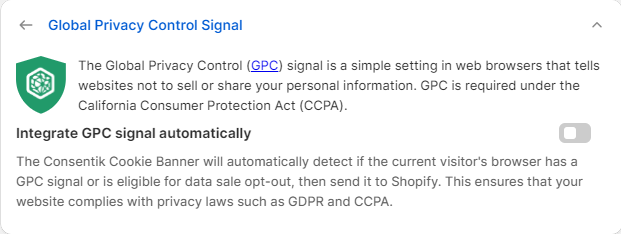
# Welcome to Consentik GDPR/CCPA Cookie Banner

Consentik GDPR/CCPA Cookie Banner (or <mark style="color:blue;">**Consentik Cookie Banner**</mark> for short) is the easiest way for merchants to stay compliant with local regulation, without having to invest time or effort into it. The app aims to help you design the banner and set up its content in the shortest time possible.&#x20;

On top of that, since it was designed as a tool to help merchants stay compliant with data regulations effortlessly, the app also came with other functions such as manage cookies, manage requests and edit banners' languages for different domains and more.&#x20;


# GDPR Setup Checklist

Base on [GDPR document](https://gdpr-info.eu/), our app recommends you setup options below to comply GDPR:

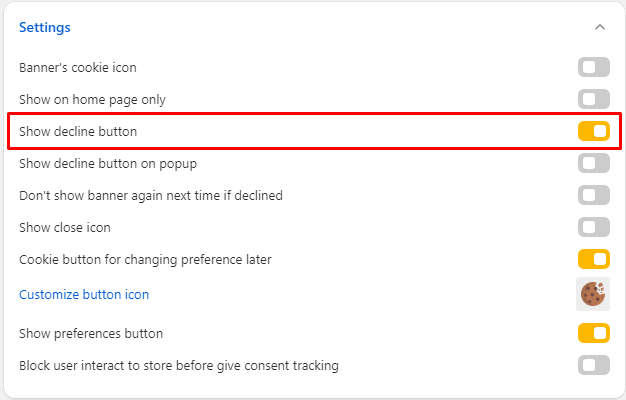
### 1. Show a "Decline" button

Customers have a right to refuse your website tracking, so you should put a "Decline" button on your cookie banner. You can put it on cookie bar or on preferences poup or both

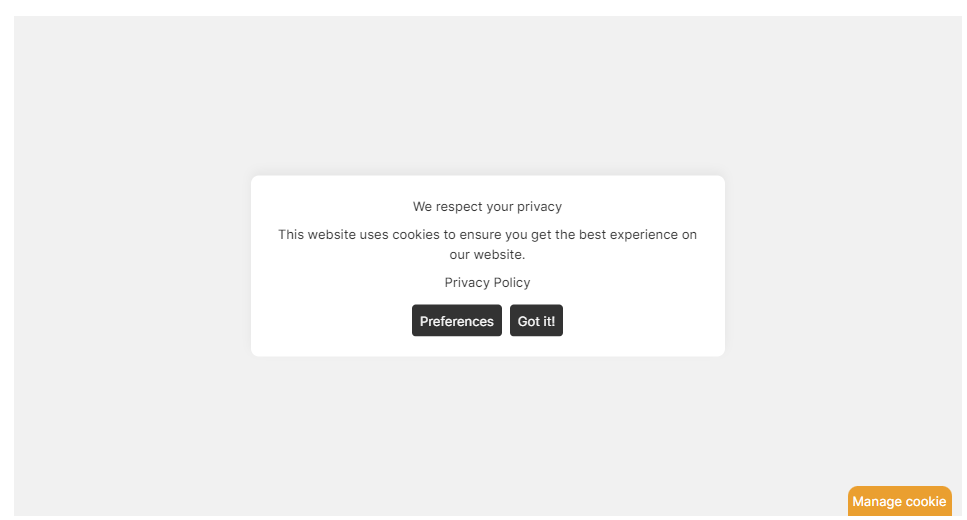
On cookie bar:

<figure><img src="https://867177989-files.gitbook.io/~/files/v0/b/gitbook-x-prod.appspot.com/o/spaces%2FpXyFBfh7hfzrY5z7HQRN%2Fuploads%2FOiPHCJNNLwqNJ47101Xw%2Fimage.png?alt=media&amp;token=0ecb5fdc-9417-4861-ab3f-a726bb9e36ae" alt=""><figcaption></figcaption></figure>

On Perferenes popup:

<figure><img src="https://867177989-files.gitbook.io/~/files/v0/b/gitbook-x-prod.appspot.com/o/spaces%2FpXyFBfh7hfzrY5z7HQRN%2Fuploads%2FwPqdgcYqV2Mfvl4UZHZc%2Fimage.png?alt=media&amp;token=8d1264c6-99b8-4514-9bf1-11daacb049f3" alt=""><figcaption></figcaption></figure>

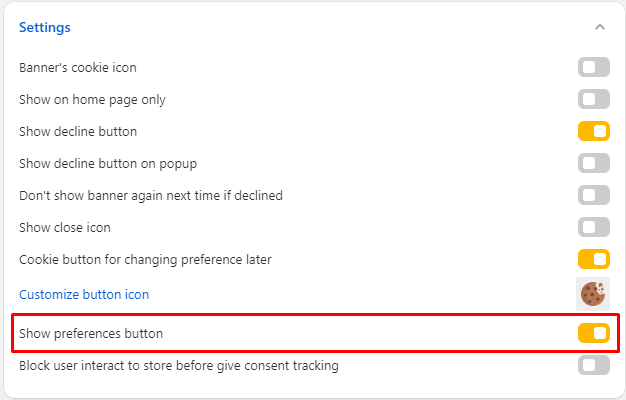
### 2. Show a preferences button on cookie bar to select cookie categories

Customers have a right to choose which cookies are allowed for tracking, so you should show a "Preferences" button which opens Preferences popup and shows cookie categories on your store

<figure><img src="https://867177989-files.gitbook.io/~/files/v0/b/gitbook-x-prod.appspot.com/o/spaces%2FpXyFBfh7hfzrY5z7HQRN%2Fuploads%2FobiYerx9nEmzdpqTnARm%2Fimage.png?alt=media&amp;token=3f3f11d0-80a7-48d3-9dd3-e706ec7b7dcf" alt=""><figcaption></figcaption></figure>

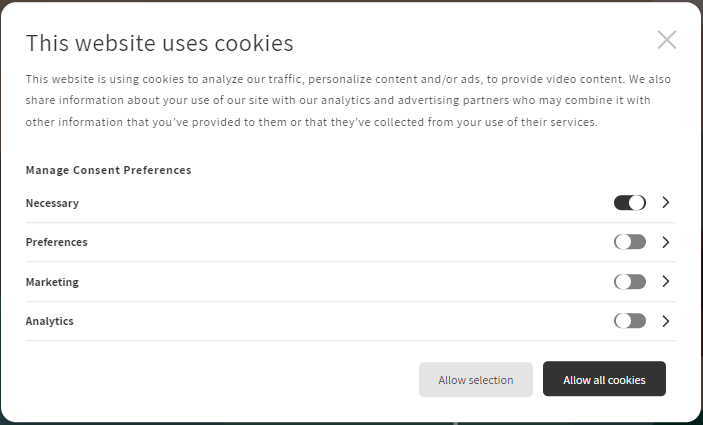
Preferences popup looks like this:

<figure><img src="https://867177989-files.gitbook.io/~/files/v0/b/gitbook-x-prod.appspot.com/o/spaces%2FpXyFBfh7hfzrY5z7HQRN%2Fuploads%2FWLxK2IVXQ4ZpEdJH748b%2Fimage.png?alt=media&amp;token=847d38fc-1cdc-446b-b793-078be79ff1c2" alt=""><figcaption></figcaption></figure>

### 3. Show a cookie re-opener (cookie button) for change consent option

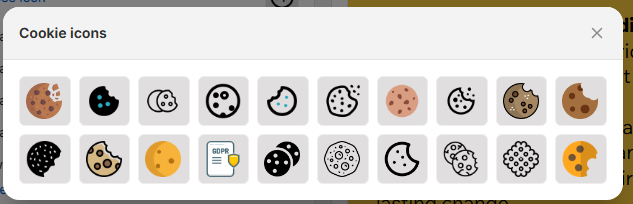
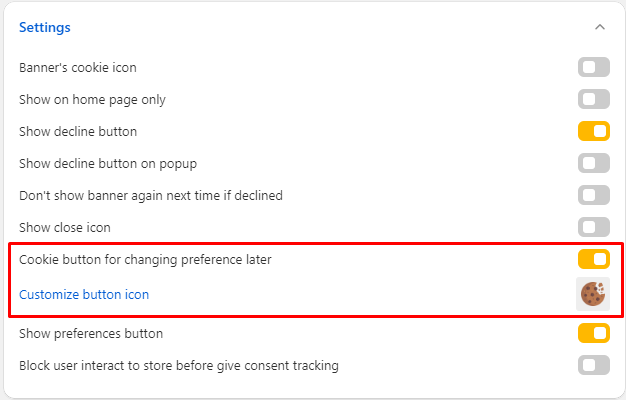
Customers have a right to change their consent anytime, so you should show a re-opener for changing their consent. You can choose a icon on gallery or upload your own logo.

Set up here:

<figure><img src="https://867177989-files.gitbook.io/~/files/v0/b/gitbook-x-prod.appspot.com/o/spaces%2FpXyFBfh7hfzrY5z7HQRN%2Fuploads%2FPStoO4xvXaDOou2vKVSj%2Fimage.png?alt=media&amp;token=914234cf-4d8d-499b-ae65-bcf0bfe7cc99" alt=""><figcaption></figcaption></figure>

Look like this on your online store:

<figure><img src="https://867177989-files.gitbook.io/~/files/v0/b/gitbook-x-prod.appspot.com/o/spaces%2FpXyFBfh7hfzrY5z7HQRN%2Fuploads%2FfYhkzaTrxLNczvbtOVnO%2Fimage.png?alt=media&amp;token=3077a7c0-7549-4df9-8f20-ebb367b86bbb" alt=""><figcaption></figcaption></figure>

### 4. Add privacy policy link to cookie banner

You can show a link which will direct to your policy page on your store. If you have your own page, copy page URL and paste to text box below:

<figure><img src="https://867177989-files.gitbook.io/~/files/v0/b/gitbook-x-prod.appspot.com/o/spaces%2FpXyFBfh7hfzrY5z7HQRN%2Fuploads%2Fp7jMhhp4Ou9dYZ9BJ40a%2Fimage.png?alt=media&amp;token=46bc7560-3f91-4984-9057-9cace67d908e" alt=""><figcaption></figcaption></figure>

If you do not have any page, you can generate a new one by our Privacy Policy Generator:

<figure><img src="https://867177989-files.gitbook.io/~/files/v0/b/gitbook-x-prod.appspot.com/o/spaces%2FpXyFBfh7hfzrY5z7HQRN%2Fuploads%2FrlllyMkAuOknCFpVw2gH%2Fimage.png?alt=media&amp;token=5bcebf1c-e6e6-4407-ae99-5e901e7a07e0" alt=""><figcaption></figcaption></figure>

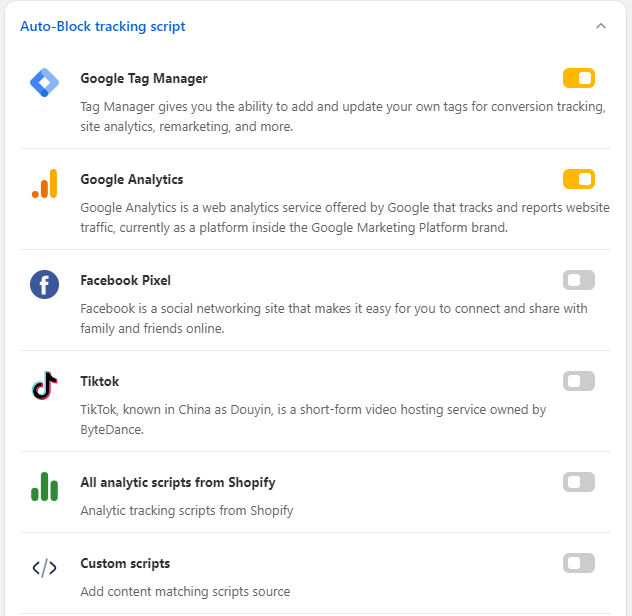
### 5. Enable auto-block tracking script

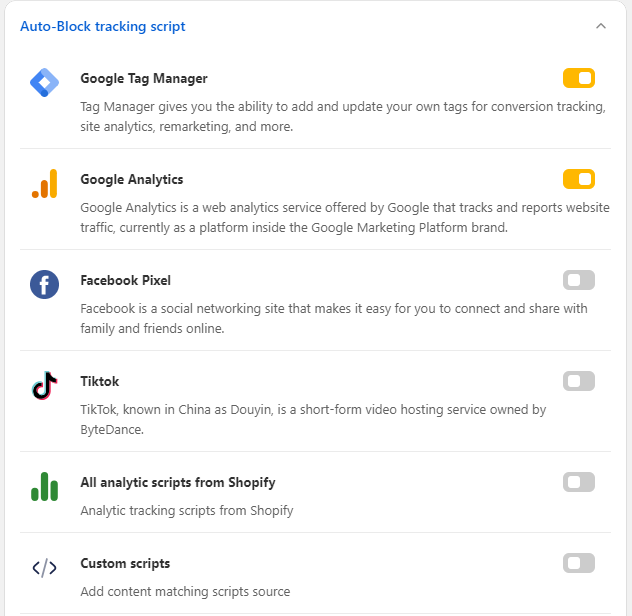
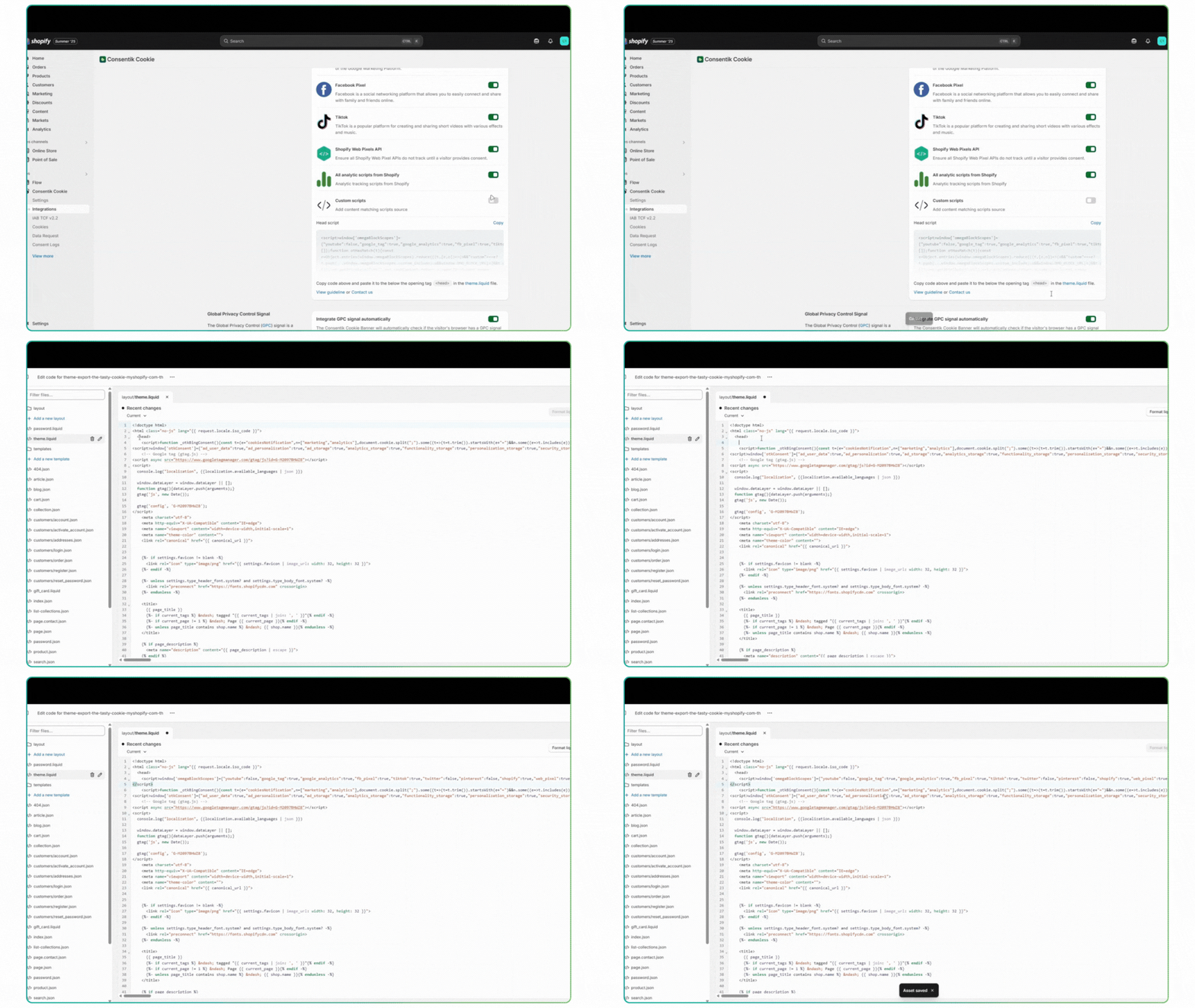
If you use a tracking service like Facebook Pixel, TikTok Pixel, Google Analytic or Shopify Analytics, you should block it tracking before customer give the consent. You can select services on admin setup, then copy the generated code and paste to below `<head>` tag on `theme.liquid` on your theme

<figure><img src="https://867177989-files.gitbook.io/~/files/v0/b/gitbook-x-prod.appspot.com/o/spaces%2FpXyFBfh7hfzrY5z7HQRN%2Fuploads%2FLQxtXCf7RQrlIXcY7V5R%2Fimage.png?alt=media&amp;token=1da7839b-50a8-4158-945e-bc9fd6771773" alt=""><figcaption></figcaption></figure>

### 6. Data request management

Check it here: [Data Request Management](/data-request-management/setup-data-request-management)


# How the app function

In order to ensure the best customer experience on your store, while truly stick to what the law say, we do provide a range of toggles, so you can config the app to your preference.&#x20;

The explanation to the toggles are as followed:

<div data-full-width="false"><figure><img src="https://867177989-files.gitbook.io/~/files/v0/b/gitbook-x-prod.appspot.com/o/spaces%2FpXyFBfh7hfzrY5z7HQRN%2Fuploads%2FXW4A6OeYynIOlESTjFOS%2Fimage.png?alt=media&amp;token=2abfd19c-212a-4835-b937-dc79fb9f3535" alt=""><figcaption></figcaption></figure></div>

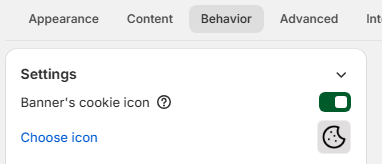
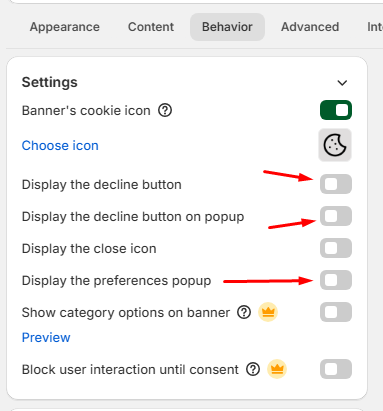
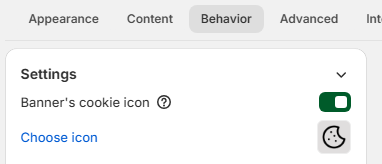
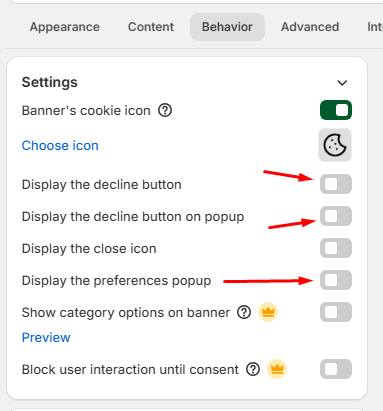
* **Banner's cookie icon**: The appearance of a cookie icon on your cookie banner. This may help non-native speakers recognize that the banner is for cookie consent purpose. You can change this icon by choosing on the list or uploading your own logo to match your brand
* **Show on home page only**: If turned on, the banner will only appear on the home page, and no where else on the website.&#x20;
* **Show decline button**: Show a Decline button on cookie banner which customers to decline cookie consent. This may be compulsory in some regions.&#x20;
* **Show decline button on popup (Pro version only)**: Show a Decline button on preferences popup which customers to decline cookie consent.&#x20;
* **Cookie button for changing preference later (Pro version only)**: If turned in, a cookie button will appear on your site so customers can change their cookie preference later should they change their mind. You can change this icon by choosing on the list or uploading your own logo to match your brand.
* **Don't show banner again next time if declined**: Normally people would be asked for their cookie consent until they give their response. If turn this on, they won't be asked again if declined.&#x20;
* **Show close icon:** If you turn this on, there is a close icon on cookie banner which allows customers hide the banner temporarily. The banner will appear again on the next time customers access your store.
* **Show preference button (Pro version only)**: Some regulations require websites to allow customers to select which cookie they give consent to and which they don't. A preference button will enable that.
* **Block user interact to store before give consent tracking:** If you turn it on, when the cookie banner appears, there will be an overlay which prevents customer interact to your store (**click buttons/images or scroll)** until customers accept or decline tracking.

***

<mark style="background-color:green;">**Recommended app**</mark>

<figure><img src="https://867177989-files.gitbook.io/~/files/v0/b/gitbook-x-prod.appspot.com/o/spaces%2FpXyFBfh7hfzrY5z7HQRN%2Fuploads%2F8ajqLFDcJy1x6KTnYBTV%2FFrame%201000002069.png?alt=media&amp;token=d9748cad-7f20-4055-bcb8-798ff1739858" alt=""><figcaption></figcaption></figure>

Let our Facebook Pixel + Conversion API capture every conversion & fuel Facebook Algorithm with rich data for higher ROAS. [Try Now!](https://apps.shopify.com/facebook-multi-pixels?utm_campaign=crs\&utm_source=cookies\&utm_medium=docs)


# Design the banner

## Set up cookie banner using templates

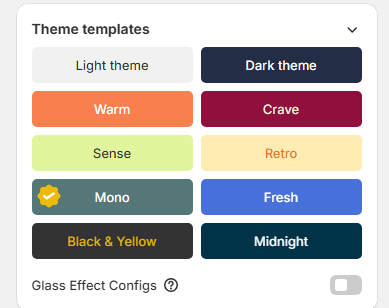
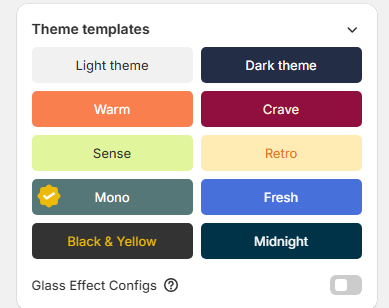
To save your time as much as possible, we have prepared template designs for you, so you can set up your banner as quick as possible, maybe under 1 minute.&#x20;

<figure><img src="https://867177989-files.gitbook.io/~/files/v0/b/gitbook-x-prod.appspot.com/o/spaces%2FpXyFBfh7hfzrY5z7HQRN%2Fuploads%2FJVbTk2rFDTgCsywp8RpG%2Fimage.png?alt=media&amp;token=472597b4-b98c-43ad-ab8b-3523050df33d" alt=""><figcaption></figcaption></figure>

## Manually design your banner

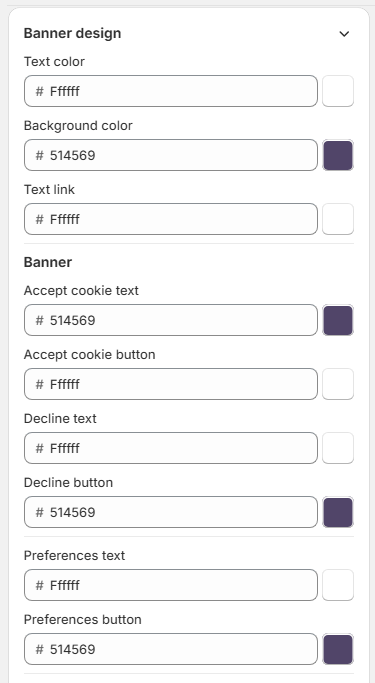
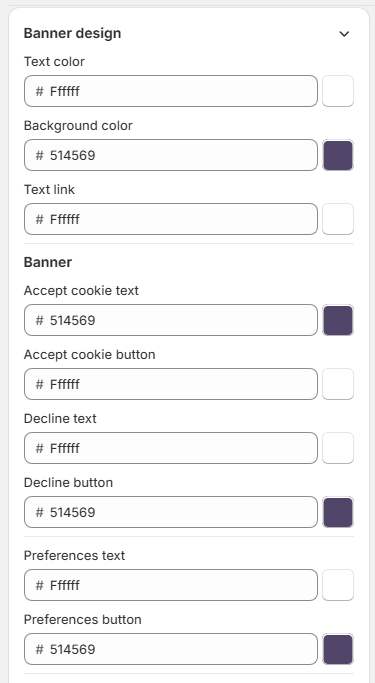
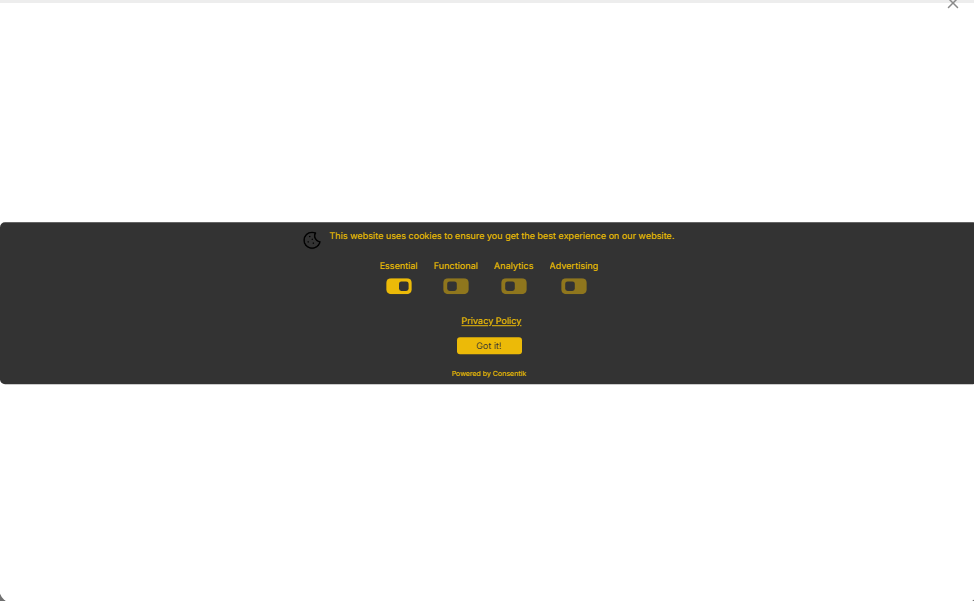
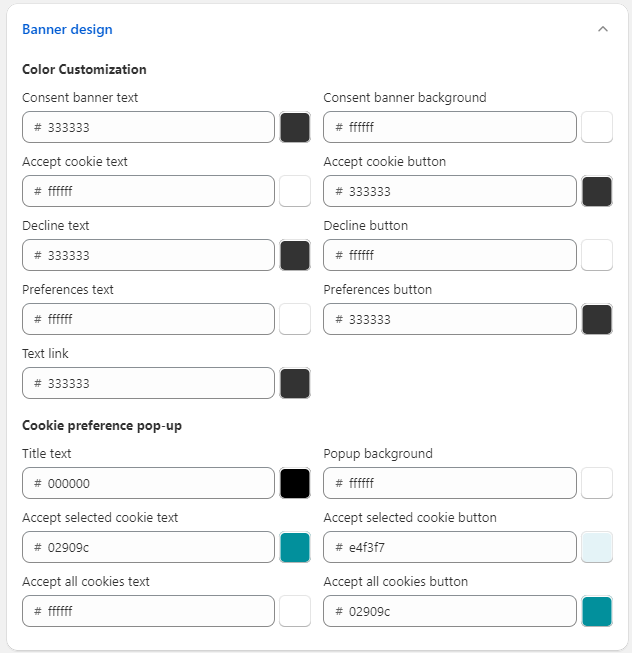
You can edit the coloring of your cookie banner in Banner design section.

<figure><img src="https://867177989-files.gitbook.io/~/files/v0/b/gitbook-x-prod.appspot.com/o/spaces%2FpXyFBfh7hfzrY5z7HQRN%2Fuploads%2FzrFskr0YWop5jYsLSRqA%2Fimage.png?alt=media&amp;token=9e0d4e8f-e9c9-41c8-bd63-39922479b110" alt=""><figcaption></figcaption></figure>

The components on the cookie banner are as followed:

<figure><img src="https://867177989-files.gitbook.io/~/files/v0/b/gitbook-x-prod.appspot.com/o/spaces%2FpXyFBfh7hfzrY5z7HQRN%2Fuploads%2FxxTGWY30Bm2GM83FWAjV%2FGroup_5796.png?alt=media&amp;token=af14defa-92d3-45d4-877e-fc7088ef6704" alt=""><figcaption><p>Click on the image to expand</p></figcaption></figure>

&#x20;The components on the preference selection popup are as followed:

<figure><img src="https://867177989-files.gitbook.io/~/files/v0/b/gitbook-x-prod.appspot.com/o/spaces%2FpXyFBfh7hfzrY5z7HQRN%2Fuploads%2FqJwXPvfN36f15qwr1fRQ%2FGroup_5797.png?alt=media&amp;token=c9859347-80b6-4ddc-a044-14aebb84f8de" alt=""><figcaption><p>Click on the image to expand</p></figcaption></figure>


# Edit text on the banner

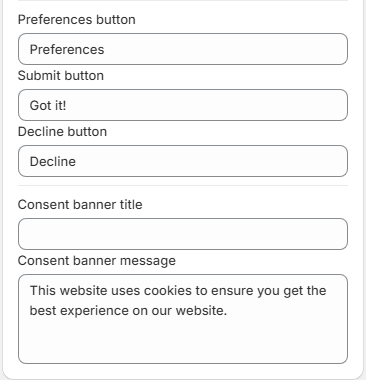
Similar to color editing, you can also change the texts in Text customization.

<figure><img src="https://867177989-files.gitbook.io/~/files/v0/b/gitbook-x-prod.appspot.com/o/spaces%2FpXyFBfh7hfzrY5z7HQRN%2Fuploads%2FZSyiugNg6RqXiIu9xcpD%2Fimage.png?alt=media&amp;token=bbeb1515-7f4f-4f48-8b03-9ed31d570263" alt=""><figcaption></figcaption></figure>

The parts in the cookie banner where you can edit texts are as followed:

<figure><img src="https://867177989-files.gitbook.io/~/files/v0/b/gitbook-x-prod.appspot.com/o/spaces%2FpXyFBfh7hfzrY5z7HQRN%2Fuploads%2FtKFU1BoNTQ0M7je0KOou%2FGroup_5800%20(1).png?alt=media&amp;token=6c9c2564-3553-450e-b5ef-fa5ae80521a9" alt=""><figcaption><p>Click on the image to expand</p></figcaption></figure>

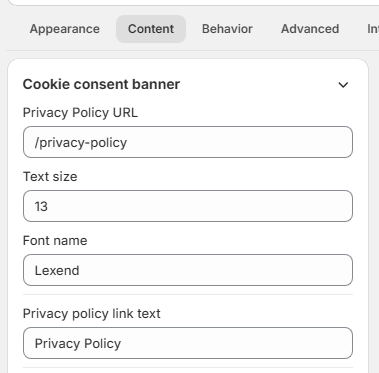
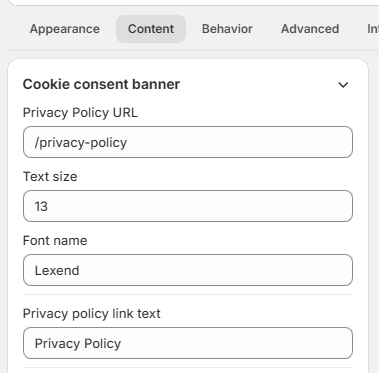
To make the banner more visually aesthetic, you can edit your text size as well.

The link to privacy policy can be added in the Link of your Privacy Policy's page part.&#x20;

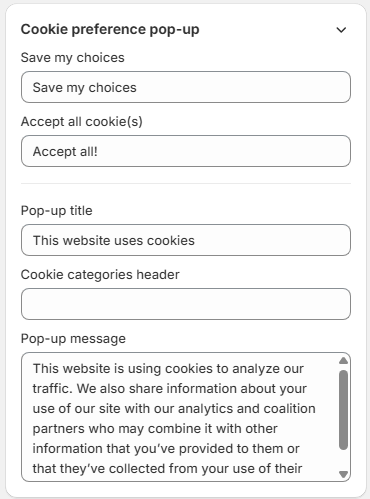
The parts in the preference selection popup where you can edit are as followed:

<figure><img src="https://867177989-files.gitbook.io/~/files/v0/b/gitbook-x-prod.appspot.com/o/spaces%2FpXyFBfh7hfzrY5z7HQRN%2Fuploads%2FtZ4FzKoUGtA39ZeLi1yo%2FGroup_5799%20(1).png?alt=media&amp;token=bd47bdda-78c6-4ce7-9ce9-437661bbe926" alt=""><figcaption><p>Click on the image to expand</p></figcaption></figure>


# Privacy policy page generating

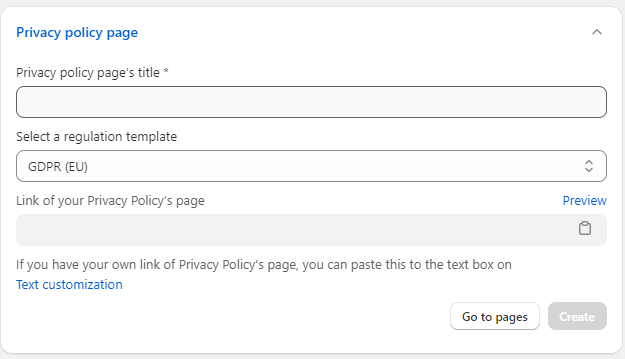
If you don't already have a privacy policy page, you can use our tool to generate one.&#x20;

<figure><img src="https://867177989-files.gitbook.io/~/files/v0/b/gitbook-x-prod.appspot.com/o/spaces%2FpXyFBfh7hfzrY5z7HQRN%2Fuploads%2FyeWC5Kynp9kv5Wq3v7lC%2Fimage.png?alt=media&amp;token=3f7569b9-963c-4319-a86b-4696639a4a15" alt=""><figcaption></figcaption></figure>

Simply enter the name you wish the page should have, then click on the regulation you want to sample and click Create. The page will be created and visible in Shopify Admin/Online Store/Pages. The URL of that page will be automatically pasted in the Link of your Privacy Policy's page in this section and Text customization section.&#x20;

If you have already sampled a regulation (a page has been created from the regulation), you can only edit the name of that page. To create a new one, delete the existing page.&#x20;


# Positioning your banner

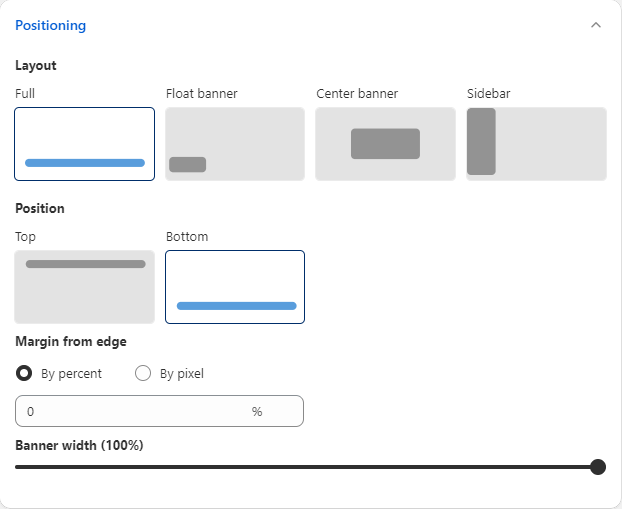
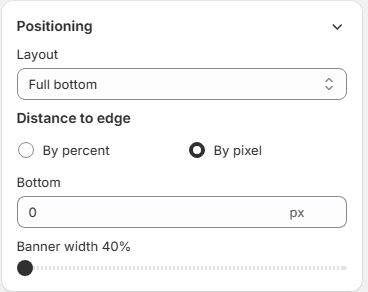
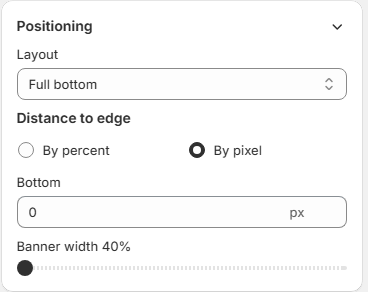
How your banner will appear on your website can both affect regulation compliant and customers' online shopping experience. Change your cookie consent banner's positioning in Positioning section.&#x20;

By default, the app's layout will be **popup**.&#x20;

Choose where the popup will be placed in the Position of banner part.&#x20;

* **Full layout**: The banner will be placed in the middle of the screen. You can choose to have it appeared on the bottom or the top. On top of that, move the banner further into the middle by input in the Margin from edge. The width of the banner can also be adjusted in the Banner width section.&#x20;

<figure><img src="https://867177989-files.gitbook.io/~/files/v0/b/gitbook-x-prod.appspot.com/o/spaces%2FpXyFBfh7hfzrY5z7HQRN%2Fuploads%2FAz8cj0gVE2v8dgFFLti0%2Fimage.png?alt=media&amp;token=b8e1c48b-769b-48ad-83d1-cab3b8201e92" alt=""><figcaption></figcaption></figure>

* **Float layout:** The banner will be placed where you choose. There are also visuals to support your decision. Likewise, you can also move the banner further into the middle by inputting in the Margin from edge

<figure><img src="https://867177989-files.gitbook.io/~/files/v0/b/gitbook-x-prod.appspot.com/o/spaces%2FpXyFBfh7hfzrY5z7HQRN%2Fuploads%2FNcGwkWpkOiAkXnbIbUri%2Fimage.png?alt=media&amp;token=5711e695-1dad-40f1-a509-b83c5938c908" alt=""><figcaption></figcaption></figure>

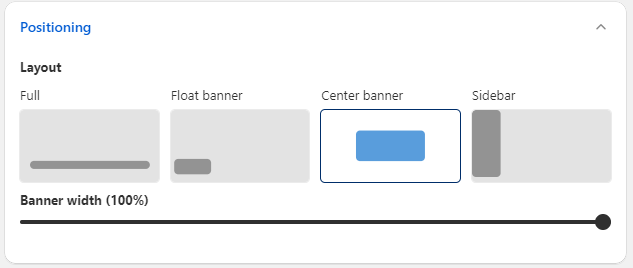
* **Center**: The banner will be placed in the absolute middle of the screen. You can change the width of the banner however you like.&#x20;

<figure><img src="https://867177989-files.gitbook.io/~/files/v0/b/gitbook-x-prod.appspot.com/o/spaces%2FpXyFBfh7hfzrY5z7HQRN%2Fuploads%2F2m4sJBdy2yLa4XfPmEEG%2Fimage.png?alt=media&amp;token=a4be4b4e-ad9e-4ab1-b62a-719e95835ce8" alt=""><figcaption></figcaption></figure>

On the other hand, you can select a different layout, which is on the **Sidebar.**

For this option, you can only choose to display it either on the left or on the right.&#x20;

<figure><img src="https://867177989-files.gitbook.io/~/files/v0/b/gitbook-x-prod.appspot.com/o/spaces%2FpXyFBfh7hfzrY5z7HQRN%2Fuploads%2Fpaun7WXl0nyD5L36Y8YZ%2Fimage.png?alt=media&amp;token=bfb808c2-0b13-4785-ba06-bcb21e7552b2" alt=""><figcaption></figcaption></figure>


# Restrict banner for specific regions only

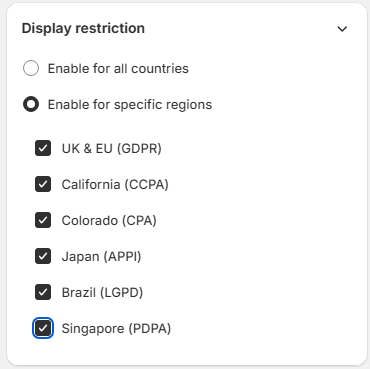
The part called "**Display restriction**" is where you can select who to show the banner to.&#x20;

For some countries, a cookie banner is strictly required, though some aren't.&#x20;

For this section, you have 2 choices:&#x20;

<figure><img src="https://867177989-files.gitbook.io/~/files/v0/b/gitbook-x-prod.appspot.com/o/spaces%2FpXyFBfh7hfzrY5z7HQRN%2Fuploads%2Fn5m9Qa6S9t0XUcK0u8i1%2Fimage.png?alt=media&amp;token=471aa1b3-aea3-4756-b795-0b97533b9374" alt=""><figcaption></figcaption></figure>

* **Enable for all countries**: No matter who they are, where they are visiting from, the cookie banner will always appear.&#x20;
* **Enable for specific regions only**: Only the people who access your site from the selected regions will see the banner. There are 6 regions, including EU & UK, California (USA), Colorado (USA), Japan, Brazil and the Singapore.&#x20;


# Browser cookies lifetime

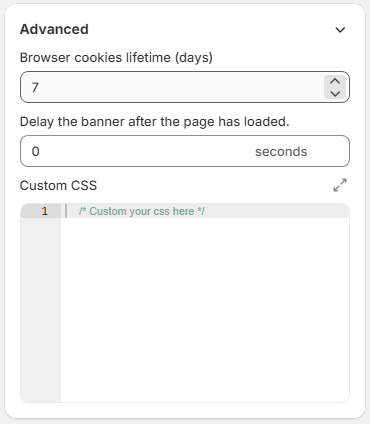
Basically, it means how long will the cookie consent still remain valid and after which they will expire and consent needs to be given again.&#x20;

You can find this in Settings/Advanced Setting.&#x20;

If you're on the Basic plan, this value is fixed at 7 days.&#x20;

<figure><img src="https://867177989-files.gitbook.io/~/files/v0/b/gitbook-x-prod.appspot.com/o/spaces%2FpXyFBfh7hfzrY5z7HQRN%2Fuploads%2FFfJ8oFbdSML9vQAeNfJ0%2Fimage.png?alt=media&amp;token=7cd49214-1857-4859-ab7c-160077aee71f" alt=""><figcaption></figcaption></figure>

If you're on a Pro plan, you can change it to the number of day you want. If the value is set to 0, customers will be asked every time they access the website.&#x20;

<figure><img src="https://867177989-files.gitbook.io/~/files/v0/b/gitbook-x-prod.appspot.com/o/spaces%2FpXyFBfh7hfzrY5z7HQRN%2Fuploads%2Ft3oZIvQX7nMjjIagTQAX%2Fimage.png?alt=media&amp;token=61aeed53-c13c-49f2-8392-0fda48aa1683" alt=""><figcaption></figcaption></figure>


# Advanced Settings

## Blacklist pages

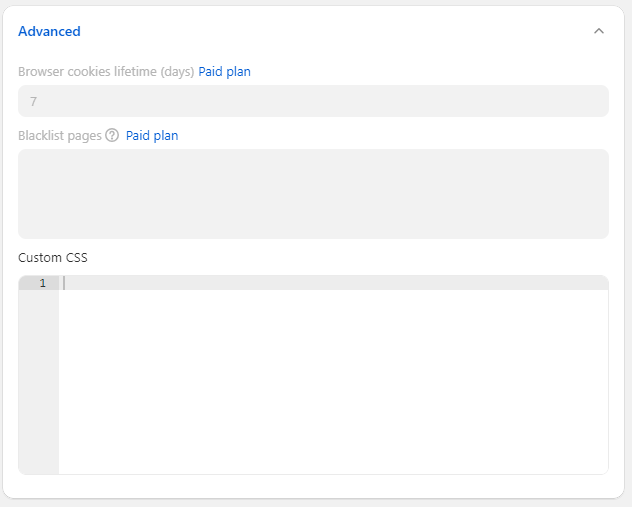
This feature provides a simple text area within the app's admin interface where merchants can list the URLs of the pages they wish to exclude from displaying the cookie banner.

In the provided text area, enter the URLs of the pages (like `/pages/policy` or `/account/login` ) on which the cookie banner should not be displayed. Each URL should be on a separate line to ensure correct parsing by the app.

<figure><img src="https://867177989-files.gitbook.io/~/files/v0/b/gitbook-x-prod.appspot.com/o/spaces%2FpXyFBfh7hfzrY5z7HQRN%2Fuploads%2FV6o3tIGT0cHOxGpgkHft%2Fimage.png?alt=media&amp;token=70776cd5-2654-472b-b7db-ac9b3695a574" alt=""><figcaption></figcaption></figure>


# Translations

### Introduction

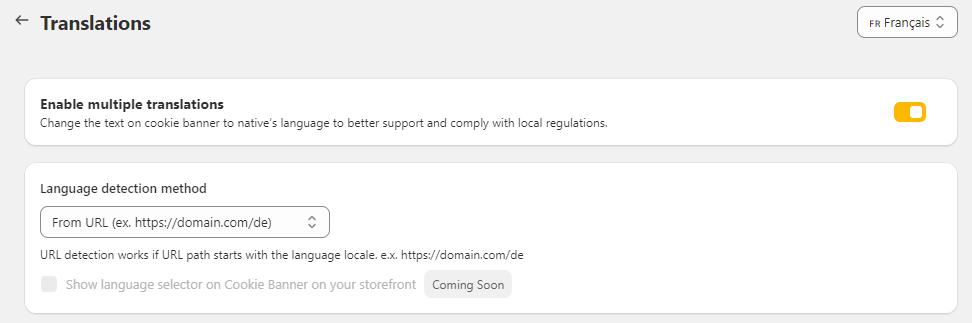
This feature enhances the **Omega Cookie Banner** functionality by allowing merchants to manually translate the text within their cookie banner, categories, and individual cookie descriptions. It provides a comprehensive approach to customizing the user experience for a global audience.

### Translation Detection Methods

The system offers four methods to determine the appropriate language for displaying the cookie banner, categories, and descriptions:

1. **Store URL Suffix**: Detects language based on the URL structure, e.g., `domain.com/es` for Spanish.
2. **Store Language**: Utilizes the default language set for the store (locale).
3. **User Language**: Detects the user's browser language settings.
4. **User IP Address**: Determines the user's region via IP address and suggests the relevant language.

<figure><img src="https://867177989-files.gitbook.io/~/files/v0/b/gitbook-x-prod.appspot.com/o/spaces%2FpXyFBfh7hfzrY5z7HQRN%2Fuploads%2FPewg1hfCS4W07oiaCGF6%2Fimage.png?alt=media&amp;token=b1074ebb-b169-4080-aec3-a2844735c096" alt=""><figcaption></figcaption></figure>

### Translation Feature Setup

#### Enabling the Translation Feature

Merchants can activate or deactivate the manual translation feature as needed.

#### Selecting Detection Method

Choose the preferred method for detecting which language to present to the user.

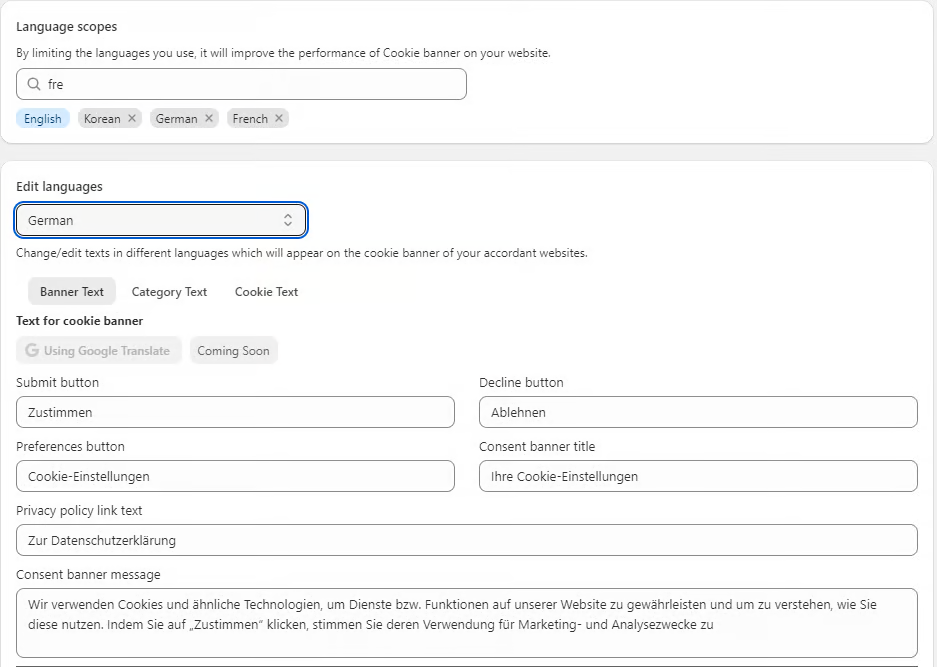
#### Language Scopes Selection

Define the languages into which the merchant wishes to translate the cookie banner, categories, and cookie descriptions.

#### Translation Process

The translation process involves a few steps:

1. **Choose Language**: Select from the list of languages the merchant wishes to provide translations for.
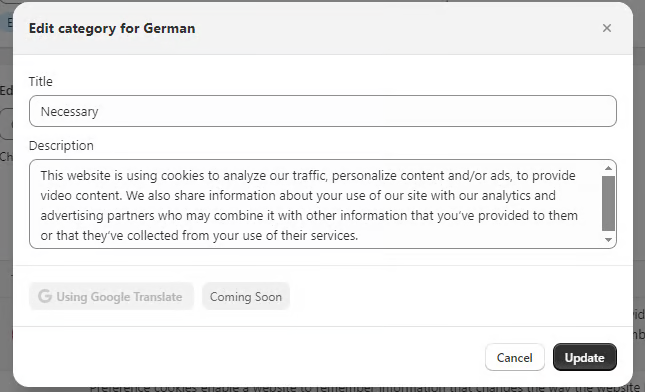
2. **Translate Texts**: Manually input translations for the text of the cookie banner, each category, and individual cookies.
3. **Save Translations**: After translating the texts, save the changes to apply them to the cookie banner.

<figure><img src="https://867177989-files.gitbook.io/~/files/v0/b/gitbook-x-prod.appspot.com/o/spaces%2FpXyFBfh7hfzrY5z7HQRN%2Fuploads%2FJ4tYmGQNoxp448Vd7qSu%2Fimage.png?alt=media&amp;token=bf31bce0-4087-4c14-b7c3-1d8488859d48" alt=""><figcaption></figcaption></figure>

<figure><img src="https://867177989-files.gitbook.io/~/files/v0/b/gitbook-x-prod.appspot.com/o/spaces%2FpXyFBfh7hfzrY5z7HQRN%2Fuploads%2FDUAXXDFBRBQuzms44AGi%2Fimage.png?alt=media&amp;token=b610ea6b-9e9e-4956-ba92-06dcd65f5415" alt=""><figcaption></figcaption></figure>

#### Additional Translation Settings

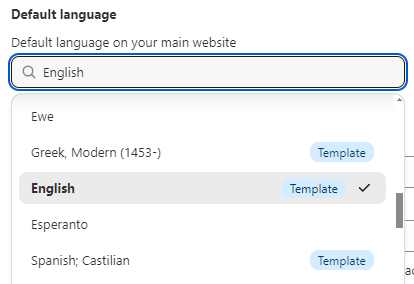
* **Default Language**: In the text customization settings, merchants can choose a default language that will be displayed if no language match is found.
* **Pre-translated Templates**: For some common languages, the app provides pre-translated texts, which are indicated with a "Template" badge.

<figure><img src="https://867177989-files.gitbook.io/~/files/v0/b/gitbook-x-prod.appspot.com/o/spaces%2FpXyFBfh7hfzrY5z7HQRN%2Fuploads%2FhyKRtE5bbWuhXfSASpXN%2Fimage.png?alt=media&amp;token=5165dc94-6fb2-498c-8e9a-84935bf75be6" alt=""><figcaption></figcaption></figure>

### Best Practices for Translation

* **Consistency**: Ensure that the tone and terminology are consistent across all translations.
* **Cultural Sensitivity**: Be mindful of cultural nuances and expressions when translating texts.
* **Professional Translation**: For accuracy, consider using professional translation services, especially for legal texts.

By offering manual translation capabilities, this feature empowers merchants to engage with a diverse customer base in a localized and user-friendly manner. It not only improves the user experience but also demonstrates a commitment to accessibility and compliance with international privacy laws.

***Note**: Regularly review translations for accuracy and updates, especially in response to changes in privacy regulations or cookie policies. The translation feature is an enhancement to the cookie banner and should be used in conjunction with comprehensive legal compliance strategies.*<br>


# Language Selector on Banner

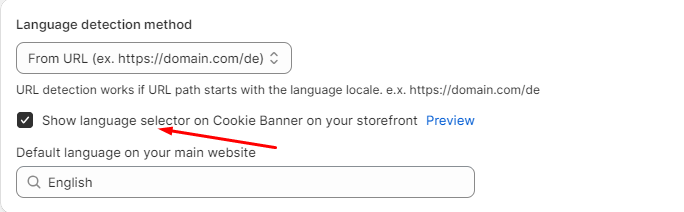
The Consentik Cookie Banner app introduces the Language Selector on Banner feature, enabling a seamless and inclusive user experience by allowing visitors to select their preferred language directly on the cookie consent banner. This feature is essential for online stores with a diverse international audience, ensuring that the cookie consent message is accessible and understandable to all users.

<figure><img src="https://867177989-files.gitbook.io/~/files/v0/b/gitbook-x-prod.appspot.com/o/spaces%2FpXyFBfh7hfzrY5z7HQRN%2Fuploads%2F5S2D9PkPPLzgDO3uCilf%2Fimage.png?alt=media&amp;token=d7f0641b-93c1-49db-ba2a-4178f06e2baf" alt=""><figcaption></figcaption></figure>

<figure><img src="https://867177989-files.gitbook.io/~/files/v0/b/gitbook-x-prod.appspot.com/o/spaces%2FpXyFBfh7hfzrY5z7HQRN%2Fuploads%2FJwofYw3V7gOkhi6W7cvY%2Fimage.png?alt=media&amp;token=6dbf91d1-d291-4c7a-8932-4b21774fde3e" alt=""><figcaption></figcaption></figure>

### Functionality

* **Dropdown Language Selection:** Allows users to select their preferred language from a dropdown menu on the cookie banner.
* **Automatic Language Detection:** The banner can detect the user's browser language setting and initially display the cookie consent information in that language.
* **Customizable Language Options:** Store owners can customize which languages are available in the dropdown menu, tailoring the options to their primary audience.
* **User Language Preference Memory:** Once a user selects a language from the dropdown, this choice is saved for future visits. The cookie banner will automatically display in the user's preferred language during subsequent visits, enhancing the personalized user experience.

### Benefits:

* **Improved User Accessibility:** The banner enhances accessibility by allowing users to interact with the website in their preferred language, ensuring clarity and ease of understanding.
* **Enhanced User Engagement:** Personalizing the language of the cookie consent banner encourages user interaction and compliance, potentially increasing acceptance rates.
* **Increased Compliance:** Multi-language support coupled with the ability to remember user preferences helps ensure compliance with international privacy laws that mandate clear and understandable consent mechanisms.


# Re-opener Configuration

Consentik Cookie for Shopify provides a flexible **Re-opener** feature, allowing your website visitors to easily revisit and manage their cookie preferences at any time. This article will guide you through the different re-opener options and how to customize their appearance and behavior to best fit your store.

***

### What is the Re-opener?

The **Re-opener** is a button or link that lets your users re-access the cookie consent banner or privacy settings after their initial choice. This helps your store stay transparent and compliant with privacy laws by giving visitors ongoing control over their cookie preferences.

***

### Available Re-opener Styles

Consentik offers several ways to display the re-opener on your Shopify store:

<figure><img src="https://867177989-files.gitbook.io/~/files/v0/b/gitbook-x-prod.appspot.com/o/spaces%2FpXyFBfh7hfzrY5z7HQRN%2Fuploads%2F7Mh5XuY7ZULgKw1iZ9er%2Fimage.png?alt=media&amp;token=512b256a-07a0-480c-8c7f-973cde0ee7ef" alt=""><figcaption></figcaption></figure>

#### 1. Text Button

A simple button with customizable text, such as “Cookie Settings” or “Privacy Preferences.” This button can be styled to match your store’s branding.

#### 2. Icon Button

A button that uses an icon (for example, a cookie or gear symbol). You can choose from a variety of icons to best suit your site’s look and feel.

#### 3. Footer Link

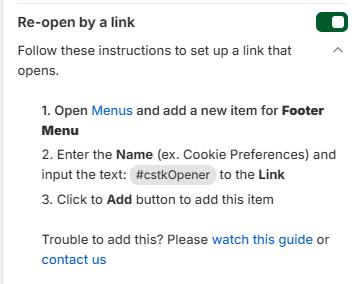
A subtle text link added to your website’s footer, such as “Privacy Preferences” or “Manage Cookies.” This option keeps your website interface clean while still providing easy access.

<figure><img src="https://867177989-files.gitbook.io/~/files/v0/b/gitbook-x-prod.appspot.com/o/spaces%2FpXyFBfh7hfzrY5z7HQRN%2Fuploads%2FN3f9CkiiZJZugIXDtyry%2Fimage.png?alt=media&amp;token=4c2d4cae-ff54-4326-96d2-2a39209b18e2" alt=""><figcaption></figcaption></figure>

***

### Setting Button Position

For both **Text Button** and **Icon Button**, Consentik allows you to set the position on your website. You can easily choose where the re-opener will appear:

* **Corners of the Page:** Top-Left, Top-Right, Bottom-Left, Bottom-Right
* **Custom Position:** Set exact placement with pixel or percentage values, according to your site’s layout.

This flexibility helps you match the re-opener to your design and ensure it’s easily accessible for your customers.

***

### Icon Selection & Custom Upload

If you choose the **Icon Button** style, you have two convenient options for selecting the icon:

* **Choose from Gallery:** Pick an icon from Consentik’s built-in gallery, which includes popular choices like cookies, gears, shields, and more.
* **Upload Your Own Icon:** Personalize your store further by uploading a custom icon (SVG, PNG, JPG formats supported). This is perfect for brands that want to maintain a unique identity.

After selecting or uploading your icon, you can also adjust its size and color to ensure it matches your website’s style.

***

### Re-opener Actions

When a visitor clicks on the re-opener, you can choose what happens next:

* **Open Consent Banner:** Shows the cookie consent banner again, allowing visitors to update their choices.
* **Open Preferences Popup:** Directly opens the cookie preferences popup, where users can fine-tune their settings.
* **Open Privacy Popup:** Opens a dedicated popup with your privacy policy and related information.

These flexible options let you match the re-opener behavior to your privacy strategy and user experience goals.

***

### Customizing the Privacy Popup

If you enable the **Privacy Popup** as your re-opener action, Consentik allows you to fully customize:

* **Content:** Edit and personalize the text to explain your privacy practices in a way that matches your brand voice.
* **Colors:** Adjust the colors of the popup background, text, and buttons to seamlessly fit your store’s design.

<figure><img src="https://867177989-files.gitbook.io/~/files/v0/b/gitbook-x-prod.appspot.com/o/spaces%2FpXyFBfh7hfzrY5z7HQRN%2Fuploads%2FZZdiExjB1ZWE0yi4V8Y2%2Fimage.png?alt=media&amp;token=9855cfce-ff99-4074-a312-3d063661798e" alt=""><figcaption></figcaption></figure>

<figure><img src="https://867177989-files.gitbook.io/~/files/v0/b/gitbook-x-prod.appspot.com/o/spaces%2FpXyFBfh7hfzrY5z7HQRN%2Fuploads%2FHoyUumA6yEAqaubqTQOU%2Fimage.png?alt=media&amp;token=10c52675-3219-4575-8258-60312af58676" alt=""><figcaption></figcaption></figure>

This ensures your privacy communication is both clear and visually consistent.

<figure><img src="https://867177989-files.gitbook.io/~/files/v0/b/gitbook-x-prod.appspot.com/o/spaces%2FpXyFBfh7hfzrY5z7HQRN%2Fuploads%2Fk8upXV79XA331grEwZs8%2Fimage.png?alt=media&amp;token=b412ec4e-2f42-4fca-bfd3-fb810635b307" alt=""><figcaption></figcaption></figure>

### Tips

* Place the re-opener somewhere easy to find, such as a corner of the page or the footer.
* Use clear, inviting language (e.g., “Review Cookie Settings”).
* Regularly review your privacy popup content to keep it up-to-date with your policies.
* If uploading your own icon, use a high-contrast design for better visibility.


# Glass Effect

The Glass Effect Setting feature in the **Consentik Cookie Banner** app allows you to customize the appearance of your cookie banner to match the modern and sleek design of your online store. This feature lets you create a frosted glass effect for the banner, where you can adjust the level of blur and opacity to achieve the desired look.

<figure><img src="https://867177989-files.gitbook.io/~/files/v0/b/gitbook-x-prod.appspot.com/o/spaces%2FpXyFBfh7hfzrY5z7HQRN%2Fuploads%2FDaWii1aOBvYpe5QyD0vh%2Fimage.png?alt=media&amp;token=59f5dd81-5cbf-4a48-a296-43579984a926" alt=""><figcaption></figcaption></figure>

The Glass Effect Setting enhances the visual appeal of your cookie banner, making it more attractive and less intrusive for your customers. By blending seamlessly with the overall design of your website, the banner maintains a professional and cohesive appearance, ensuring that it complements rather than disrupts the user experience.

<figure><img src="https://867177989-files.gitbook.io/~/files/v0/b/gitbook-x-prod.appspot.com/o/spaces%2FpXyFBfh7hfzrY5z7HQRN%2Fuploads%2FZBU1yhuU9pSeviuhJVhf%2Fimage.png?alt=media&amp;token=72a0ee72-825b-4853-bea9-38db2227a9bb" alt=""><figcaption></figcaption></figure>

Customizing the glass effect allows you to highlight the cookie banner without overwhelming your customers, providing a subtle yet effective way to inform them about your cookie policies and obtain their consent. This attention to detail demonstrates your commitment to both aesthetic quality and regulatory compliance, fostering a positive impression and building trust with your customers.

By offering such customization options, the Glass Effect Setting feature helps you create a visually appealing and user-friendly cookie banner that aligns with your brand's identity, enhancing customer engagement and satisfaction.


# Banner Button Position

The <mark style="color:blue;">**Consentik Cookie Banner**</mark> app offers a flexible and user-friendly interface to position buttons on the cookie consent banner. This feature allows you to customize the placement of buttons such as 'Accept', 'Decline', or 'More Info' to optimize user interaction and compliance visibility.

<figure><img src="https://867177989-files.gitbook.io/~/files/v0/b/gitbook-x-prod.appspot.com/o/spaces%2FpXyFBfh7hfzrY5z7HQRN%2Fuploads%2FiA7rhTmM5hIWC2WhQq6c%2Fimage.png?alt=media&amp;token=8b5c25f1-83b9-4bde-8c42-58ca0dc4ca3d" alt=""><figcaption></figcaption></figure>

### Functionality:&#x20;

* **Drag-and-Drop Interface:** Easily adjust the position of buttons on the banner through a simple drag-and-drop interface. This feature is designed to be intuitive, allowing you to reposition buttons without needing to code.
* **Separate Mobile and Desktop Configuration:** Recognizing the different layout requirements for mobile and desktop views, Consentik Cookie Banner enables separate configuration settings for each. This ensures that your cookie banner maintains optimal usability and appearance across all devices.

### Benefits:

* **Enhanced User Experience:** By customizing the button positions, you can create a more cohesive look that aligns with your website’s design, potentially increasing the rate of user consent.
* **Increased Compliance Visibility:** Positioning important buttons like 'Accept' prominently can help ensure users notice and interact with the consent banner, aiding in compliance with GDPR, CCPA, and other regulations.


# Show category options on banner

The Quick Categories Selector feature in the <mark style="color:blue;">**Consentik Cookie Banner**</mark> app has been updated to enhance its integration and functionality specifically for certain banner layouts. This feature now exclusively supports the 'Float Banner' and 'Center Banner' layouts, ensuring a seamless and effective user experience tailored to these designs. This update focuses on providing users with immediate access to cookie category preferences in a visually appealing and non-intrusive manner.

<br>

<figure><img src="https://867177989-files.gitbook.io/~/files/v0/b/gitbook-x-prod.appspot.com/o/spaces%2FpXyFBfh7hfzrY5z7HQRN%2Fuploads%2FxDjd328peQOeroW8Ieod%2Fimage.png?alt=media&amp;token=ed853975-f272-4762-93b1-00b31c892146" alt=""><figcaption></figcaption></figure>

<figure><img src="https://867177989-files.gitbook.io/~/files/v0/b/gitbook-x-prod.appspot.com/o/spaces%2FpXyFBfh7hfzrY5z7HQRN%2Fuploads%2FLrFPDJlp331Ox7NZ9lEF%2Fimage.png?alt=media&amp;token=500f5139-343d-47c9-b481-387c55a0f2e3" alt=""><figcaption></figcaption></figure>

### Functionality:

* **Exclusive Support for Float and Center Banner Layouts:** The Quick Categories Selector is now optimized for use with 'Float Banner' and 'Center Banner' layouts, ensuring that the checkboxes and category listings are perfectly aligned and visually integrated within these specific banner styles.
* **Inline Category Selection:** Users can view and toggle consent for different cookie categories directly on the cookie banner without navigating away to a separate preferences popup.
* **Customizable Checkboxes:** Each category can be quickly enabled or disabled via intuitive checkboxes.
* **Immediate Application of Preferences:** Preference adjustments are applied instantly, streamlining the consent process for users.

### Benefits:

* **Optimized User Experience:** By tailoring this feature to specific banner layouts, the Quick Categories Selector is better integrated into the overall design, maintaining aesthetic harmony and functionality.
* **Enhanced Accessibility:** Users engaged with the 'Float Banner' and 'Center Banner' layouts can easily understand and control their privacy preferences without distraction or complexity.
* **Compliance Efficiency:** Adheres to privacy regulations more effectively by making the consent process straightforward and accessible, thereby potentially increasing compliance rates.


# Decline Button Customization

Consentik Cookie for Shopify gives you full control over the Decline button’s appearance and behavior, ensuring your store’s cookie banner and privacy experience are both user-friendly and compliant.

### What is the Decline Button?

The **Decline** button allows your website visitors to refuse non-essential cookies. Customizing how this button works helps you respect user preferences, maintain compliance, and deliver a smooth experience.

***

### Decline Button Visibility Options

You can choose where the Decline button appears in your cookie management interface:

* **Disable Decline Button:** Hide the Decline option if you do not want to offer it.
* **Show on Cookie Banner:** Display the Decline button directly on the cookie consent banner.
* **Show in Preferences Popup:** Place the Decline button within the preferences popup only.
* **Show on Both:** Make the Decline button available in both the banner and preferences popup for maximum visibility.

<figure><img src="https://867177989-files.gitbook.io/~/files/v0/b/gitbook-x-prod.appspot.com/o/spaces%2FpXyFBfh7hfzrY5z7HQRN%2Fuploads%2FqPojPyCYSEexNNA4lxYQ%2Fimage.png?alt=media&amp;token=7c5a4ed1-1c37-40a8-911c-57b906645cd6" alt=""><figcaption></figcaption></figure>

This flexibility lets you decide how and where users can decline non-essential cookies.

***

### Decline Button Actions

Consentik allows you to define what happens when a visitor clicks the Decline button. Choose the action that aligns with your privacy approach:

#### 1. Accept Necessary Cookies Only (Recommended)

* Only the cookies needed for the website to function will be accepted.
* All other (non-essential) cookies remain disabled.
* **Tip:** It’s best to update the Decline button label (e.g., “Accept Necessary Only”) so users clearly understand the action.

#### 2. Temporarily Hide the Banner

* The cookie banner will be temporarily hidden after clicking Decline, but may reappear later based on your configuration (e.g., after page reload or session end).

#### 3. Hide the Banner Permanently

* The banner will be closed and will not show again for that visitor, providing a cleaner experience.

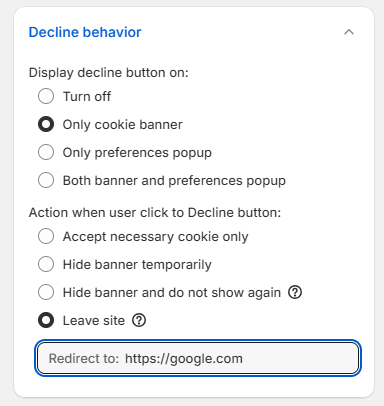
#### 4. Redirect User to Another Page

* After clicking Decline, the user is redirected to a different page (for example, your privacy policy or a goodbye page).
* You can configure the specific URL for the redirect.

<figure><img src="https://867177989-files.gitbook.io/~/files/v0/b/gitbook-x-prod.appspot.com/o/spaces%2FpXyFBfh7hfzrY5z7HQRN%2Fuploads%2FPEnHxpCj3jyWmnsc7mA3%2Fimage.png?alt=media&amp;token=3bb6ef50-840c-4635-a2ee-871a4f4532be" alt=""><figcaption></figcaption></figure>

***

### How to Configure Decline Button Behavior

1. **Open the Consentik App** in Shopify.
2. Navigate to the **Settings -> Behavior -> Decline behavior** section.
3. **Choose Decline Button Visibility:**
   * Disable, show on banner, show in preferences popup, or show in both.
4. **Select Decline Action:**
   * Accept necessary cookies only (and update button text if desired)
   * Temporarily hide banner
   * Hide banner permanently
   * Redirect to another page (enter the redirect URL)
5. **Customize the Decline Button Label** to make its action clear to users, especially if you select “accept necessary cookies only.”
6. **Save your settings** and test on your storefront.

***

### Tips

* **Clarity is Key:** Always use clear, descriptive labels for the Decline button so users know what will happen.
* **Compliance:** Consult cookie regulations relevant to your market to ensure your Decline options meet legal requirements.
* **Redirect Thoughtfully:** If using the redirect option, send users to a helpful page (such as your privacy policy) instead of a blank or error page.


# Preferences popup config

## 1. Show/Hide Cookie Information Table on Preferences Popup

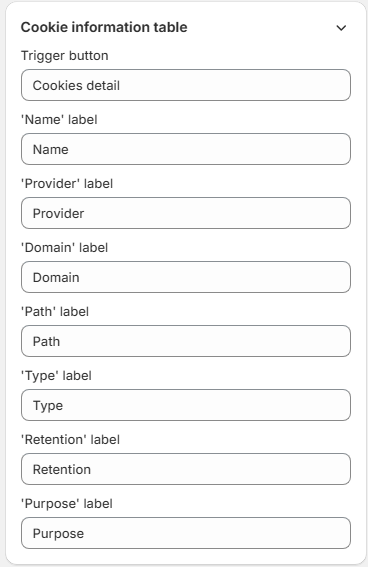
The Consentik Cookie Banner includes a flexible feature allowing merchants to either show or hide a detailed cookie information table within the preferences popup. This feature gives merchants the ability to customize the user experience by providing more or less detail about the cookies in use, according to their compliance strategy and user engagement preferences.

### Key Benefits

1. **Customizable User Experience**: Merchants can choose to display a detailed cookie table for transparency or hide it for a simpler user interface.
2. **Enhanced Transparency**: Showing the cookie information table can help in building trust with users by being transparent about the cookies used and their purposes.
3. **User Consent Accuracy**: Providing detailed information may help users make more informed decisions about their cookie preferences, potentially leading to more precise consent.

### Setup Guide:&#x20;

Go to **Settings -> Behavior -> Preferences Popup Config -> Turn on/off option "Show cookie information table on each category"**

<figure><img src="https://867177989-files.gitbook.io/~/files/v0/b/gitbook-x-prod.appspot.com/o/spaces%2FpXyFBfh7hfzrY5z7HQRN%2Fuploads%2FgzaBIdijnSBX6OvTkilU%2Fimage.png?alt=media&amp;token=245dfff5-d8c1-4ea6-9845-a1556101b3bc" alt=""><figcaption></figcaption></figure>

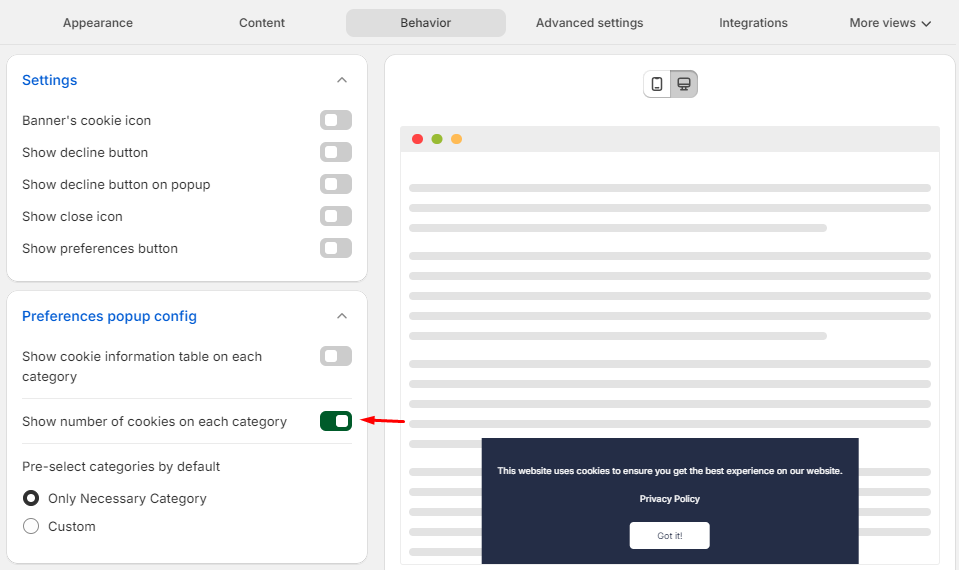
### 2. Show number of cookies on each category

The Consentik Cookie Banner provides a detailed view for users by displaying the count of cookies used in each category. This transparency feature helps to enhance user trust and understanding, ensuring that they are well-informed about the cookies being used on the website

### Key Benefits

1. **Enhanced Transparency**: By showing the number of cookies in each category, users can see exactly how many cookies are active and what their purpose is, promoting a higher level of transparency.
2. **Informed Consent**: Users are more likely to give informed consent when they understand the extent of cookie usage across different categories, such as necessary, performance, analytics, and marketing cookies.
3. **User Trust**: Transparency in cookie usage helps in building trust between the website and its users, ensuring compliance with GDPR and other privacy regulations.

### Setup Guide:

Go to **Settings -> Behavior -> Preferences Popup Config -> Turn on/off option "Show number of Cookies on each category"**

<figure><img src="https://867177989-files.gitbook.io/~/files/v0/b/gitbook-x-prod.appspot.com/o/spaces%2FpXyFBfh7hfzrY5z7HQRN%2Fuploads%2F5xcZiKgZXVi29ASzJ8Z3%2Fimage.png?alt=media&amp;token=eb015dd7-26d0-487a-9f2f-4ccb20e7493e" alt=""><figcaption></figcaption></figure>

## 3. Pre-select Categories by Default

The "Pre-select Categories by Default" feature in the Consentik Cookie Banner allows merchants to configure the preferences popup so that certain cookie categories are checked by default. This functionality provides flexibility in managing user consent by influencing the initial state of consent preferences.

### Key Benefits

1. **User Convenience**: Automatically checking certain categories can help streamline the user experience, especially for cookies that are essential or generally accepted.
2. **Compliance Flexibility**: Allows merchants to comply with regulations while also maintaining an optimal balance between user experience and necessary data collection.
3. **Increased Engagement**: By pre-selecting non-essential cookie categories, merchants might see higher acceptance rates, which can be crucial for analytics and marketing strategies.

### Setup Guide:

Go to **Settings** -> **Behavior** -> **Preferences Popup Config** -> Select **Only Necessary Category** or **Custom**

<figure><img src="https://867177989-files.gitbook.io/~/files/v0/b/gitbook-x-prod.appspot.com/o/spaces%2FpXyFBfh7hfzrY5z7HQRN%2Fuploads%2FPXGSscEeVEzV4Etv0oiV%2Fimage.png?alt=media&amp;token=db026f3d-5148-4056-b4b7-d9368ec27792" alt=""><figcaption></figcaption></figure>


# Block User Interaction Until Consent

Consentik Cookie for Shopify offers a powerful feature called Block User Interaction Until Consent, allowing you to display an overlay that prevents users from interacting with your store’s content un

### What is Block User Interaction Until Consent?

When enabled, this feature places a customizable overlay behind your cookie banner and over your store’s content. Visitors cannot interact with your website—such as clicking links, scrolling, or filling out forms—until they accept or decline your cookie policy. This approach is especially useful for stores that need to strictly enforce consent before collecting any data.

### Overlay Customization Options

Consentik Cookie lets you tailor the overlay to match your store’s style and provide the right user experience:

* **Blur Level:** Adjust how much the overlay blurs the content underneath. A higher blur makes your store less visible until consent is given.
* **Opacity:** Set the transparency of the overlay, from barely noticeable to almost completely opaque.

These options make it easy to balance compliance with aesthetics, ensuring your site is both effective and visually appealing.

***

### How to Set Up the Overlay

1. **Open the Consentik App Dashboard** from your Shopify admin.
2. Navigate to the **Settings -> Behavior** **-> Block Interaction Until Consent** settings.
3. **Enable the feature** to activate the overlay.
4. **Adjust the Blur and Opacity** sliders to achieve the desired appearance.
5. **Save your changes** and preview how the overlay looks on your store.

***

### How It Works for Your Customers

* When a new visitor lands on your website, the overlay appears immediately, blocking all interactions except with the cookie banner.
* After the user provides their consent choice (accept or decline), the overlay disappears and your store becomes fully interactive.

***

### Tips

* Use a moderate blur and opacity to keep your brand visible while still drawing attention to the consent banner.
* Clearly explain why interaction is blocked in your cookie message for a better user experience.
* Regularly review your consent flow to ensure it meets both legal requirements and customer expectations.


# Data Sale Opt-Out Feature

Consentik Cookie for Shopify includes a dedicated Data Sale Opt-Out feature, helping your store comply with privacy regulations such as the California Consumer Privacy Act (CCPA) and similar US laws.

### What Does the Data Sale Opt-Out Feature Do?

With this feature enabled, your store can display a **“Do Not Sell/Share My Data”** checkbox with a customizable label. This checkbox can be added to either the cookie banner or the preferences popup, depending on your chosen privacy flow and design.

### Key Capabilities

* **Customizable Checkbox Label:** You can edit the text shown next to the opt-out checkbox (e.g., “Do not sell or share my personal data”) to match your store’s voice or regulatory requirements.
* **Flexible Placement:** Decide whether the checkbox appears on the initial cookie banner, within the preferences popup, or both.
* **Automatic US Customer Detection:** Consentik automatically detects when a customer is visiting from the United States—where data sale opt-out is required by law.
* **Default State for US Visitors:** For visitors from the US, the checkbox is pre-checked by default, maximizing compliance and user awareness.
* **Consent Sync with Shopify:** When a US visitor interacts with the checkbox (checked or unchecked), Consentik automatically sends the updated consent status to Shopify, ensuring your store keeps accurate records.
* **Real-time Consent Update:** If a visitor unchecks the box, Consentik immediately updates their consent record and resends this information to Shopify.

***

### How It Works

1. **Enable Data Sale Opt-Out:** In the Consentik app dashboard, turn on the Data Sale Opt-Out feature.
2. **Configure Placement & Label:**
   * Choose where the checkbox will appear (banner, popup, or both).
   * Edit the label text to suit your store’s messaging.
3. **Automatic US Detection:** When a visitor from the US lands on your store, the checkbox will be shown and pre-checked.
4. **Consent Handling:**
   * If the customer leaves the box checked, their consent to opt-out of data sale/share is recorded and sent to Shopify.
   * If the customer unchecks the box, Consentik updates the consent and resends the new status to Shopify instantly.

***

### Best Practices

* **Be Clear:** Use straightforward, easy-to-understand language for your checkbox label.
* **Stay Compliant:** Regularly review privacy laws affecting your customers and update your consent flows as required.
* **Transparency:** Let users know what opting out means (e.g., in a tooltip or link to your privacy policy).

***

### Example Use Cases

* **US-based Shopify Stores:** Ensure you’re compliant with CCPA and similar regulations by offering a clear opt-out option.
* **Global Stores with US Traffic:** Automatically provide the opt-out for US visitors without disrupting the experience for others.


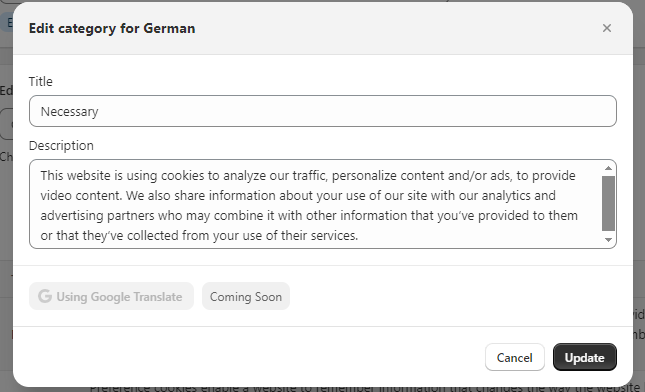
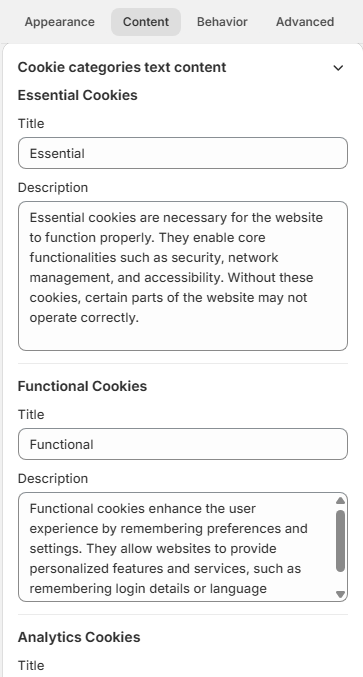
# Managing cookies

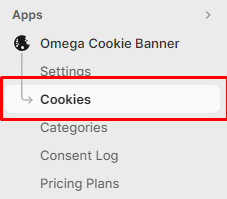
To categorize, publish and unpublish, change name and/or description of the cookies, go to Cookie section on the navigation.&#x20;

<figure><img src="https://867177989-files.gitbook.io/~/files/v0/b/gitbook-x-prod.appspot.com/o/spaces%2FpXyFBfh7hfzrY5z7HQRN%2Fuploads%2FUusVN50Ng5PqOM28BsSc%2FScreenshot_4.png?alt=media&amp;token=f42acc39-7eff-4e6e-be21-2ee2fa02947e" alt=""><figcaption><p>Click on the image to expand</p></figcaption></figure>

Upon opening, you should see a table with the following columns:

* **No**: The row number.&#x20;
* **Title**: The name of the cookie, usually the id of that cookie.&#x20;
* **Description**: The detail of that cookie. This information is usually blank. The description of that cookie will also be visible on the cookie banner.&#x20;
* **Category**: The category of that banner. By default, there will be 4 categories: Necessary, Preferences, Marketing, Analytics. If you have published the cookie but haven't put it in any category, it will still not be displayed on your cookie banner.&#x20;
* **Status**: If the cookie has been published or not. Once published, it will be visible for people to see it on your cookie banner so that they are aware of its existence and usage.&#x20;
* **Scanned**: If the cookie was created by you or scanned from your customers' browsers.&#x20;
* **Action**: Once hover over the row (cookie), you can opt to edit the cookie's information or delete it.&#x20;

You can quickly filter out the cookies using the conditions on top of the table:

<figure><img src="https://867177989-files.gitbook.io/~/files/v0/b/gitbook-x-prod.appspot.com/o/spaces%2FpXyFBfh7hfzrY5z7HQRN%2Fuploads%2FIyimvQRt80j5LYmTdoPp%2Fimage.png?alt=media&amp;token=25a997f8-c8da-4444-b393-1124f6a43d94" alt=""><figcaption></figcaption></figure>

Alternatively, you can filter out cookies base on their categories. Use this filter:

<figure><img src="https://867177989-files.gitbook.io/~/files/v0/b/gitbook-x-prod.appspot.com/o/spaces%2FpXyFBfh7hfzrY5z7HQRN%2Fuploads%2FQIE6251pXvgpHWYaPkPs%2Fimage.png?alt=media&amp;token=12310ea6-aadb-4fb3-82f8-04a9e1f26fe5" alt=""><figcaption></figcaption></figure>

To manually add a new cookie, click on Add cookie button on the top right corner:&#x20;

<figure><img src="https://867177989-files.gitbook.io/~/files/v0/b/gitbook-x-prod.appspot.com/o/spaces%2FpXyFBfh7hfzrY5z7HQRN%2Fuploads%2FbwpGTAe60u5jFx7HMN00%2Fimage.png?alt=media&amp;token=ab460080-55bd-488e-9628-9e3ed68e90ba" alt=""><figcaption></figcaption></figure>

A new pop-up will appear. Fill in the information necessary and click Submit to save:

<figure><img src="https://867177989-files.gitbook.io/~/files/v0/b/gitbook-x-prod.appspot.com/o/spaces%2FpXyFBfh7hfzrY5z7HQRN%2Fuploads%2Fzz0ipjisKmnWTgZpNkn8%2Fimage.png?alt=media&amp;token=b937312c-a78b-43ad-b002-51adf2e871ba" alt=""><figcaption></figcaption></figure>


# Managing categories

Managing categories, their name, description and organization is just as important as managing the cookies themselves as the information regarding the categories is asked by a number of regulations to be as clear and easy to understand as possible.&#x20;

Start managing categories by click on Categories in the navigation.&#x20;

<figure><img src="https://867177989-files.gitbook.io/~/files/v0/b/gitbook-x-prod.appspot.com/o/spaces%2FpXyFBfh7hfzrY5z7HQRN%2Fuploads%2FWfRr1g6cZYdOeShCObXk%2Fimage.png?alt=media&amp;token=e21d3b45-cfc0-4c50-b9b4-c17219513d47" alt=""><figcaption><p>Click on the image to expand</p></figcaption></figure>

Upon opening the tab, you will see a table which lists the current categories. You can add new categories to the list, edit or remove them.&#x20;

The columns of the table can be explained as below:

* **No**: Number of row.
* **Title:** Name of the category. You can change it to better fit the language of the cookie banner.
* **Description**: The detail regarding the purpose of this categories, overall description of the cookies listed in the categories and any additional information that may affect the decision of customers to turn that category on or off.&#x20;
* **Status**: If the category has been published and visible on cookie banner or not.&#x20;
* **Necessary**: Some website requires certain cookies to function. Those belong to this type will and should be listed in the Necessary category. This category is named Necessary by default.&#x20;
* **Action**: Once hover over any row, you can select to edit the category's information or delete the category permanently.&#x20;

Using the filter on top of the table, you can quickly sort out the categories you want:

<figure><img src="https://867177989-files.gitbook.io/~/files/v0/b/gitbook-x-prod.appspot.com/o/spaces%2FpXyFBfh7hfzrY5z7HQRN%2Fuploads%2FpWgdJjbcwI3P84POCtXa%2Fimage.png?alt=media&amp;token=919b809e-f97a-477d-9c2f-b3df3398773f" alt=""><figcaption></figcaption></figure>

To create a new category, click on the Add category button on the top right corner:

<figure><img src="https://867177989-files.gitbook.io/~/files/v0/b/gitbook-x-prod.appspot.com/o/spaces%2FpXyFBfh7hfzrY5z7HQRN%2Fuploads%2F7BdBxdWI2jszFQzcovgI%2Fimage.png?alt=media&amp;token=501e89d1-4a53-454e-b1ce-ea7eb7ccd0fe" alt=""><figcaption></figcaption></figure>

A pop-up will appear. Fill out the information necessary in the pop-up and click Submit to create new:&#x20;

<figure><img src="https://867177989-files.gitbook.io/~/files/v0/b/gitbook-x-prod.appspot.com/o/spaces%2FpXyFBfh7hfzrY5z7HQRN%2Fuploads%2FNhq3ZkmC92jqI5g3gFxb%2Fimage.png?alt=media&amp;token=6ae756bd-9def-4074-80fb-a4190aa4226f" alt=""><figcaption></figcaption></figure>


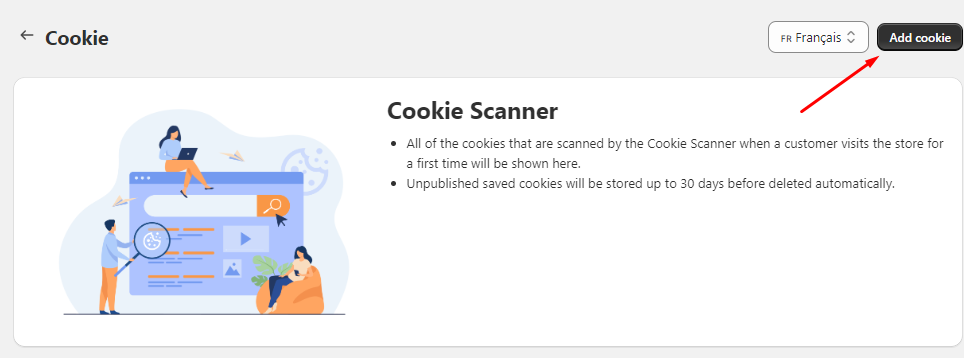
# Cookie Auto-Scanner and Auto-Transfer

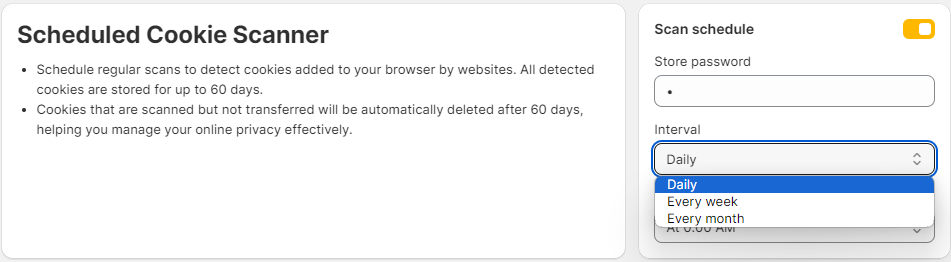
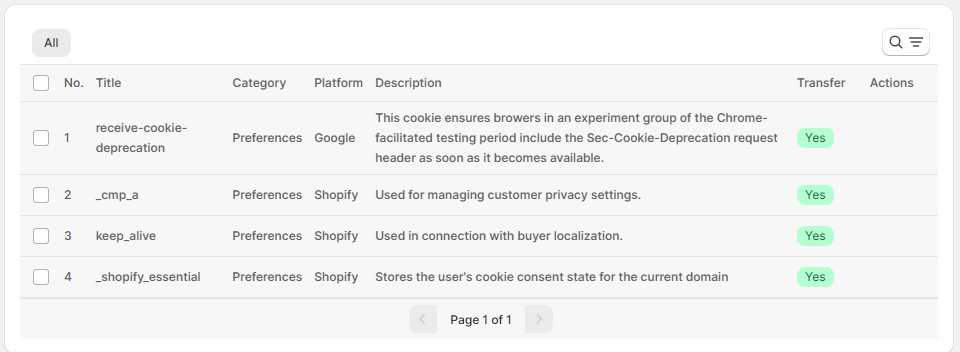
The <mark style="color:blue;">**Consentik Cookie Banner**</mark> app offers a robust Cookie Auto-Scanner and Auto-Transfer feature that automatically scans your online store for cookies and categorizes them accordingly. This feature is designed to simplify the management of cookies and ensure compliance with GDPR, CCPA, and other privacy regulations by keeping track of all cookies used on your site.

<figure><img src="https://867177989-files.gitbook.io/~/files/v0/b/gitbook-x-prod.appspot.com/o/spaces%2FpXyFBfh7hfzrY5z7HQRN%2Fuploads%2F7Tk2sYcvu6gqicUGoskg%2Fimage.png?alt=media&amp;token=7183aa72-ec3f-413d-b2ce-1ccfe52932a5" alt=""><figcaption></figcaption></figure>

<figure><img src="https://867177989-files.gitbook.io/~/files/v0/b/gitbook-x-prod.appspot.com/o/spaces%2FpXyFBfh7hfzrY5z7HQRN%2Fuploads%2FXb1gehn7JS9sbpNV4ptd%2Fimage.png?alt=media&amp;token=b2918d8c-828a-4de5-bb34-0e0671f390e2" alt=""><figcaption></figcaption></figure>

### Functionality:

* **Automatic Cookie Scanning:** Automatically scans your store for all types of cookies, including first-party and third-party cookies, ensuring that no cookie goes unnoticed.
* **Scheduled Scans:** Set up a scanning schedule that fits your needs. Whether it's daily, weekly, or monthly, you can choose how frequently the app scans your website for cookies.
* **Automatic Transfer to Categories:** After scanning, cookies are automatically categorized into predefined categories such as 'Necessary', 'Performance', 'Analytics', and 'Marketing'. This categorization helps in clearly informing users about the type of cookies being used and obtaining their consent accordingly.

### Benefits:

* **Ease of Use:** Automates the tedious and complex process of cookie management, saving time and reducing errors.
* **Continuous Compliance:** Ensures your store stays compliant with laws and regulations by regularly updating the cookie inventory and their categorizations.
* **Enhanced Transparency:** Provides clear and organized information about cookies to website visitors, enhancing trust and satisfaction.


# Import & Export Cookies

The "Import and Export Cookies via Excel" feature in Consentik Cookie Banner provides an efficient way for merchants to manage their website's cookies by using CSV template files. This feature simplifies the process of adding or updating multiple cookie details simultaneously and allows for easy backup or analysis by exporting existing cookie data.

### Key Benefits

1. **Bulk Management**: Easily manage large numbers of cookies by importing and exporting them in bulk, saving time and reducing manual entry errors.
2. **Consistency and Accuracy**: Ensure that all cookie information is consistent and accurate across the website by handling data in a structured format.
3. **Data Portability**: Export cookie data for backup purposes or to use in other tools for further analysis and reporting.

<figure><img src="https://867177989-files.gitbook.io/~/files/v0/b/gitbook-x-prod.appspot.com/o/spaces%2FpXyFBfh7hfzrY5z7HQRN%2Fuploads%2Fdtbr3EJrq8VyKNFXEvsF%2Fimage.png?alt=media&amp;token=b9e6f271-614b-41bc-8616-01e595770b3f" alt=""><figcaption></figcaption></figure>

<figure><img src="https://867177989-files.gitbook.io/~/files/v0/b/gitbook-x-prod.appspot.com/o/spaces%2FpXyFBfh7hfzrY5z7HQRN%2Fuploads%2FSzHYl3keYpVPFYXGQ84w%2Fimage.png?alt=media&amp;token=bdb5e88f-5f04-46ba-8cbc-a740ecf32357" alt=""><figcaption></figcaption></figure>

### How it Works

#### Importing Cookies

* **Prepare Excel Template**: Download the CSV template from the Consentik Cookie page. Fill in the cookie details such as cookie name, cookie description, category, platform and expired time.
* **Upload Excel File**: Navigate to the cookie management section in your Consentik, click to **Import/Export** button on the head and upload your file
* **Validation and Import**: The system will validate the data for any errors. If the data is correct, cookies will be imported and set up in your cookie banner configuration.

#### Exporting Cookies

* **Select Cookies to Export**: In the Consentik Cookie Management Page, click to Import/Export button on the head and change to Export tab. You can choose all cookies or select specific categories.
* **Export to Excel**: Click the export button, and the system will generate a **Excel** file containing the details of the selected cookies and send it to you email.
* **Download and Use**: On the export email, there is a Download link for the **Excel** file, click to it to download export file.


# Consent log

## Consent log table

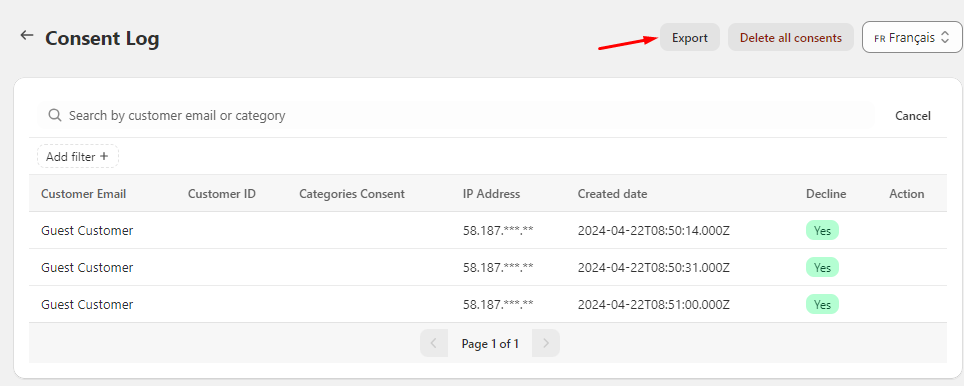
Consent log is where customers' consent is recorded. This can either be giving or denying consent to data collection.&#x20;

<figure><img src="https://867177989-files.gitbook.io/~/files/v0/b/gitbook-x-prod.appspot.com/o/spaces%2FpXyFBfh7hfzrY5z7HQRN%2Fuploads%2FJYTD0RXypZrwkPUePenU%2Fimage.png?alt=media&amp;token=27248483-8e69-4c2d-8807-ee42475419e8" alt=""><figcaption></figcaption></figure>

The table here will display information regarding the times when customers interact with your cookie banner. Their basic information will be recorded such as their email, IP address, the timing of the consent, their consent preferences and which cookie category they consent to.&#x20;

Use the filters on the top right corner to quickly do analysis and find the information you want.&#x20;

## Exporting

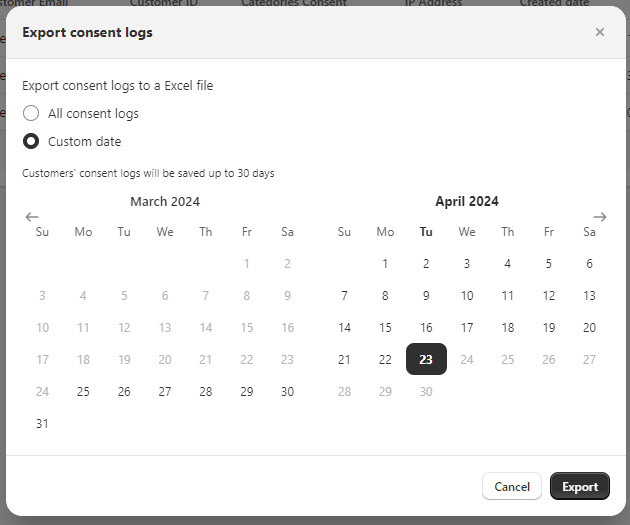
To export data for your own usage, simply click on the 'Export excel' button. You can choose to export the current page only or every record of customers accepting cookies.&#x20;

<figure><img src="https://867177989-files.gitbook.io/~/files/v0/b/gitbook-x-prod.appspot.com/o/spaces%2FpXyFBfh7hfzrY5z7HQRN%2Fuploads%2FHKn4D9vpGEYZWHbSDzn2%2Fimage.png?alt=media&amp;token=b7d58257-eeb9-46d9-8853-d94f861b9bca" alt=""><figcaption></figcaption></figure>

<figure><img src="https://867177989-files.gitbook.io/~/files/v0/b/gitbook-x-prod.appspot.com/o/spaces%2FpXyFBfh7hfzrY5z7HQRN%2Fuploads%2Fjt0oeqTUuiMscRhaUGUk%2Fimage.png?alt=media&amp;token=9ea94c4f-7fc6-4a6f-b49c-910adbabc77e" alt=""><figcaption></figcaption></figure>

## Delete consent log

If, for any reason, you want to delete all of consent record, simply click on the delete all users button on the top right corner. A delete confirmation will appear to ask you to confirm your decision.&#x20;


# Consent Response Statistics Page

The "Consent Response Statistics Page" feature in the Consentik Cookie Banner provides a comprehensive analysis of user interactions with the cookie consent banner. This dashboard offers various

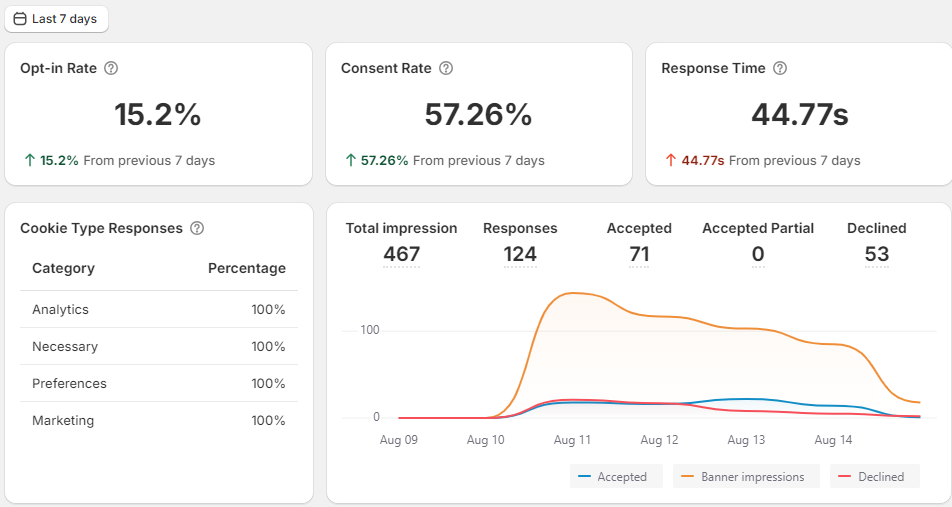
Access this page: **Consent** **logs** -> **Statistics**

### Key Metrics

1. **Consent Rate**: Calculates the rate of acceptance over the total number of accept and decline responses.
2. **Opt-In Rate**: Measures the rate of acceptances over the total number of banner impressions.
3. **Response Time**: Tracks the average time taken by users to respond to the consent banner.
4. **Rate of Each Cookie Category**: Shows the acceptance rate for each specific cookie category such as Necessary, Analytics, and Marketing.
5. **Charts of Response and Impressions**: Visual representations showing trends and patterns in consent responses and banner impressions over time.
6. **Top Pages**: Identifies which pages on your site receive the highest engagement in terms of consent interactions.
7. **Top Countries**: Displays geographical data indicating where consent responses are most active.
8. **Device Distribution**: Analyzes consent responses based on the types of devices used, such as desktops, tablets, or smartphones.
9. **Browser Distribution**: Provides insights into which web browsers are most commonly used by users who interact with the consent banner

<figure><img src="https://867177989-files.gitbook.io/~/files/v0/b/gitbook-x-prod.appspot.com/o/spaces%2FpXyFBfh7hfzrY5z7HQRN%2Fuploads%2FDytXEruUGFmZeyJkuWN9%2Fimage.png?alt=media&amp;token=64bbd3fb-992d-4379-a607-3bc53dc50b88" alt=""><figcaption></figcaption></figure>

<figure><img src="https://867177989-files.gitbook.io/~/files/v0/b/gitbook-x-prod.appspot.com/o/spaces%2FpXyFBfh7hfzrY5z7HQRN%2Fuploads%2FdRIH9sRfVxYhnpANtfF7%2Fimage.png?alt=media&amp;token=8f777108-88cd-4d9b-b23b-4841383a8b87" alt=""><figcaption></figcaption></figure>

### Benefits

* **Informed Decision Making**: Leverage detailed analytics to refine cookie consent strategies and improve compliance with data protection regulations.
* **User Engagement Insights**: Understand how different audiences interact with your consent mechanisms, enabling targeted improvements.
* **Compliance Monitoring**: Keep track of consent rates and adherence to privacy laws like GDPR and CCPA.

### How it Works

* **Data Collection**: Consentik automatically tracks all interactions with the cookie banner, logging data like consent rates, response times, and user preferences.
* **Analytics Processing**: The system processes this data to generate real-time analytics and visualizations accessible via the dashboard.
* **Access and Review**: Users can log into their Consentik dashboard, navigate to the 'Statistics' section, and view various metrics and charts.


# Pricing

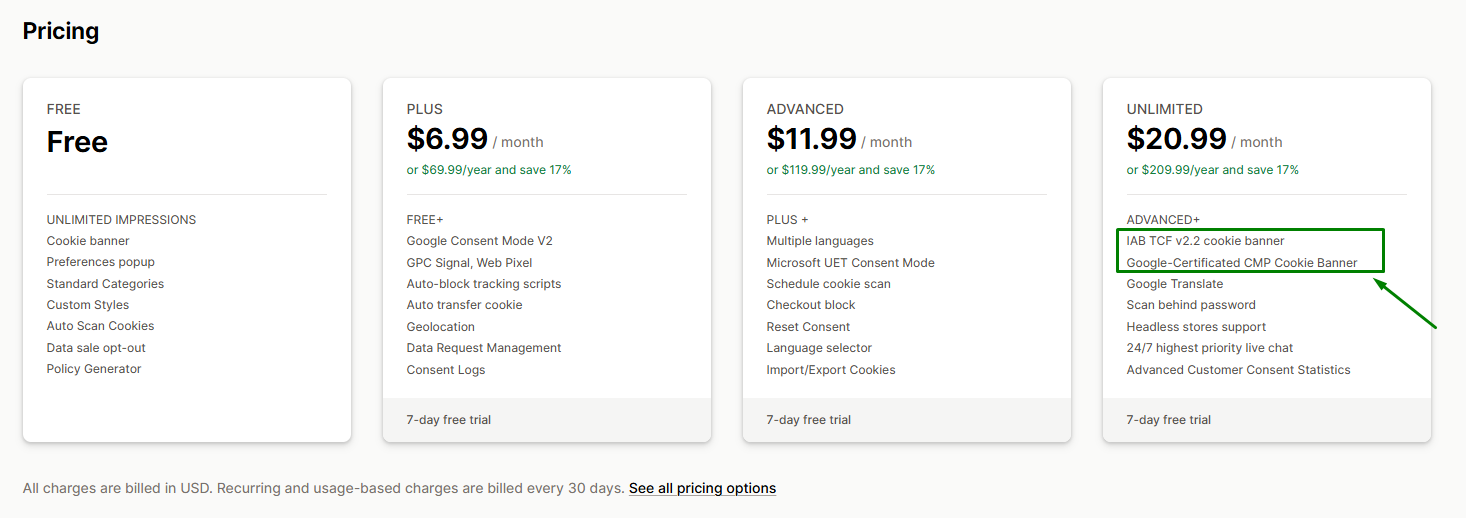
There are 4 plan options: FREE, PLUS, ADVANCED and UNLIMITED. With the free one, you can design a functioning cookie banner on your website, but with the paid one, you can effortlessly manage cookie consent and stay 100% compliant with local regulation. On top of that,  you can accumulate some statistics regarding your cookies, for the purpose of analytics.&#x20;

<figure><img src="https://867177989-files.gitbook.io/~/files/v0/b/gitbook-x-prod.appspot.com/o/spaces%2FpXyFBfh7hfzrY5z7HQRN%2Fuploads%2FipeH2j8jp1hPBirSmdJ6%2FScreenshot%202025-02-11%20134851.png?alt=media&amp;token=92d3c412-c09c-4d5c-9b9c-969aa57a4912" alt=""><figcaption></figcaption></figure>

Upgrade from FREE to Paid plans anytime and you'll have access to the laziest way to manage cookies and stay compliant.&#x20;

Downgrade anytime you want. Simply click on the Downgrade button. Contact our support should there be anything problem at all.&#x20;

### <mark style="color:blue;">Compare plans</mark> <a href="#compare-plans" id="compare-plans"></a>

<table><thead><tr><th width="318">Features</th><th width="93">Free</th><th>Plus</th><th>Advanced</th><th>Unlimited</th></tr></thead><tbody><tr><td><mark style="color:blue;"><strong>Price</strong></mark></td><td>FREE</td><td>$6.99/m<br>or $69.99/y</td><td>$11.99/m<br>or $119.99/y</td><td>$20.99/m<br>or $209.99/y</td></tr><tr><td></td><td></td><td></td><td></td><td></td></tr><tr><td><mark style="color:blue;">🎨 <strong>APPEARANCE</strong></mark><br><mark style="color:blue;">Customize the look and feel of cookie banner and preferences popup on storefront</mark></td><td></td><td></td><td></td><td></td></tr><tr><td><strong>Cookie banner</strong><br>Customize color, text, position of cookie banner</td><td><mark style="color:blue;"><strong>✔</strong></mark></td><td><mark style="color:blue;"><strong>✔</strong></mark></td><td><mark style="color:blue;"><strong>✔</strong></mark></td><td><mark style="color:blue;"><strong>✔</strong></mark></td></tr><tr><td><strong>Preferences Popup</strong><br>Customize color, text, position of preferences popup</td><td><mark style="color:blue;"><strong>✔</strong></mark></td><td><mark style="color:blue;"><strong>✔</strong></mark></td><td><mark style="color:blue;"><strong>✔</strong></mark></td><td><mark style="color:blue;"><strong>✔</strong></mark></td></tr><tr><td>Glass effect</td><td><mark style="color:orange;">❌</mark></td><td><mark style="color:blue;"><strong>✔</strong></mark></td><td><mark style="color:blue;"><strong>✔</strong></mark></td><td><mark style="color:blue;"><strong>✔</strong></mark></td></tr><tr><td></td><td></td><td></td><td></td><td></td></tr><tr><td>🍪 <mark style="color:blue;"><strong>COOKIE MANAGEMENT</strong></mark><br><mark style="color:blue;">Manage cookies, categories on store front</mark></td><td></td><td></td><td></td><td></td></tr><tr><td>Auto scan cookie</td><td><mark style="color:blue;"><strong>✔</strong></mark></td><td><mark style="color:blue;"><strong>✔</strong></mark></td><td><mark style="color:blue;"><strong>✔</strong></mark></td><td><mark style="color:blue;"><strong>✔</strong></mark></td></tr><tr><td>Add, edit, delete categories</td><td><mark style="color:orange;">❌</mark></td><td><mark style="color:blue;"><strong>✔</strong></mark></td><td><mark style="color:blue;"><strong>✔</strong></mark></td><td><mark style="color:blue;"><strong>✔</strong></mark></td></tr><tr><td>Add, edit, delete cookies</td><td><mark style="color:orange;">❌</mark></td><td><mark style="color:blue;"><strong>✔</strong></mark></td><td><mark style="color:blue;"><strong>✔</strong></mark></td><td><mark style="color:blue;"><strong>✔</strong></mark></td></tr><tr><td>Auto transfer cookie to categories</td><td><mark style="color:orange;">❌</mark></td><td><mark style="color:blue;"><strong>✔</strong></mark></td><td><mark style="color:blue;"><strong>✔</strong></mark></td><td><mark style="color:blue;"><strong>✔</strong></mark></td></tr><tr><td>Schedule scanning cookies</td><td><mark style="color:orange;">❌</mark></td><td><mark style="color:orange;">❌</mark></td><td><mark style="color:blue;"><strong>✔</strong></mark></td><td><mark style="color:blue;"><strong>✔</strong></mark></td></tr><tr><td>Scan behind password</td><td><mark style="color:orange;">❌</mark></td><td><mark style="color:orange;">❌</mark></td><td><mark style="color:orange;">❌</mark></td><td><mark style="color:blue;"><strong>✔</strong></mark></td></tr><tr><td></td><td></td><td></td><td></td><td></td></tr><tr><td>📃<mark style="color:blue;"><strong>CONSENT LOGS</strong></mark><br><mark style="color:blue;">Tracking user consent and behavior to cookie banner</mark></td><td></td><td></td><td></td><td></td></tr><tr><td>Logging users' consent</td><td><mark style="color:orange;">❌</mark></td><td><mark style="color:blue;"><strong>✔</strong></mark></td><td><mark style="color:blue;"><strong>✔</strong></mark></td><td><mark style="color:blue;"><strong>✔</strong></mark></td></tr><tr><td>Export user consent</td><td><mark style="color:orange;">❌</mark></td><td><mark style="color:blue;"><strong>✔</strong></mark></td><td><mark style="color:blue;"><strong>✔</strong></mark></td><td><mark style="color:blue;"><strong>✔</strong></mark></td></tr><tr><td>Customer data request management</td><td><mark style="color:orange;">❌</mark></td><td><mark style="color:blue;"><strong>✔</strong></mark></td><td><mark style="color:blue;"><strong>✔</strong></mark></td><td><mark style="color:blue;"><strong>✔</strong></mark></td></tr><tr><td>Reset consent</td><td><mark style="color:orange;">❌</mark></td><td><mark style="color:orange;">❌</mark></td><td><mark style="color:blue;"><strong>✔</strong></mark></td><td><mark style="color:blue;"><strong>✔</strong></mark></td></tr><tr><td>Advanced user consent statistics</td><td><mark style="color:orange;">❌</mark></td><td><mark style="color:orange;">❌</mark></td><td><mark style="color:orange;">❌</mark></td><td><mark style="color:blue;"><strong>✔</strong></mark></td></tr><tr><td></td><td></td><td></td><td></td><td></td></tr><tr><td>👣 <mark style="color:blue;"><strong>USER EXPERIENCES CONFIG</strong></mark></td><td></td><td></td><td></td><td></td></tr><tr><td>Config consent lifetime on browser</td><td><mark style="color:orange;">❌</mark></td><td><mark style="color:blue;"><strong>✔</strong></mark></td><td><mark style="color:blue;"><strong>✔</strong></mark></td><td><mark style="color:blue;"><strong>✔</strong></mark></td></tr><tr><td>Delayed banner</td><td><mark style="color:orange;">❌</mark></td><td><mark style="color:blue;"><strong>✔</strong></mark></td><td><mark style="color:blue;"><strong>✔</strong></mark></td><td><mark style="color:blue;"><strong>✔</strong></mark></td></tr><tr><td>Re-open button</td><td><mark style="color:orange;">❌</mark></td><td><mark style="color:blue;"><strong>✔</strong></mark></td><td><mark style="color:blue;"><strong>✔</strong></mark></td><td><mark style="color:blue;"><strong>✔</strong></mark></td></tr><tr><td>Show cookie banner on specific regions</td><td><mark style="color:orange;">❌</mark></td><td> <mark style="color:blue;"><strong>✔</strong></mark></td><td><mark style="color:blue;"><strong>✔</strong></mark></td><td><mark style="color:blue;"><strong>✔</strong></mark></td></tr><tr><td>Show cookie information table</td><td><mark style="color:orange;">❌</mark></td><td><mark style="color:blue;"><strong>✔</strong></mark></td><td><mark style="color:blue;"><strong>✔</strong></mark></td><td><mark style="color:blue;"><strong>✔</strong></mark></td></tr><tr><td>Auto-block Tracking Scripts</td><td><mark style="color:orange;">❌</mark></td><td><mark style="color:blue;"><strong>✔</strong></mark></td><td><mark style="color:blue;"><strong>✔</strong></mark></td><td><mark style="color:blue;"><strong>✔</strong></mark></td></tr><tr><td>Preferences Popup Config</td><td><mark style="color:orange;">❌</mark></td><td><mark style="color:blue;"><strong>✔</strong></mark></td><td><mark style="color:blue;"><strong>✔</strong></mark></td><td><mark style="color:blue;"><strong>✔</strong></mark></td></tr><tr><td>Display restriction</td><td><mark style="color:orange;">❌</mark></td><td><mark style="color:blue;"><strong>✔</strong></mark></td><td><mark style="color:blue;"><strong>✔</strong></mark></td><td><mark style="color:blue;"><strong>✔</strong></mark></td></tr><tr><td>Auto-fit Theme</td><td><mark style="color:orange;">❌</mark></td><td><mark style="color:blue;"><strong>✔</strong></mark></td><td><mark style="color:blue;"><strong>✔</strong></mark></td><td><mark style="color:blue;"><strong>✔</strong></mark></td></tr><tr><td>Block users from interacting with the store before giving consent to tracking.</td><td><mark style="color:orange;">❌</mark></td><td><mark style="color:orange;">❌</mark></td><td><mark style="color:blue;"><strong>✔</strong></mark></td><td><mark style="color:blue;"><strong>✔</strong></mark></td></tr><tr><td>Show quick category selector</td><td><mark style="color:orange;">❌</mark></td><td><mark style="color:orange;">❌</mark></td><td><mark style="color:blue;"><strong>✔</strong></mark></td><td><mark style="color:blue;"><strong>✔</strong></mark></td></tr><tr><td>Multiple languages</td><td><mark style="color:orange;">❌</mark></td><td><mark style="color:orange;">❌</mark></td><td><mark style="color:blue;"><strong>✔</strong></mark></td><td><mark style="color:blue;"><strong>✔</strong></mark></td></tr><tr><td>Admin/Setup mode</td><td><mark style="color:orange;">❌</mark></td><td><mark style="color:orange;">❌</mark></td><td><mark style="color:blue;"><strong>✔</strong></mark></td><td><mark style="color:blue;"><strong>✔</strong></mark></td></tr><tr><td>Reset customer consent</td><td><mark style="color:orange;">❌</mark></td><td><mark style="color:orange;">❌</mark></td><td><mark style="color:blue;"><strong>✔</strong></mark></td><td><mark style="color:blue;"><strong>✔</strong></mark></td></tr><tr><td>Google Translate</td><td><mark style="color:orange;">❌</mark></td><td><mark style="color:orange;">❌</mark></td><td><mark style="color:orange;">❌</mark></td><td><mark style="color:blue;"><strong>✔</strong></mark></td></tr><tr><td>Headless Stores</td><td><mark style="color:orange;">❌</mark></td><td><mark style="color:orange;">❌</mark></td><td><mark style="color:orange;">❌</mark></td><td><mark style="color:blue;"><strong>✔</strong></mark></td></tr><tr><td></td><td></td><td></td><td></td><td></td></tr><tr><td> <span data-gb-custom-inline data-tag="emoji" data-code="1f91d">🤝</span> <mark style="color:blue;"><strong>INTEGRATIONS</strong></mark></td><td></td><td></td><td></td><td></td></tr><tr><td>Global Privacy Control Signal</td><td><mark style="color:orange;">❌</mark></td><td><mark style="color:blue;"><strong>✔</strong></mark></td><td><mark style="color:blue;"><strong>✔</strong></mark></td><td><mark style="color:blue;"><strong>✔</strong></mark></td></tr><tr><td>Shopify Web Pixel</td><td><mark style="color:orange;">❌</mark></td><td><mark style="color:blue;"><strong>✔</strong></mark></td><td><mark style="color:blue;"><strong>✔</strong></mark></td><td><mark style="color:blue;"><strong>✔</strong></mark></td></tr><tr><td>Google Consent Mode V2</td><td><mark style="color:orange;">❌</mark></td><td><mark style="color:blue;"><strong>✔</strong></mark></td><td><mark style="color:blue;"><strong>✔</strong></mark></td><td><mark style="color:blue;"><strong>✔</strong></mark></td></tr><tr><td>Microsoft Universal Event Tracking Consent</td><td><mark style="color:orange;">❌</mark></td><td><mark style="color:orange;">❌</mark></td><td><mark style="color:blue;"><strong>✔</strong></mark></td><td><mark style="color:blue;"><strong>✔</strong></mark></td></tr><tr><td>Sklik Retargeting Consent</td><td><mark style="color:orange;">❌</mark></td><td><mark style="color:orange;">❌</mark></td><td><mark style="color:blue;"><strong>✔</strong></mark></td><td><mark style="color:blue;"><strong>✔</strong></mark></td></tr><tr><td>IAB TCF 2.2 Integration</td><td><mark style="color:orange;">❌</mark></td><td><mark style="color:orange;">❌</mark></td><td><mark style="color:orange;">❌</mark></td><td><mark style="color:blue;"><strong>✔</strong></mark></td></tr><tr><td><span data-gb-custom-inline data-tag="emoji" data-code="1f919">🤙</span> <mark style="color:blue;"><strong>CUSTOMER SUPPORT</strong></mark></td><td></td><td></td><td></td><td></td></tr><tr><td><strong>Chat support</strong><br>Support 24/7</td><td><mark style="color:blue;"><strong>✔</strong></mark></td><td><mark style="color:blue;"><strong>✔</strong></mark></td><td><mark style="color:blue;"><strong>✔</strong></mark></td><td><mark style="color:blue;"><strong>✔</strong></mark></td></tr><tr><td><strong>Customization</strong><br>Customize banner's appearance</td><td>Standard priority</td><td>Standard priority</td><td>High priority</td><td>Highest priority</td></tr><tr><td><strong>Feature request</strong></td><td>Standard priority in reviewing and backlog</td><td>Standard priority in reviewing and backlog</td><td>High priority in reviewing and backlog</td><td>Highest priority in reviewing and backlog</td></tr></tbody></table>


# Setup Data Request Management

The **Data Request Management** feature in the Consentik app helps businesses efficiently handle customer data requests. This tool is vital for complying with legal standards, such as the **General Data Protection Regulation (GDPR)** of the European Union. It allows customers to view, edit, or delete their personal data, while businesses can manage these requests transparently.

### Why Use Data Request Management for GDPR Compliance

GDPR protects the privacy and personal data of individuals in the European Union. Under GDPR, customers can:

* Access their personal data.
* Request corrections to inaccurate data.
* Request deletion of their data under certain conditions.

Non-compliance with GDPR can lead to hefty fines and reputational damage. The **Data Request Management** feature ensures businesses meet these obligations, fostering trust through clear and accountable data management.

### How the Feature Works

The **Data Request Management** feature operates as follows:

1. **Data Right Page**: A webpage where customers can submit data requests (view, edit, or delete). It’s accessible only to logged-in customers for security.
2. **Google Account Connection**: Businesses connect their Google account to send email notifications about request statuses.
3. **Request Logs**: Customer requests are logged in the app, allowing businesses to review and respond appropriately.

### Steps to Set Up in the App

Follow these steps to configure the **Data Request Management** feature:

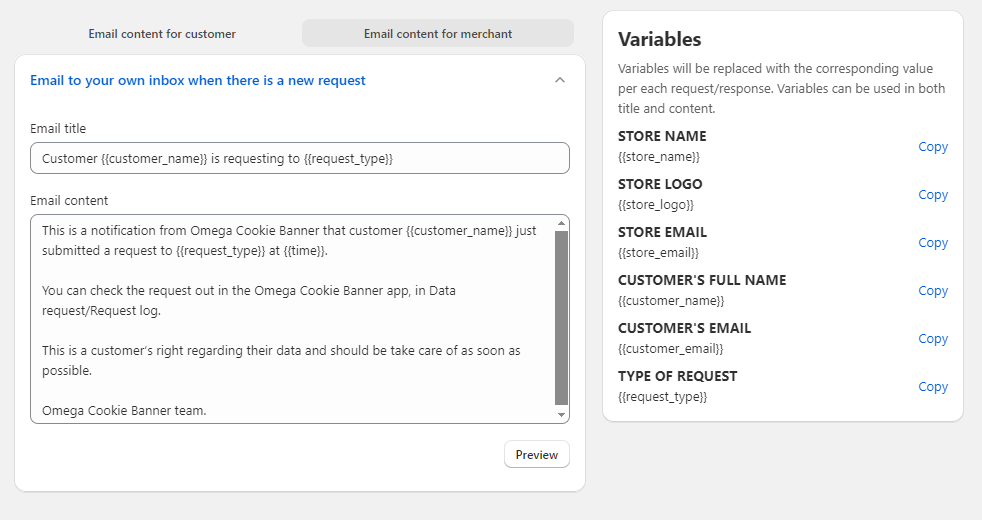
#### 1. Connect Google Account and Set Up Email Content

* **Purpose**: Enable email notifications for customers.
* **Actions**:
  * Navigate to **Data Request/ Email template** in Consentik.
  * Link your Google account.
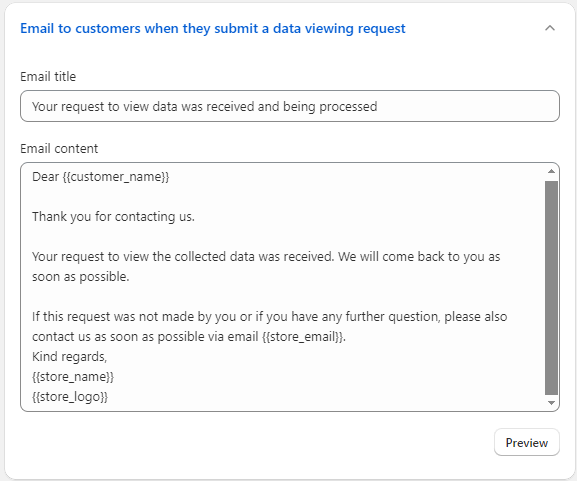
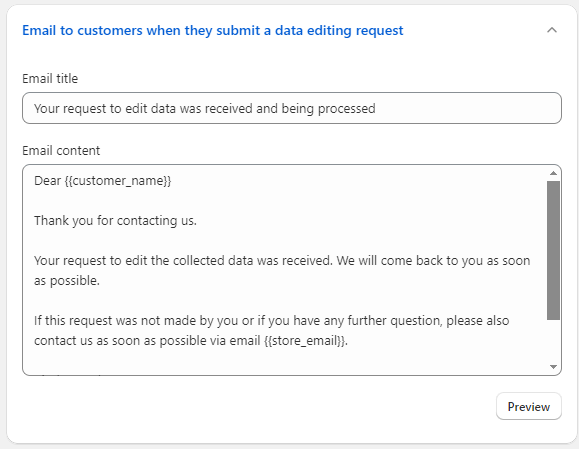
  * Customize email content for request notifications.
* **Guide**: [Email template configuration](/data-request-management/email-template-configuration)

#### 2. Set Up the Data Right Page

* **Purpose**: Provide a page for customer data requests.
* **Actions**:
  * Navigate to **Data Request/ Right Page** settings in Consentik.
  * Adjust the page’s content as needed.
  * Create page
* **Guide**: [Data Right Page Configuration](/data-request-management/data-rights-page-configuration)

#### 3. Check Request Logs

* **Purpose**: Monitor and process customer requests
* **Actions**:
  * Open the **Data Request/Data request Logs** section in Consentik.
  * Review request details (type, submission time).
  * Respond to customers after taking action.
* **Guide**: [Data request log](/data-request-management/data-request-log)

The **Data Request Management** feature in Consentik helps businesses comply with GDPR while managing customer data requests effectively. By setting up the **Data Right Page**, connecting a Google account, and using **Request Logs**, you ensure legal compliance and customer trust.


# Email Template Configuration

The Email Template section of the Data Request Management feature allows merchants to set up personalized communication for handling customer data requests. This section is essential for maintaining consistent branding and ensuring clear, professional communication with both customers and the merchant themselves. Below are detailed instructions and options available within the Email Template configuration.

### Enabling/Disabling the Feature

Merchants have the option to enable or disable the email communication feature based on their preference.

* **Enable Email Feature**: Toggle ON to activate the email communication system.
* **Disable Email Feature**: Toggle OFF to deactivate the email communication system

### Connecting a Google Account

To send emails directly from the merchant’s preferred email address, the system provides the ability to connect a Google account.

* **Google Login Button**: Click to connect a Google account via OAuth2. This will allow the app to send emails using the merchant's email address.

<figure><img src="https://867177989-files.gitbook.io/~/files/v0/b/gitbook-x-prod.appspot.com/o/spaces%2FpXyFBfh7hfzrY5z7HQRN%2Fuploads%2F3bq6gU5v0N7Vd0xMcCC1%2Fimage.png?alt=media&amp;token=d0860f13-13d0-413f-966c-f452c1a19f2b" alt=""><figcaption></figcaption></figure>

* **Account Authentication**: Follow the prompts to log in and grant the app necessary permissions.

<figure><img src="https://867177989-files.gitbook.io/~/files/v0/b/gitbook-x-prod.appspot.com/o/spaces%2FpXyFBfh7hfzrY5z7HQRN%2Fuploads%2FzWCg3ntyq0a4zm67zn1r%2Fimage.png?alt=media&amp;token=d713c590-ee23-4e08-9f7b-1dac1cd2e7d1" alt=""><figcaption><p>Grant the app necessary permissions.</p></figcaption></figure>

### Inserting a Logo URL

Merchants can enhance their email branding by including their company logo in the email templates.

* **Logo URL**: Input the URL of the logo image that merchants want to appear in the email headers.
* **Preview**: After inserting the URL, a preview of the logo should appear to confirm correct placement.

<figure><img src="https://867177989-files.gitbook.io/~/files/v0/b/gitbook-x-prod.appspot.com/o/spaces%2FpXyFBfh7hfzrY5z7HQRN%2Fuploads%2F1fBClInpLmJNKnMP7yMI%2Fimage.png?alt=media&amp;token=f5c79104-0327-492c-8237-6a73e4842378" alt=""><figcaption><p>Include your brand's logo to enhance your email branding</p></figcaption></figure>

### Setting Up Email Templates for Customers

Customizable email templates are provided to address different types of data requests: viewing and deleting data, as well as modifying data.

* **View Data Template**: Tailor an email template to respond to customers requesting to view their data.
* **Edit Data Template**: Customize an email template for customers who wish to correct or update their data.
* **Delete Data Template**: Create an email template for customers who want to delete their data.
* **Variable Usage**: Enhance personalization in the emails with variables such as Store name (`{{`store\_name`}}`), Store Logo (`{{`store\_logo`}}`), Store email(`{{`store\_email`}}`), Customer name (`{{customer_name}}`), Customer email (`{{customer_email}}`), and Type of request (`{{`request\_type`}}`).

<figure><img src="https://867177989-files.gitbook.io/~/files/v0/b/gitbook-x-prod.appspot.com/o/spaces%2FpXyFBfh7hfzrY5z7HQRN%2Fuploads%2F2OhIPhrtowZqZwfoPlb2%2Fimage.png?alt=media&amp;token=6773fe32-da4b-48f2-8549-e76762a72a94" alt=""><figcaption></figcaption></figure>

<figure><img src="https://867177989-files.gitbook.io/~/files/v0/b/gitbook-x-prod.appspot.com/o/spaces%2FpXyFBfh7hfzrY5z7HQRN%2Fuploads%2Fz1BigjJHrO1nfNOSuD2Y%2Fimage.png?alt=media&amp;token=b4faea93-fd20-452f-99bf-b3f256d2e499" alt=""><figcaption></figcaption></figure>

<figure><img src="https://867177989-files.gitbook.io/~/files/v0/b/gitbook-x-prod.appspot.com/o/spaces%2FpXyFBfh7hfzrY5z7HQRN%2Fuploads%2F9kY9rnoUlHfceu91y3ia%2Fimage.png?alt=media&amp;token=92660a9f-23c7-49d6-84f2-55626ce7a2cd" alt=""><figcaption></figcaption></figure>

### Setting Up Merchant Notification Email Template

A notification email template is used to alert merchants about new customer data requests.

<figure><img src="https://867177989-files.gitbook.io/~/files/v0/b/gitbook-x-prod.appspot.com/o/spaces%2FpXyFBfh7hfzrY5z7HQRN%2Fuploads%2FLBdwnLwXg1Ar8NBlJVEJ%2Fimage.png?alt=media&amp;token=054d2f64-dfbc-4dc4-a52a-e9cdcd1a3340" alt=""><figcaption></figcaption></figure>

* **Notification Template**: Design a template that triggers an email to the merchant whenever there is a customer request.
* **Personalization**: Variables for dynamic content can be used as in customer email templates

### Customization Steps

1. **Toggle Email Communications**: Enable or disable the feature as necessary.
2. **Connect to Google**: Authenticate with the Google Login button and set up the desired account.
3. **Add Logo**: Insert the URL for your logo and confirm its correct display.
4. **Customize Customer Templates**: Adjust the templates for 'View', 'Edit', and 'Delete' data requests. Do not include an 'Add Data' template as it’s not applicable.
5. **Customize Merchant Template**: Set up the notification template to alert you of new requests.
6. **Insert Variables**: Use variables to personalize the email content.
7. **Save and Test**: Save your configurations and send test emails to ensure everything works as expected.

***Reminder:** Regularly update these templates to stay compliant with data protection laws. Test the email functionality thoroughly to ensure seamless operation.*

<br>


# Data Rights Page Configuration

The Data Rights Page is a customizable web page that merchants can generate and integrate into their website. This page allows customers to submit data requests directly, ensuring a seamless and transparent process for managing data privacy rights.

### Overview of the Data Rights Page

The Data Rights Page serves as a dedicated area where customers can learn about their data rights and submit requests regarding their personal information. The merchant can define several aspects of this page, including:

* **Page Title**: The main title of the page, typically reflecting the purpose of the page such as "Manage Your Data".
* **Request Types**: Sections for each type of data request (view, edit, delete) with corresponding titles, descriptions, and button texts.

### Customization Options

Merchants are provided with customization features to ensure the Data Rights Page aligns with their brand and meets their customers' needs.

* **Page Title Setup**: Define the main title of the page to inform visitors about the page's purpose.
* **Title, Description, and Button Text for Each Request Type**:

  * **View Data**: Customize the title, detailed description, and the text on the request button for customers wishing to view their data.
  * **Edit Data**: Set the title, provide a brief description of how customers can edit their data, and customize the request button text.
  * **Delete Data**: Specify the title, describe the deletion process, and set the button text for data deletion requests.

  <figure><img src="https://867177989-files.gitbook.io/~/files/v0/b/gitbook-x-prod.appspot.com/o/spaces%2FpXyFBfh7hfzrY5z7HQRN%2Fuploads%2FCRdtnzQu6ARrObYe1SAk%2Fimage.png?alt=media&amp;token=9c7d1aa8-8505-49bf-90d7-6319a9ec497b" alt=""><figcaption></figcaption></figure>

### Managing and Updating the Page

To create or update the Data Rights Page, merchants should follow these steps:

1. **Access the Rights Page Configuration**: In the Data Request Management feature, locate and select the option to configure the Data Rights Page.
2. **Set the Page Title**: Enter the desired title for the page in the designated field.
3. **Customize Request Sections**: For each type of request, input the title, description, and button text that clearly explains the process to customers.
4. **Save and Publish**: After customizing the page, save the changes and publish the page to make it accessible to website visitors.
5. **Updating Content**: If updates are needed, return to the configuration page, make the changes, and save them. These updates will automatically apply to the existing page.

### Implementation on the Website

Once the page is created and published, merchants should:

* **Link to the Data Rights Page**: Ensure there are clear links to the Data Rights Page from relevant sections of the website, such as the footer, privacy policy, or customer account area.
* **Inform Customers**: Utilize other communication channels to inform customers about the Data Rights Page and their rights regarding personal data.

***Note**: The Data Rights Page should be designed with user experience in mind, ensuring that it is easily navigable, accessible, and provides clear information. Regularly review the content and functionality of this page to ensure compliance with evolving data protection laws and best practices.*


# Data Request Log

The Data Request Log is an essential component of the Data Request Management feature. It provides merchants with an organized view of all the data requests submitted by customers, enabling them to track and manage these requests efficiently.<br>

### Log Overview

The Data Request Log is displayed as a table with several columns that provide key information about each request:

<figure><img src="https://867177989-files.gitbook.io/~/files/v0/b/gitbook-x-prod.appspot.com/o/spaces%2FpXyFBfh7hfzrY5z7HQRN%2Fuploads%2FW213zm4GU0NNwl2SOGkR%2Fimage.png?alt=media&amp;token=874abfd7-cc1a-4d39-947e-13133ea138a5" alt=""><figcaption></figcaption></figure>

* **Customers:** This column shows the customer's name
* **Email**: The email address of the customer who made the request is displayed here, serving as a point of reference and contact.
* **Request date & Request time**: These columns show the date and time when the request was received, providing insight into the urgency and allowing for timely responses.
* **Request Type**: This indicates the nature of the request, whether it's for viewing, editing, or deleting data.
* **Action**: Each row has an actionable button that allows merchants to mark the request as completed once it has been addressed.

### Functionalities

* **Sorting**: Merchants can sort the log by any column header, such as Timestamp or Request Type, to organize the view according to their preference.
* **Searching**: A search function allows merchants to filter the log for specific customer emails or request types, facilitating quick access to particular entries.
* **Mark as Done**: Once a request has been fulfilled, merchants can use the Action Button to mark it as Done, which updates the status and helps keep the log up to date.

### Managing the Log

To effectively manage the Data Request Log, merchants should:

1. **Review Regularly**: Check the log frequently to stay on top of new requests and address them in a timely manner.
2. **Sort and Search**: Use the sorting and searching features to efficiently manage and prioritize requests.
3. **Update Status**: After fulfilling a request, promptly mark it as Done to ensure the log reflects the current state of customer requests.
4. **Maintain Records**: Keep a record of all interactions and resolutions for each request to ensure compliance with data protection regulations.

### Export data requests

Merchant can export customers' data request to an Excel file by current page or all of requests<br>

<figure><img src="https://867177989-files.gitbook.io/~/files/v0/b/gitbook-x-prod.appspot.com/o/spaces%2FpXyFBfh7hfzrY5z7HQRN%2Fuploads%2FSha4rniT7ocJrl87mPTR%2Fimage.png?alt=media&amp;token=1cdac961-67c9-474f-b727-14baac0b9a5c" alt=""><figcaption></figcaption></figure>

***Note**: The Data Request Log is an important tool for both managing customer requests and demonstrating compliance with data privacy regulations. It is recommended to integrate this log with any other CRM or customer service tools that the merchant uses for a streamlined management process.*


# Tips for Effective Use and Compliance

To help merchants make the most of the Data Request Management feature and stay compliant with data protection laws, here are some useful tips:

* **Understand the Regulations**: Familiarize yourself with the GDPR, CCPA, and other relevant data protection laws to understand the rights and obligations regarding data requests.
* **Clear Communication**: Use simple, clear language in your Data Rights Page and email templates to ensure that customers understand their rights and the data request process.
* **Prompt Responses**: Aim to respond to data requests as quickly as possible. GDPR, for example, requires that requests be responded to within one month.
* **Keep Records**: Maintain detailed records of all data requests, including the customer's identity, what was requested, and how the request was handled.
* **Regular Training**: Ensure that your staff is trained on how to handle data requests and understands the importance of data protection laws.
* **Data Security**: Implement and maintain strong security measures to protect personal data against unauthorized access or breaches.
* **Privacy by Design**: Integrate data protection into your processing activities and business practices, from the design stage to the operational stage.
* **Seek Legal Advice**: Consult with a data protection officer or legal counsel to ensure that your data request management practices are fully compliant.

## Conclusion

The Data Request Management feature is a crucial asset for merchants to manage customer data requests and maintain regulatory compliance effectively. By adhering to these tips and best practices, merchants can operate with confidence and build trust with their customers.

***Note**: It is the merchant's responsibility to stay updated with data protection laws and ensure the feature is used in compliance with such regulations. Regularly review and test the configurations to maintain a high standard of data privacy practices.*<br>


# Guide to Complying with Google’s Consent Management Requirements

### Introduction

In an era of increasingly stringent privacy regulations, particularly in the European Economic Area (EEA), the United Kingdom (UK), and Switzerland, Google has implemented strict consent management requirements to ensure compliance with laws such as GDPR and the IAB Transparency and Consent Framework (TCF). These requirements apply to partners using Google’s publishing products, such as Google AdSense, Ad Manager, and AdMob, when serving ads in these regions. This document provides an overview of Google’s requirements, the reasons for compliance, and how Consentik Cookie—a certified Consent Management Platform (CMP)—can help businesses meet these standards.

### Google Consent Management Requirements

Explanation

Google mandates that publishers use a **Consent Management Platform (CMP)** certified by Google and integrated with the IAB TCF when serving personalized ads to users in the EEA, UK, and Switzerland. Certified CMPs must meet Google’s evaluation criteria, focusing on TCF compliance, including transparent and accurate management of user consent. If a publisher uses TCF but collaborates with ad tech vendors not registered with TCF, Google supports this through the **Additional Consent** specification, which CMPs must implement correctly.

* **Traffic from Certified CMPs**: Only traffic from Google-certified CMPs qualifies to serve personalized ads. This traffic can also serve non-personalized ads or limited ads, if supported.
* **Traffic from Non-Certified CMPs**: Traffic from non-certified CMPs is only eligible to serve non-personalized or limited ads, if supported.
* **CTV Inventory**: Google announced requirements for certified CMPs for Connected TV (CTV) inventory, with an initial deadline of July 2024. However, following feedback from publishers about challenges in implementing TCF in CTV environments, enforcement has been postponed to **July 2025**, with the caveat that this timeline may be reviewed based on regulatory changes.

#### Key Deadlines to Note

* **January 16, 2024**: The requirement to use a certified CMP officially took effect for serving personalized ads to users in the EEA and UK.
* **July 31, 2024**: The same requirement extended to users in Switzerland.
* **July 2025**: Extended deadline for implementing certified CMPs for CTV inventory (subject to change based on regulatory updates).

Publishers should regularly check Google’s list of certified CMPs, as it is updated continuously when new CMPs are certified.

### Reasons to Comply with Google’s Requirements

Compliance with Google’s consent management requirements is not only a legal obligation but also offers practical benefits:

1. **Meeting Legal Obligations**: Regions like the EEA, UK, and Switzerland enforce strict privacy regulations (GDPR, ePrivacy), and using a certified CMP ensures compliance, avoiding hefty fines.
2. **Maintaining Ad Revenue**: Only certified CMPs enable the delivery of personalized ads, which typically generate higher revenue than non-personalized or limited ads.
3. **Enhancing User Trust**: Providing transparency and control over data through a CMP builds trust, improves user experience, and boosts engagement.
4. **Supporting Industry Standards**: Since integrating its ad systems with TCF in 2020, Google’s requirements align with industry efforts to standardize consent management in digital advertising.

Failure to comply may result in serving only limited ads, significantly reducing revenue and risking legal violations.

### How Consentik Cookie Helps Merchants Comply

**Consentik Cookie** is an advanced CMP solution designed to help merchants fully meet Google’s consent management requirements. Here’s why Consentik stands out:

* **IAB TCF v2.2 Approved**: Consentik Cookie is an IAB TCF v2.2-approved CMP with **CMP ID 451**, ensuring compliance with industry standards for transparency and consent management. Verify this on the official IAB TCF page: [IAB TCF CMP List](https://iabeurope.eu/cmp-list/).

<figure><img src="https://867177989-files.gitbook.io/~/files/v0/b/gitbook-x-prod.appspot.com/o/spaces%2FpXyFBfh7hfzrY5z7HQRN%2Fuploads%2FsjDJv2LurEVfabtsUwi1%2FFrame%201000002297.png?alt=media&amp;token=ed9b171c-0b96-437f-80d3-1ef36be2e826" alt=""><figcaption><p>Consentik - An IAB TCF v2.2 approved CMP</p></figcaption></figure>

* **Google-Certified**: Consentik Cookie is listed among Google-certified CMPs, meeting strict criteria for TCF integration and consent management. See the official list at: [Google Certified CMPs](https://support.google.com/admanager/answer/13554116#zippy=%2Cgoogle-certified-cmps).

<figure><img src="https://867177989-files.gitbook.io/~/files/v0/b/gitbook-x-prod.appspot.com/o/spaces%2FpXyFBfh7hfzrY5z7HQRN%2Fuploads%2FDrfPy0keruK89cCglFLG%2FFrame%201000002298.png?alt=media&amp;token=7cd2efc4-4dfa-482f-8d5a-752353ed69f2" alt=""><figcaption><p>Consentik - A Google-certificated CMP</p></figcaption></figure>

* **Key Features**: Consentik offers a user-friendly, customizable interface, multi-platform support (web, apps), and seamless integration with Google products like AdSense, Ad Manager, and AdMob. This enables merchants to efficiently deploy and manage user consent.

With Consentik, merchants can confidently ensure their traffic qualifies for personalized ads while meeting legal requirements in the EEA, UK, and Switzerland.

### Google-Certified TCF Cookie Banner Only Available in the Unlimited Plan

Consentik Cookie offers various pricing plans tailored to merchants’ diverse needs. However, the **Google-Certified TCF Cookie Banner**—which includes all tools necessary to comply with Google’s requirements—is exclusively available in the **Unlimited** plan. This plan provides unrestricted access to premium features, including TCF v2.2 support, Google-certified CMP integration, and advanced customization options.

Below is a comparison of Consentik’s pricing plans:

<figure><img src="https://867177989-files.gitbook.io/~/files/v0/b/gitbook-x-prod.appspot.com/o/spaces%2FpXyFBfh7hfzrY5z7HQRN%2Fuploads%2FaYqd9KqZz2TxOSBoB7y4%2Fimage.png?alt=media&amp;token=5b2a0473-065b-4ad1-9950-44cbda7cff80" alt=""><figcaption><p>Pricing plans</p></figcaption></figure>

To maximize the benefits of personalized ads and ensure compliance with Google’s requirements, merchants should consider upgrading to the Unlimited plan.

### References

* Google Support Document: [Consent management requirements for Google Ad Manager](https://support.google.com/admanager/answer/13554116?hl=en\&ref_topic=9760861\&sjid=17685026765202216942-AP#zippy=%2Cgoogle-certified-cmps%2Ccertified-cmps)


# IAB TCF 2.2 Compliance

Learn how to seamlessly integrate IAB TCF v2.2 with Consentik Cookie.

### What Is IAB TCF?

The Interactive Advertising Bureau (IAB) Europe’s Transparency and Consent Framework (TCF) is a widely adopted system for managing user data and privacy preferences. Created with the General Data Protection Regulation (GDPR) in mind, the TCF provides a standardized approach for:

1. Explaining to users how their data is collected and processed.
2. Allowing individuals to easily grant or withdraw consent.
3. Sharing consent signals between publishers (such as website owners) and advertising or analytics vendors.

In practice, the TCF helps ensure that both the publisher and participating vendors handle personal data responsibly and in compliance with GDPR. By integrating the TCF into your website or app, you can build user trust, streamline compliance efforts, and maintain a consistent user experience around data collection and processing.

### What Is IAB TCF 2.2?

[IAB TCF 2.2](https://iabeurope.eu/transparency-consent-framework/) is the latest release of the Transparency and Consent Framework (TCF) by IAB Europe. It refines and expands upon previous versions of the framework, ensuring closer alignment with evolving data protection regulations—particularly the General Data Protection Regulation (GDPR). Here are some notable improvements introduced in TCF 2.2:

1. **Enhanced User Experience**: Refinements in the wording and placement of consent prompts help make privacy choices clearer and more accessible.
2. **Refined Consent Signals**: The new version optimizes how user preferences are gathered, stored, and shared with third-party vendors, improving overall data accuracy and consistency.
3. **Greater Regulatory Alignment**: TCF 2.2 takes into account feedback from regulators and data protection authorities, helping publishers and vendors meet the latest GDPR requirements more effectively.

By implementing TCF 2.2, publishers and advertisers can maintain user trust, streamline consent collection, and safeguard compliance with evolving privacy laws.

### How It Works

Under the Transparency and Consent Framework (TCF), each user’s consent preferences encompass their choices and permissions for vendors, purposes, and special features. When a user visits your site, the activated IAB TCF sends consent signals through the Consent Management Platform (CMP). These signals inform each vendor about whether they have permission to process a user’s data based on the user’s selections (e.g., for specific advertising or analytics purposes).

For TCF v2.2, the initial cookie banner text and preferences dialog feature lengthier, uneditable wording. This strict language requirement ensures that users receive clear, comprehensive details about how their data is collected and processed. Additionally, the TCF banner only appears for users in GDPR-regulated regions.

### Consentik: An Approved IAB TCF 2.2 CMP

Consentik is recognized by IAB Europe as a fully compliant CMP under the Transparency and Consent Framework (TCF) v2.2. You can verify our official status by visiting IAB Europe’s CMP List at: [CMP List – IAB Europe](https://iabeurope.eu/cmp-list/)

Once on the page, locate our entry under the “TCF v2.2 CMP Service” section and look for the following CMP ID: **451 (Consentik.com)**

Being listed there confirms that Consentik has fulfilled IAB Europe’s required compliance checks, ensuring we meet industry standards for data privacy and consent management.

### Steps to Integrate Consentik with IAB TCF 2.2

* **Open IAB TCF 2.2 Page**\
  Start by navigating to the dedicated IAB TCF 2.2 configuration page within your Consentik admin. This section is where you will enable and customize the IAB TCF framework settings.
* **Select Vendors You Are Using on Your Site**\
  From the vendor list provided by the IAB TCF 2.2, select all relevant advertising and analytics partners that operate on your site. This ensures that user consent preferences are shared accurately with each vendor.
* **Update Appearance and Content**\
  Customize the look and feel of your cookie banner and consent interface. Adjust colors, text, and layout so that they align with your brand and effectively communicate your data practices to users.
* **Save and Preview the IAB TCF 2.2 Cookie Banner on Your Storefront**\
  Once you’re satisfied with your settings, save the configuration and preview how the cookie banner will appear to visitors. Verify that it displays properly across different devices and browser types before publishing it live.

Consentik Cookie solution helps ensure your store remains compliant with GDPR by seamlessly integrating the IAB TCF 2.2 framework. This robust feature set is available exclusively on the Unlimited plan, offering you peace of mind alongside a streamlined consent management experience.


# Google Consent Mode V2 Integrated

The Google Consent Mode Integration feature within the app provides a seamless way for merchants to implement Google's Consent Mode on their e-commerce platform. This feature allows merchants to respect user consent for cookies, ensuring compliance with data protection regulations while still enabling the collection of critical analytics and ad performance data.

<details>

<summary>If you need an advanced server-side tracking and Google Tag Manager for Google Ads, GA4, Facebook, TikTok, and more. We recommend app <a href="https://apps.shopify.com/tagfly?utm_campaign=crs&#x26;utm_source=cookies&#x26;utm_medium=document"><strong>TagFly Google Tag Tracking</strong></a></summary>

<img src="https://867177989-files.gitbook.io/~/files/v0/b/gitbook-x-prod.appspot.com/o/spaces%2FpXyFBfh7hfzrY5z7HQRN%2Fuploads%2FbQUAjAO29WEY6pgKZXCt%2Fimage.png?alt=media&amp;token=1236b365-e0c3-4564-a8b0-a1851d16bac1" alt="" data-size="original">

This app help to enhance event tracking with server-side capabilities and a simple Google Tag Manager setup, sending accurate data directly to platforms like GA4, Google Ads, Facebook (Meta), TikTok, and more.

Get this app from [Shopify App Store](https://apps.shopify.com/tagfly?utm_campaign=crs\&utm_source=cookies\&utm_medium=document)
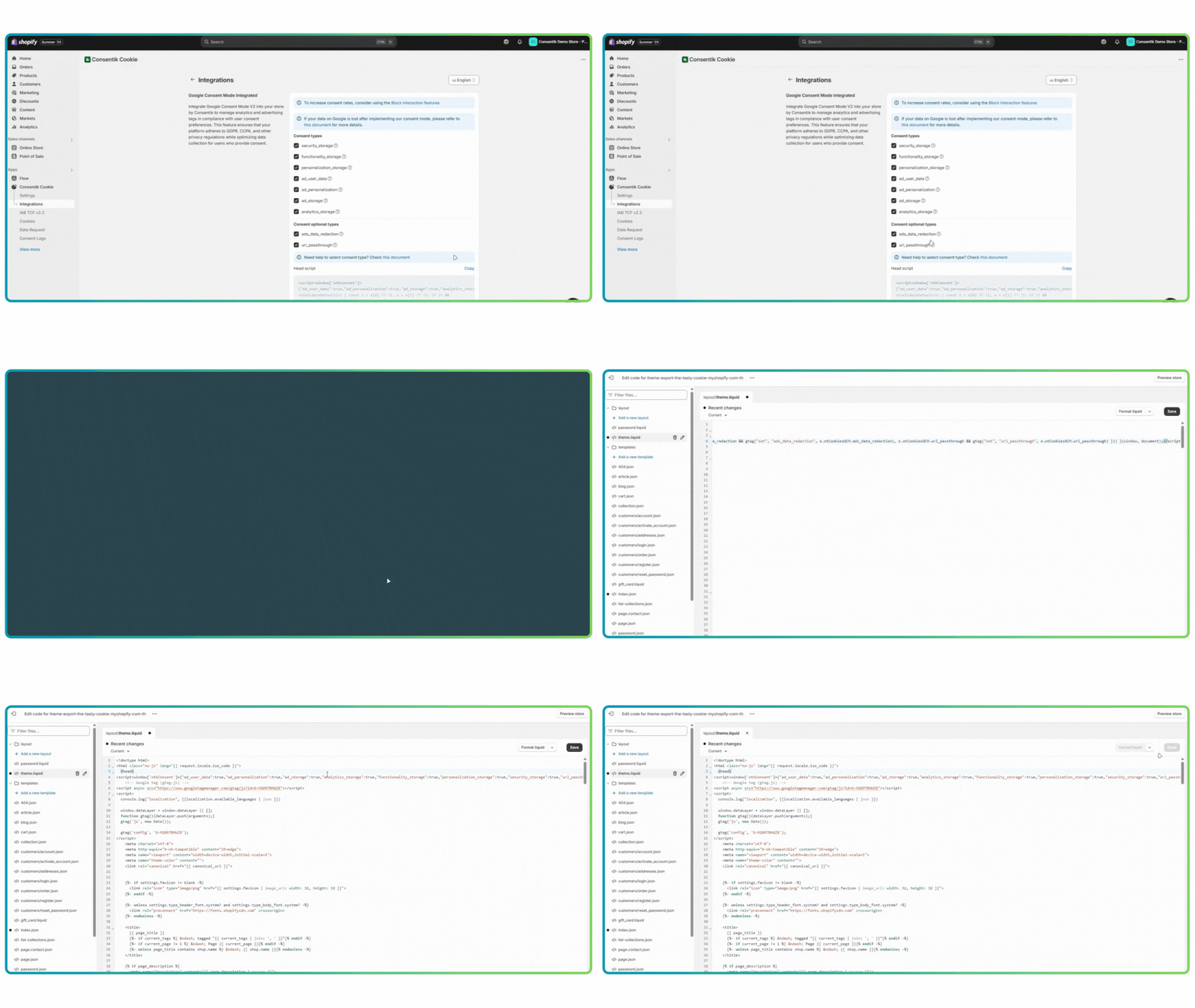
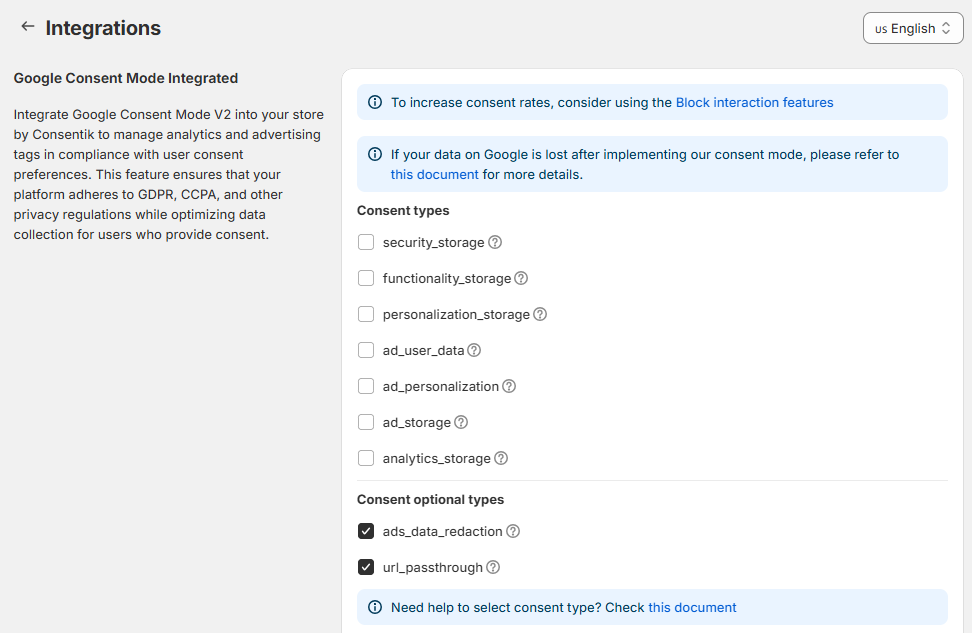
</details>

Merchants can configure Google Consent Mode directly from app's admin: **Settings/Integration/ Google consent mode** by following these steps:

Please check this instruction to be clear:

<figure><img src="https://apps.consentik.com/consentik/admin/dist/images/guides/gcm.gif" alt="" width="563"><figcaption></figcaption></figure>

1. **Consent Parameters Selection**: Choose from the list of consent parameters which ones to apply. Options include:

   * `ad_storage`: Enables storage related to security such as authentication functionality, fraud prevention, and other user protection.
   * `ad_user_data`: Sets consent for sending user data related to advertising to Google.
   * `ad_personalization`: Sets consent for personalized advertising.
   * `analytics_storage`: Enables storage (such as cookies) related to analytics e.g. visit duration.
   * `security_storage`: Enables storage related to security such as authentication functionality, fraud prevention, and other user protection.
   * `functionality_storage`: Enables storage that supports the functionality of the website or app e.g. language settings.
   * `personalization_storage`: Enables storage related to personalization e.g. video recommendations.
   * `ads_data_redaction`:  When ad\_storage is denied, new cookies will not be set for advertising purposes. Additionally, third-party cookies previously set on google.com and doubleclick.net will not be used except for spam and fraud purposes. Data sent to Google will still include the full page URL, including any ad click information in the URL parameters.
   * `url_passthrough`: Passing ad click, client ID, and session ID information in URLs.

   <figure><img src="https://867177989-files.gitbook.io/~/files/v0/b/gitbook-x-prod.appspot.com/o/spaces%2FpXyFBfh7hfzrY5z7HQRN%2Fuploads%2Ff4Fu4cO9xEAhXX5Py3PD%2Fimage.png?alt=media&amp;token=922b2d00-7abf-4127-8132-0e8246d938dd" alt=""><figcaption></figcaption></figure>

Based on the merchant's selection, the app will generate the necessary code snippets. These snippets are designed to be compatible with Consent Mode v1 and v2, adhering to the latest updates as outlined in Google's documentation.

Once the relevant options are selected and the code is generated, merchants can integrate Consent Mode by following these steps:

1. **Code Copying**: Copy the generated code snippet provided by the app.
2. **Theme File Editing**: Access the `theme.liquid` file within the website's theme editor.
3. **Code Pasting**: Paste the copied code snippet just after the opening `<head>` tag.
4. **Save Changes**: Save the changes made to the `theme.liquid` file to ensure Consent Mode is active.

### Default Consent Configuration

Upon integration of the generated code into the `theme.liquid` file, the app will default all Google Consent Mode parameters to a 'denied' state. This ensures that no data is collected without the explicit consent of the user.

### User Consent Interaction

When a user visits the merchant's website, they will be prompted to provide consent for various categories of cookies, including:

* **Marketing Cookies**: Related to advertising and marketing efforts.
* **Analytics Cookies**: Used for collecting data on user interaction and behavior.
* **Functionality Cookies**: Essential for certain website features and personalization.

### Updating Consent Status

If the user provides their consent:

1. **Consent Update**: The app will update Google Consent Mode to 'granted' for the cookie categories the user has accepted.
2. **Consent Storage**: The user's preferences are stored in a cookie on their device, ensuring that their choices are remembered for future visits.
3. **Automatic Consent Application**: On subsequent visits, the app will automatically read the stored cookie and apply the user's preferences without requiring them to consent again.

With this feature, merchants can manage user consent for cookies in a way that is compliant with privacy laws, user-friendly, and minimizes the impact on data collection for critical website functions. The process is designed to be transparent for users and straightforward for merchants to implement and manage.

### Test your Consent mode setup

**Method 1: Using Tag Assistant**&#x20;

If you go to <https://tagassistant.google.com/,> you can debug the consent states for any sites running Google Tags.

After adding the domain that you want to debug, you can choose a Tag ID from the top of Tag Assistant, then choose the first Consent event from the navigation on the left, and select the “Consent” tab to see default value of consent, all of consent types are denied:

<figure><img src="https://867177989-files.gitbook.io/~/files/v0/b/gitbook-x-prod.appspot.com/o/spaces%2FpXyFBfh7hfzrY5z7HQRN%2Fuploads%2FRSeq2DZGMda41UEY1UWv%2Fimage.png?alt=media&amp;token=9696bd9f-47c6-46f1-84ae-49a6cc23d6c6" alt=""><figcaption></figcaption></figure>

Come back to your website and click to "Accept" button and you can see another consent event is fired. Click to Consent Tab and see the update event

<figure><img src="https://867177989-files.gitbook.io/~/files/v0/b/gitbook-x-prod.appspot.com/o/spaces%2FpXyFBfh7hfzrY5z7HQRN%2Fuploads%2FjNBk6vXIWUxBIp39Bbfa%2Fimage.png?alt=media&amp;token=139057ab-cfae-4a51-a096-2c7f3cd5b97b" alt=""><figcaption></figcaption></figure>

If you see a warning that “a tag read consent before a default was set”, it means you have a *race condition* where your consent states are not established in time before any tags that reference them have time to fire.

**Method 2: Using Console on DevTool**

1. Open your site
2. Press button **F12** or **`Ctrl + Shift + J`** on Windows ( **`Cmd + Option + J`** on MacOS) or **Right Mouse** and select **Inspect** to open Console Tab on
3. Type **`dataLayer`**
4. When cookie banner show, you can see the default consent event is fired

<figure><img src="https://867177989-files.gitbook.io/~/files/v0/b/gitbook-x-prod.appspot.com/o/spaces%2FpXyFBfh7hfzrY5z7HQRN%2Fuploads%2FRk8zGI3MguBu0CtSWxRj%2Fimage.png?alt=media&amp;token=98c43d1b-bd21-45aa-abb0-ac83a4aae2ae" alt=""><figcaption></figcaption></figure>

5. When you click to "Accept" button, you can see an Update event is fired

<figure><img src="https://867177989-files.gitbook.io/~/files/v0/b/gitbook-x-prod.appspot.com/o/spaces%2FpXyFBfh7hfzrY5z7HQRN%2Fuploads%2FCQAkS4FrO8yrhU0WaOwg%2Fimage.png?alt=media&amp;token=2666bc34-8402-4c39-8768-b97a828fd4e8" alt=""><figcaption></figcaption></figure>


# How to Integrate Google Consent Mode V2 on Your Shopify Checkout Page

This guide explains how to integrate **Google Consent Mode V2** on your **Shopify checkout page**, specifically to trigger the consent signal **only if the customer has previously accepted your cookie banner** on earlier pages (e.g., homepage, product pages, etc.).

#### 🔧 **Steps to Implement**

1. **Log in to your Shopify Admin**\
   Go to: <https://admin.shopify.com>
2. **Navigate to Settings**\
   In the lower-left corner of your admin panel, click **Settings**.
3. **Go to Customer Events**\
   In the Settings menu, click on **Customer events**.
4. **Open the Custom Pixels tab**\
   At the top of the page, switch to the **Custom pixels** tab.
5. **Add a new custom pixel**

   * Click the **“Add custom pixel”** button.
   * Give your pixel a name (e.g., `Consentik - Google Consent Mode V2`).

   <figure><img src="https://867177989-files.gitbook.io/~/files/v0/b/gitbook-x-prod.appspot.com/o/spaces%2FpXyFBfh7hfzrY5z7HQRN%2Fuploads%2FZmdg2gai54Kp8bwbvJBR%2Fimage.png?alt=media&amp;token=f5b3b5a1-2910-482c-98d3-2bd9d874ffc8" alt=""><figcaption></figcaption></figure>
6. **Replace the default code**
   * Remove all existing code in the **Code editor**.
   * Paste the following code snippet instead:

```javascript
analytics.subscribe("page_viewed", function (event) {
 window.dataLayer = window.dataLayer || [];
  function gtag(){dataLayer.push(arguments);}
if(/.+\/checkouts?\/.*/.test(window.location.href)) {
  let timeout = 0
  const checkoutInterval = setInterval( async () => {
    timeout += 100
    if(typeof gtag != 'undefined') {
    
      //default consent 
      gtag("consent", "default", {
        ad_user_data: "denied",
        ad_personalization: "denied",
        ad_storage: "denied",
        analytics_storage: "denied",
        functionality_storage: "denied",
        personalization_storage: "denied",
        security_storage: "denied",
        wait_for_update: 500
      });
      
      // cosent update 
      await updateGtagConsentFromCookie();
      clearInterval(checkoutInterval)
    }
    else if(timeout >= 3000) {
      clearInterval(checkoutInterval)
    }
  },100)
  

  // Google tag magner code will come here
  // Checkout event will go here eg: add_payment_info, add_shipping_info, purchase
}


async function getCookieValue(name) {
  return await browser.cookie.get(name)
}

async function parseConsentikCookie() {
  const raw = await getCookieValue('_consentik_gcm');
  if (!raw) return null;
  try {
    // Cookie might be encoded (like %5B...%5D), so decode first
    return JSON.parse(decodeURIComponent(raw));
  } catch (e) {
      console.error('Invalid _consentik_gcm JSON', e);
    return null;
  }
}

async function updateGtagConsentFromCookie() {
  const parsed = await parseConsentikCookie();
  if (!parsed || !Array.isArray(parsed)) return;

  const selected = parsed || [];

  const has = (category) => selected.includes(category);
  gtag("consent", "update", {
    ad_user_data: has('advertising') ? 'granted' : 'denied',
    ad_personalization: has('advertising') ? 'granted' : 'denied',
    ad_storage: has('advertising') ? 'granted' : 'denied',
    analytics_storage: has('analytics') ? 'granted' : 'denied',
    functionality_storage: has('functional') ? 'granted' : 'denied',
    personalization_storage: has('functional') ? 'granted' : 'denied',
    security_storage: 'granted' // typically always granted
  });
  console.log({dataLayer})
}
    });

```

7. **Click Save**\
   Once you’ve pasted the code, click **Save** to apply the changes.

#### ✅ **You’re Done!**

Google Consent Mode V2 will now properly trigger on the checkout page **only if** the user has previously accepted cookies.


# Microsoft Universal Event Tracking Consent Mode Integrated

The Microsoft Universal Event Tracking (UET) Consent Mode Integration feature within the app provides a seamless way for merchants to implement Microsoft Universal Event Tracking Consent Mode on their e-commerce platform. This feature allows merchants to respect user consent for cookies, ensuring compliance with data protection regulations while still enabling the collection of critical analytics and ad performance data.

> **Consentik currently supports Microsoft Clarity ConsentV2**

Merchants can configure Microsoft UET Consent Mode directly from app's admin: **Settings/Integrations/ Universal Event Tracking** by following these steps:

1. If you have already added UET tracking code on your store, jump to **step 2.** If not, select "**Have NOT added UET tag on store yet**" checkbox and input your **UET tag ID**.
2. &#x20;Copy the generated code snippet provided by the app.
3. Access the <mark style="color:blue;">`theme.liquid`</mark> file within the website's theme editor.
4. Paste the copied code snippet just after the opening <mark style="color:blue;">`<head>`</mark> tag.
5. Save the changes made to the <mark style="color:blue;">`theme.liquid`</mark> file to ensure Consent Mode is active.

<figure><img src="https://apps.consentik.com/consentik/admin/dist/images/guides/bing.gif" alt="" width="563"><figcaption></figcaption></figure>

### Default Consent Configuration

Upon integration of the generated code into the <mark style="color:blue;">`theme.liquid`</mark> file, the app will default value of <mark style="color:blue;">`ad_Storage`</mark>  and <mark style="color:blue;">`analytics_Storage`</mark>  to '<mark style="color:red;">`denied`</mark>' state This ensures that no data is collected without the explicit consent of the user.

### User Consent Interaction

When a user visits the merchant's website, they will be prompted to provide consent for various categories of cookies, including:

* **Marketing Cookies**: Related to advertising and marketing efforts.
* **Analytics Cookies**: Used for collecting data on user interaction and behavior.
* **Functionality Cookies**: Essential for certain website features and personalization.

### Updating Consent Status

If the user provides their consent:

1. **Consent Update**:&#x20;

* Base on the category user accept, Consentik will update the value of <mark style="color:blue;">`ad_Storage`</mark>  and <mark style="color:blue;">`analytics_Storage`</mark>&#x20;
* If a user accepts **Marketing cateogry** Consentik will inform Clarity the value of <mark style="color:blue;">`ad_Storage`</mark>  is <mark style="color:$success;">`granted`</mark>&#x20;
* If a user accepts **Analytisc cateogry** Consentik will inform Clarity the value of <mark style="color:blue;">`analytics_Storage`</mark>  is <mark style="color:$success;">`granted`</mark>

1. **Consent Storage**: The user's preferences are stored in a cookie on their device, ensuring that their choices are remembered for future visits.
2. **Automatic Consent Application**: On subsequent visits, the app will automatically read the stored cookie and apply the user's preferences without requiring them to consent again.

With this feature, merchants can manage user consent for cookies in a way that is compliant with privacy laws, user-friendly, and minimizes the impact on data collection for critical website functions. The process is designed to be transparent for users and straightforward for merchants to implement and manage.

### Test your UET consent mode setup

**Method 1: Using EUT Tag admin**

1. Go to **Microsoft Advertising Admin,** select **Coversions** -> **UET Tag**
2. Select to the tag you want to test, click to tab **Test your tag**

<figure><img src="https://867177989-files.gitbook.io/~/files/v0/b/gitbook-x-prod.appspot.com/o/spaces%2FpXyFBfh7hfzrY5z7HQRN%2Fuploads%2FGdY50tu3kxzKl1W6qbY6%2Fimage.png?alt=media&amp;token=af1adc4f-af85-461e-967f-d17bdd4a9d17" alt=""><figcaption></figcaption></figure>

3. Input your website URL and click to Open website URL
4. A new window will appear. If you see Consentik Cookie banner, click to Accept button and reload that window
5. Wait for 10-20 seconds to Microsoft update event from your site.
6. If you setup consent mode correctly, you can see the message below

<figure><img src="https://867177989-files.gitbook.io/~/files/v0/b/gitbook-x-prod.appspot.com/o/spaces%2FpXyFBfh7hfzrY5z7HQRN%2Fuploads%2FzOZScP9NTDi362tgxHgq%2Fimage.png?alt=media&amp;token=1b73d727-754c-450a-8777-e99b94024267" alt=""><figcaption></figcaption></figure>

**Method 2: Using Console on DevTool**

1. Open your site
2. Press button **F12** or <mark style="color:blue;">**`Ctrl + Shift + J`**</mark> on Windows ( <mark style="color:blue;">**`Cmd + Option + J`**</mark> on MacOS) or **Right Mouse** and select **Inspect** to open Console Tab on
3. Type <mark style="color:blue;">**`window.uetq.uetConfig.consent`**</mark>
4. When cookie banner show, you can see the default consent status is false

<figure><img src="https://867177989-files.gitbook.io/~/files/v0/b/gitbook-x-prod.appspot.com/o/spaces%2FpXyFBfh7hfzrY5z7HQRN%2Fuploads%2FK1rnmdnzH4SzBZHHGpsf%2Fimage.png?alt=media&amp;token=a4a807c0-b59b-4f57-955d-505b3f146583" alt=""><figcaption></figcaption></figure>

5. When you click to "Accept" button, you can see an Update status change to true

<figure><img src="https://867177989-files.gitbook.io/~/files/v0/b/gitbook-x-prod.appspot.com/o/spaces%2FpXyFBfh7hfzrY5z7HQRN%2Fuploads%2Falaciird0VdqreNRzVuN%2Fimage.png?alt=media&amp;token=09464b02-4a53-4e66-b8d3-dc994b0f095b" alt=""><figcaption></figcaption></figure>

If you **have trouble implementing** or testing Microsoft UET consent mode, please [contact us](mailto:contact@omegatheme.com).


# Sklik Retargeting Consent Integrated

The Sklik Retargeting Consent Integration feature within the app provides a seamless way for merchants to implement Sklik Retargeting Consent on their e-commerce platform. This feature allows merchants to respect user consent for cookies, ensuring compliance with data protection regulations while still enabling the collection of critical analytics and ad performance data.

Merchants can configure Sklik Retargeting Consent directly from app's admin: **Settings/Integration/ Sklik Retargeting** by following these steps:

1. &#x20;Input your **Sklik Retargeting ID** to the input
2. &#x20;Copy the generated code snippet provided by the app.
3. Access the <mark style="color:blue;">`theme.liquid`</mark> file within the website's theme editor.
4. Paste the copied code snippet just after the opening <mark style="color:blue;">`<head>`</mark> tag.
5. Save the changes made to the <mark style="color:blue;">`theme.liquid`</mark> file to ensure Consent Mode is active.

### Default Consent Configuration

Upon integration of the generated code into the <mark style="color:blue;">`theme.liquid`</mark> file, the app will default value of <mark style="color:blue;">`consent`</mark>to a '<mark style="color:red;">`0`</mark>' state. This ensures that no data is collected without the explicit consent of the user.

### User Consent Interaction

When a user visits the merchant's website, they will be prompted to provide consent for various categories of cookies, including:

* **Marketing Cookies**: Related to advertising and marketing efforts.
* **Analytics Cookies**: Used for collecting data on user interaction and behavior.
* **Functionality Cookies**: Essential for certain website features and personalization.

### Updating Consent Status

If the user provides their consent:

1. **Consent Update**: The app will update <mark style="color:blue;">`consent`</mark>to '<mark style="color:green;">`1`</mark>' for the cookie categories the user has accepted.
2. **Consent Storage**: The user's preferences are stored in a cookie on their device, ensuring that their choices are remembered for future visits.
3. **Automatic Consent Application**: On subsequent visits, the app will automatically read the stored cookie and apply the user's preferences without requiring them to consent again.

With this feature, merchants can manage user consent for cookies in a way that is compliant with privacy laws, user-friendly, and minimizes the impact on data collection for critical website functions. The process is designed to be transparent for users and straightforward for merchants to implement and manage.

### Test your Sklik Retargeting consent setup

**Using Console on DevTool**

1. Open your site
2. Press button **F12** or <mark style="color:blue;">**`Ctrl + Shift + J`**</mark> on Windows ( <mark style="color:blue;">**`Cmd + Option + J`**</mark> on MacOS) or **Right Mouse** and select **Inspect** to open Console Tab on
3. Select the Network tab and type the word “**reta**” into the search field. Then refresh the page using the F5 key

<figure><img src="https://867177989-files.gitbook.io/~/files/v0/b/gitbook-x-prod.appspot.com/o/spaces%2FpXyFBfh7hfzrY5z7HQRN%2Fuploads%2FAKvfhhaPP4oJOB6AmMxL%2Fimage.png?alt=media&amp;token=f199f96d-7655-4c0f-bd9b-8d10b7eefe64" alt=""><figcaption></figcaption></figure>

4. You will then see the information in the DevTools console:

   * In the **“Name”** column you will see the information that the code sends to Seznam.
   * If you **click on the line once**, a second column will open, in which if you click on the **“Payload”** tab, you will see the information that the code sends in the lines below.
   * For our purposes, we will focus **on the consent information line**.
   * By default, before users give consent, there is an event sent to Seznam with value of <mark style="color:blue;">`consent`</mark> is <mark style="color:green;">`0`</mark>

   <figure><img src="https://867177989-files.gitbook.io/~/files/v0/b/gitbook-x-prod.appspot.com/o/spaces%2FpXyFBfh7hfzrY5z7HQRN%2Fuploads%2FRg2y4kdyW0nDzZrETl1c%2Fimage.png?alt=media&amp;token=65c7e6c8-7cb1-4c60-9240-9539d248fc63" alt=""><figcaption></figcaption></figure>

   * When users accept banner, there is a new event sent with value of <mark style="color:blue;">`consent`</mark> is <mark style="color:green;">`1`</mark>

   <figure><img src="https://867177989-files.gitbook.io/~/files/v0/b/gitbook-x-prod.appspot.com/o/spaces%2FpXyFBfh7hfzrY5z7HQRN%2Fuploads%2FGxD07EVn9zsEZqntcPwO%2Fimage.png?alt=media&amp;token=c3b60b06-19a0-4ebb-9bed-19e1ae0553eb" alt=""><figcaption></figcaption></figure>


# Auto-blocker tracking scripts

The Auto-Blocker feature in the app provides merchants with the ability to control the activation of various tracking services on their store, such as Google Analytics, Google Tag Manager, Facebook Pixel, and TikTok Pixel. This feature ensures that tracking scripts are only executed after users have explicitly consented to being tracked, aligning with privacy regulations like GDPR and CCPA.

The Auto-Blocker feature allows for selective blocking of tracking services until consent is granted by the user. It offers a simple setup process for merchants to comply with privacy laws, without the need for complex manual configuration.

<figure><img src="https://867177989-files.gitbook.io/~/files/v0/b/gitbook-x-prod.appspot.com/o/spaces%2FpXyFBfh7hfzrY5z7HQRN%2Fuploads%2FYhp9g2lZllgH2oonTcjD%2Fimage.png?alt=media&amp;token=34fa575e-3688-42fa-adb7-ffafcd01a6bc" alt=""><figcaption></figcaption></figure>

### Setup Process for Merchants

Merchants can enable the Auto-Blocker feature by following these steps:

1. **Select Services**: Within the app's interface, choose one or more tracking services from the provided list: Google Analytics, Google Tag Manager, Facebook Pixel, and TikTok Pixel.
2. **Generate Code**: The app will generate a code snippet based on the selected services.
3. **Implement Code**: Access the `theme.liquid` file in the current theme of the store and paste the newly copied code snippet just below the opening `<head>` tag.
4. **Save File**: Save the changes to `theme.liquid` to ensure the Auto-Blocker feature is active.

<figure><img src="https://apps.consentik.com/consentik/admin/dist/images/guides/block.gif" alt="" width="563"><figcaption></figcaption></figure>

### User Experience

For first-time visitors to the store, the app will:

* Block all selected tracking services by default, preventing them from collecting user data.
* Display a consent banner asking users to accept or deny tracking.
* Accept all tracking or only the tracking scripts for the services that correspond to the categories—Marketing or Analytics—if the user consents to those specific categories.

### Consent Persistence

Once a user has made their choice regarding tracking:

* The app will remember the user's consent preferences through cookies.
* On subsequent visits, the app will automatically apply the user's previous choices, activating the tracking scripts immediately for an uninterrupted user experience if consent was previously granted.


# Global Privacy Control (GPC) Signal

The GPC Signal feature in the <mark style="color:blue;">**Consentik Cookie Banner**</mark> app helps you further enhance your compliance with privacy regulations. When this feature is enabled, the app automatically sends a Global Privacy Control (GPC) signal whenever it detects that a user is accessing your online store using a browser that supports this signal.

<figure><img src="https://867177989-files.gitbook.io/~/files/v0/b/gitbook-x-prod.appspot.com/o/spaces%2FpXyFBfh7hfzrY5z7HQRN%2Fuploads%2F5TpC4gmaCr7gelMCHtWA%2Fimage.png?alt=media&amp;token=387d09d8-2cd9-4b85-8214-4b54692da85b" alt=""><figcaption></figcaption></figure>

The GPC signal is a mechanism designed to communicate a user's privacy preferences to websites, indicating that the user does not want their data to be sold or shared. By integrating this feature into your online store, you are proactively respecting and adhering to your customers' privacy choices.

This automatic detection and response to GPC signals ensure that your store remains compliant with the latest privacy standards, such as GDPR and CCPA. It also demonstrates your commitment to protecting user data and respecting their privacy preferences, which can enhance customer trust and loyalty.

By leveraging the GPC Signal feature, you simplify the process of managing privacy signals and ensure that your store responds appropriately to users' privacy settings without requiring manual intervention. This not only saves time but also reduces the risk of non-compliance with evolving privacy laws.


# Checkout Banner Block

The <mark style="color:blue;">**Consentik Cookie Banner**</mark> app introduces the Checkout Banner Block feature, specifically designed for Shopify Plus merchants. This advanced feature allows the display of a cookie consent banner directly on the checkout page, a critical touchpoint for capturing customer consent in compliance with GDPR, CCPA, and other privacy regulations.

<figure><img src="https://867177989-files.gitbook.io/~/files/v0/b/gitbook-x-prod.appspot.com/o/spaces%2FpXyFBfh7hfzrY5z7HQRN%2Fuploads%2FYBjZyPEuIXGQBkQio8wq%2Fimage.png?alt=media&amp;token=b70288ec-3664-46d6-84e5-08ee7ec4bf4f" alt=""><figcaption></figcaption></figure>

### Functionality:

* **Exclusive to Shopify Plus:** This feature is exclusively available for Shopify Plus users, offering a higher level of customization and compliance management at the checkout stage.
* **Customizable Display Options:** Merchants can configure the banner to show default messages, buttons, and a close button. This customization ensures the banner aligns with the store’s branding and compliance requirements.
* **Persistent Banner Display:** Even if a user has previously accepted the cookie policy, the Checkout Banner Block can be configured to reappear at the checkout page. This ensures that consent is reaffirmed where financial transactions occur, enhancing compliance security.

### Benefits:

* **Enhanced Compliance at Checkout:** By displaying the cookie banner at the checkout page, Shopify Plus merchants can ensure they capture consent when it's most crucial, maintaining compliance throughout the buying process.
* **Tailored User Experience:** The ability to customize the banner’s appearance and messages allows for a consistent brand experience, even at the final stages of the checkout process.
* **Reaffirmation of User Consent:** The option to display the banner even after initial consent ensures that customers are continually aware of the use of their data, reinforcing trust and transparency.


# Headless Store Integration

Consentik Cookie now supports seamless integration with headless Shopify stores built using Hydrogen. This powerful feature enables you to deliver a fully customized cookie consent experience—even if

***

### What is a Headless Store?

A **headless store** separates your website’s front-end (what customers see) from the back-end (where your data and store logic live). With Shopify’s **Hydrogen** framework, you can build fast, dynamic, React-based storefronts while still using Shopify for e-commerce management.

***

### Why Integrate Consentik Cookie with Hydrogen?

* **Compliance:** Stay compliant with privacy regulations by showing cookie banners and collecting consent—even in custom headless setups.
* **Flexibility:** Customize the look, feel, and behavior of your cookie consent experience to match your unique storefront.
* **Unified Data:** Manage cookie preferences and consent records in one place, regardless of your store’s architecture.

***

### How to Enable Headless Integration

To ensure secure and accurate operation, integrating Consentik Cookie with a headless Hydrogen storefront requires a few extra steps:

#### 1. Approve New Permissions

For Consentik Cookie to work with your Hydrogen store, you’ll be prompted to grant additional permissions within the Shopify admin. These permissions allow Consentik to communicate with your custom storefront securely.

* Go to your Shopify **Apps** section.
* Select **Consentik Cookie**.
* Go to section **Headless Integration** in **Integrations** page
* Click to **Update permission** to approve the new permission

#### 2. Contact Consentik Support

Headless integration requires some manual configuration to fit your unique setup:

* **Contact Consentik Support** after approving permissions.
* Our team will provide detailed integration instructions tailored to your Hydrogen storefront.
* We’ll guide you through steps like installing Consentik’s SDK, placing consent components, and configuring API endpoints if needed.

***

### What’s Included in the Integration Guide?

Our support team will help you:

* **Install and import the Consentik JavaScript SDK** into your Hydrogen app.
* **Render the cookie banner** anywhere in your React component tree.
* **Sync user consent** between your storefront and Shopify.
* **Customize the banner and preferences popup** for a headless environment.

All integration steps are designed to be developer-friendly and flexible for headless use cases.

***

### Need Help?

If you’re planning to run your Shopify store in headless mode with Hydrogen, Consentik Cookie is ready to support you!\
For assistance or to start the integration process, [contact our support team](mailto:contact@consentik.com) after approving the necessary permissions in your Shopify admin.


# Which consent type should I select for Google Consent Mode Settings?

### For Google Analytics

If you are using Google Analytics 4 (GA4) on your store, you need set 4 required consent type:

`ad_storage`

`ad_user_data`

`ad_personalization`

`analytics_storage`

For optional types, you can set 3 other types also: `functionality_storage, personalization_storage, security_storage`

Read more on this [Google's document](https://support.google.com/analytics/answer/12334711?hl=en)

### For Google Tag Manager

If you are using Google Tag Manager (GTM), please follow these steps below to get right consent types:

1. Open [Google Tag Manager](https://tagmanager.google.com/) and select the account which needs to set up consent mode

<figure><img src="https://867177989-files.gitbook.io/~/files/v0/b/gitbook-x-prod.appspot.com/o/spaces%2FpXyFBfh7hfzrY5z7HQRN%2Fuploads%2FzgBwgFWqWAGhET4JYtou%2Fimage.png?alt=media&amp;token=817a5c78-0633-428c-bf24-2254afa2d393" alt=""><figcaption></figcaption></figure>

2. Select **Tag** on navigation and select your tag

<figure><img src="https://867177989-files.gitbook.io/~/files/v0/b/gitbook-x-prod.appspot.com/o/spaces%2FpXyFBfh7hfzrY5z7HQRN%2Fuploads%2FTZX2NTYhPBtWshZ0qwjS%2Fimage.png?alt=media&amp;token=1259b094-3e63-418c-897d-0939e63501ce" alt=""><figcaption></figcaption></figure>

3. Select the *Pencil icon* on the Tag Configuration section then select **Advanced Settings,** then select **Consent settings**

<figure><img src="https://867177989-files.gitbook.io/~/files/v0/b/gitbook-x-prod.appspot.com/o/spaces%2FpXyFBfh7hfzrY5z7HQRN%2Fuploads%2F49Mtgl5Vwtwe9zS8MO5t%2Fimage.png?alt=media&amp;token=1d66a9f7-43e8-4517-b667-2773048ff215" alt=""><figcaption></figcaption></figure>

4. Now you can see the "Built-In Consent Check", this is a list of consent type you need to set on our app. Please select this on our app.

<figure><img src="https://867177989-files.gitbook.io/~/files/v0/b/gitbook-x-prod.appspot.com/o/spaces%2FpXyFBfh7hfzrY5z7HQRN%2Fuploads%2F8f6WevQxn4ZXwbM1wMpz%2Fimage.png?alt=media&amp;token=5ea9544f-cb79-4cfd-927a-bbc668cf89df" alt=""><figcaption></figcaption></figure>

5. **Note:** \
   **-** If you do not use any additional consent required, please select "No additional consent required" option here

<figure><img src="https://867177989-files.gitbook.io/~/files/v0/b/gitbook-x-prod.appspot.com/o/spaces%2FpXyFBfh7hfzrY5z7HQRN%2Fuploads%2Fx8nEg4W7WK8yzVuzD9q7%2Fimage.png?alt=media&amp;token=100b29bb-166a-47fe-b514-8ce9382b1295" alt=""><figcaption></figcaption></figure>

&#x20;         \- If you use more consent required, please select "Require additional consent for tag to fire" and add them to this. Then please select the added item on our app too

<figure><img src="https://867177989-files.gitbook.io/~/files/v0/b/gitbook-x-prod.appspot.com/o/spaces%2FpXyFBfh7hfzrY5z7HQRN%2Fuploads%2F7VwXVdzVZSwOVUhiN2Yx%2Fimage.png?alt=media&amp;token=1450b2a2-df44-4087-bf83-fc56a8bd7879" alt=""><figcaption></figcaption></figure>


# What should I do if "default consent" is duplicated?

If you check your store on Tag assistant and see that there are 2 "default consent" events is sent, like this:

<figure><img src="https://867177989-files.gitbook.io/~/files/v0/b/gitbook-x-prod.appspot.com/o/spaces%2FpXyFBfh7hfzrY5z7HQRN%2Fuploads%2FV1Jfq3OVTtArBnAIGjYs%2Fimage.png?alt=media&amp;token=5e3ef1cf-2ed3-4daa-9ad9-3ae2eb97cfdb" alt=""><figcaption></figcaption></figure>

The reason why is from Conversion Tracking on **Google & Youtube** channel. Please consider to turn it off or contact Google to fix it

<figure><img src="https://867177989-files.gitbook.io/~/files/v0/b/gitbook-x-prod.appspot.com/o/spaces%2FpXyFBfh7hfzrY5z7HQRN%2Fuploads%2FC9TYKi7B0Vb3wKt6L5xW%2Fimage.png?alt=media&amp;token=06bbb554-1962-4ce6-aac9-e512d0ec94ae" alt=""><figcaption></figcaption></figure>

If you still want to use conversion tracking, please consider to use another app to resolve this. We highly recommend a FREE app: [**TagFly Google Tag Tracking**](https://apps.shopify.com/tagfly?utm_campaign=crs\&utm_source=cookies\&utm_medium=document)

When you turn off Conversion Tracking, your Tag assistnant will look like this

<figure><img src="https://867177989-files.gitbook.io/~/files/v0/b/gitbook-x-prod.appspot.com/o/spaces%2FpXyFBfh7hfzrY5z7HQRN%2Fuploads%2FMDWT0ebKI2VE3hfrAOyN%2Fimage.png?alt=media&amp;token=cd5c90f0-6ce9-41df-a704-83c79c9aa27e" alt=""><figcaption></figcaption></figure>


# Welcome to Consentik GDPR/CCPA Cookie Banner for Wix

If you’re searching for a reliable and easy-to-use solution to manage cookie consent on your Wix website, look no further than the **Consentik GDPR Cookie Banner** app. Available on the [Wix App Market](https://www.wix.com/app-market/web-solution/consentik-gdpr-cookie-banner), this powerful tool helps you comply with privacy laws like GDPR, CCPA/CPRA, and more—while offering a seamless experience for your visitors.

### Key Features

#### 1. Fully Customizable Design

With Consentik, you can easily customize the banner’s color, position, and text to perfectly match your website’s branding. The app also supports multiple languages—automatic visitor language detection and a built-in language selector ensure that your global audience feels right at home.

#### 2. Advanced Cookie Management

Give your visitors full control over their privacy. You can add, edit, or delete cookies displayed in the preferences popup, making it simple for users to manage their consent.

#### 3. User Consent Logs

Keep track of all user consents with detailed logs—making it easy to manage, track, and secure consent records for compliance audits or legal requirements.

#### 4. Seamless Integration & Compliance

Consentik is a Google-certified CMP Partner and integrates with:

* **Google Consent Mode V2**
* **Microsoft UET Consent Mode**
* **IAB TCF v2.2**
* **Global Privacy Control (GPC) signals**
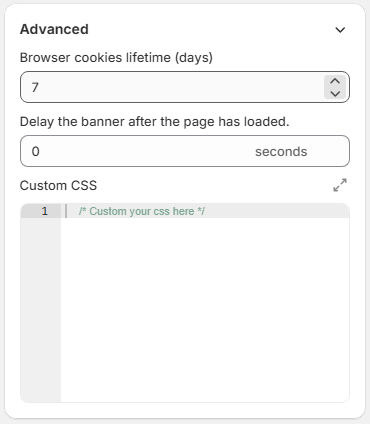
Effortlessly tailor your site’s compliance for specific regions and major privacy frameworks.

#### 5. Enhanced User Experience

* **“Block user interaction until consent”**: Ensure compliance by restricting site interaction before consent is given.
* **“Do Not Sell or Share My Data”**: Meet CCPA/CPRA requirements with a built-in opt-out option for users.
* **Preferences Popup**: Users can revisit and adjust their cookie preferences anytime, fostering trust and transparency.
* **Customizable display**: Set custom delays and storage durations for user choices.

### Plans & Pricing

Consentik offers a flexible range of plans to fit your needs:

* **Basic (Free)**: Unlimited banner views, customization, cookie management, custom CSS, and 24/7 live chat support.
* **Plus**: Adds multilingual support (2 languages), preferences popup, geolocation, data sale opt-out, and more.
* **Advanced**: Includes integration with Google Consent Mode V2, Microsoft UET, GPC, up to 5 languages, user interaction blocking, consent logs, and branding removal.
* **Unlimited**: All features, including IAB TCF v2.2, Google Additional Consent, unlimited languages, and the highest-priority support.

### Why Choose Consentik for Your Wix Website?

* **Comprehensive compliance** with the latest privacy laws
* **Easy to set up and use**—no technical skills required
* **Customizable to your brand and audience**
* **Trusted support**, with 24/7 live chat at every plan level
* **Highly rated** by users worldwide (5.0 average across 81 reviews)

### Get Started Today

Visit the [Consentik GDPR Cookie Banner app listing](https://www.wix.com/app-market/web-solution/consentik-gdpr-cookie-banner) to check out the demo, read more user reviews, or add the app to your site. With Consentik, you can ensure your site is compliant, user-friendly, and trustworthy—no matter where your visitors are from.

**Take control of cookie consent the smart way—choose Consentik for Wix!**


# Appearance Customization

Consentik GDPR Cookie Banner on Wix gives you complete control over how your cookie banner looks and feels on your website. With its powerful customization options, you can easily ensure the banner matches your site’s branding and delivers the best user experience.

#### Choose from Pre-built Templates

Don’t want to design from scratch? Consentik provides a variety of professionally designed pre-built templates. Simply select the template that best fits your website’s style and you’re ready to go—no design skills required.

<figure><img src="https://2318858719-files.gitbook.io/~/files/v0/b/gitbook-x-prod.appspot.com/o/spaces%2FW2p9hq5wszKFLB4G9Z0l%2Fuploads%2FVZSr06j2PvIrfZC9LcmY%2Fimage.png?alt=media&amp;token=3262dd59-17b0-4999-bfb2-432b48414ee1" alt=""><figcaption></figcaption></figure>

#### Flexible Layout Options

Consentik lets you choose exactly where and how your banner appears on your site:

* **Full Bottom or Top Layout:** Display the banner across the entire width at the top or bottom of your page for maximum visibility.
* **Floating Layouts:** Prefer a less intrusive look? Show the banner as a floating box at the top, bottom, left, right, or even in the center of the screen. This layout is perfect for a more subtle notification.
* **Custom Width & Position:** Adjust the width of your banner and fine-tune its position to fit your site’s design perfectly.

<figure><img src="https://2318858719-files.gitbook.io/~/files/v0/b/gitbook-x-prod.appspot.com/o/spaces%2FW2p9hq5wszKFLB4G9Z0l%2Fuploads%2F4lhWX1YdKBlClvP1K5Wk%2Fimage.png?alt=media&amp;token=413f4363-339d-4ea8-b910-287c919fa6d3" alt=""><figcaption></figcaption></figure>

#### Color and Style Customization

Make your banner truly yours:

* **Background Colors:** Pick any color for the banner background to match or contrast your site.
* **Text Colors:** Choose the perfect text color for readability and style.
* **Button & Link Colors:** Customize the colors of buttons and links to encourage user interaction and match your branding.

<figure><img src="https://2318858719-files.gitbook.io/~/files/v0/b/gitbook-x-prod.appspot.com/o/spaces%2FW2p9hq5wszKFLB4G9Z0l%2Fuploads%2FBFSE4SxBnyGOb096QVOc%2Fimage.png?alt=media&amp;token=b5ce70bb-6cff-4bbc-9efa-7bb136e8f965" alt=""><figcaption></figcaption></figure>

#### Easy-to-Use Controls

All these customization options are accessible through an intuitive dashboard—no coding necessary. Preview changes in real time to make sure everything looks just right before you publish.

***

**With Consentik, your cookie banner doesn’t just keep you compliant—it also fits seamlessly with your website’s unique design.**


# Content Customization

With Consentik GDPR Cookie Banner on Wix, you’re not limited to just changing how your banner looks—you also have full control over the content and text displayed to your visitors. This ensures your cookie consent message is clear, on-brand, and tailored to your audience.

#### Customize Font Size and Font Family

Easily adjust the **font size** and **font family** used in your cookie banner and popups. Whether you want a modern, classic, or playful font style, Consentik lets you pick the right option to match your website’s typography and maintain a consistent look across your site.

<figure><img src="https://2318858719-files.gitbook.io/~/files/v0/b/gitbook-x-prod.appspot.com/o/spaces%2FW2p9hq5wszKFLB4G9Z0l%2Fuploads%2FKPzPVfWG1sOnrz50JcBo%2Fimage.png?alt=media&amp;token=6b72175e-3a61-4d22-88d7-de9d65506fb3" alt=""><figcaption></figcaption></figure>

#### Edit Banner and Popup Content

* **Banner Content**: Personalize the main message shown to users, including the title and description on your cookie banner. Make your privacy message as detailed or as brief as you’d like.
* **Preferences Popup**: Customize the content that appears when users click to manage their cookie preferences. Give clear explanations, add instructions, or provide additional information to help users make informed choices.

<figure><img src="https://2318858719-files.gitbook.io/~/files/v0/b/gitbook-x-prod.appspot.com/o/spaces%2FW2p9hq5wszKFLB4G9Z0l%2Fuploads%2FEfJ0KHqS3VY39iFlIqt6%2Fimage.png?alt=media&amp;token=d25e0062-caf0-48ef-bbed-90bf9031b08e" alt=""><figcaption></figcaption></figure>

<figure><img src="https://2318858719-files.gitbook.io/~/files/v0/b/gitbook-x-prod.appspot.com/o/spaces%2FW2p9hq5wszKFLB4G9Z0l%2Fuploads%2F9Jx4ILXUlw8vNPYYwmVn%2Fimage.png?alt=media&amp;token=80facc62-9b22-48e8-8f80-0786d1148b13" alt=""><figcaption></figcaption></figure>

#### Tailor Cookie Categories and Information Table

* **Categories**: Rename or edit the descriptions of cookie categories (like “Essential”, “Analytics”, “Advertising”, etc.) to fit your privacy policy and help users understand what each category means.

<figure><img src="https://2318858719-files.gitbook.io/~/files/v0/b/gitbook-x-prod.appspot.com/o/spaces%2FW2p9hq5wszKFLB4G9Z0l%2Fuploads%2FC7M4Tp6ZKhW16QpP9aau%2Fimage.png?alt=media&amp;token=2b220c83-d07e-42e6-97d2-a59ccdff7cf0" alt=""><figcaption></figcaption></figure>

* **Cookies Information Table**: Fully customize the content in your cookie information table.

<figure><img src="https://2318858719-files.gitbook.io/~/files/v0/b/gitbook-x-prod.appspot.com/o/spaces%2FW2p9hq5wszKFLB4G9Z0l%2Fuploads%2FoP4xuijD6wjxdS4V25aJ%2Fimage.png?alt=media&amp;token=d89cd082-71f8-449d-a10e-43eb00a904f0" alt=""><figcaption></figcaption></figure>

***

**With Consentik, every word and every detail is in your control—making your cookie consent process both transparent and perfectly aligned with your brand’s voice.**


# Banner Behavior Customization

Consentik GDPR Cookie Banner on Wix not only lets you control the look and content of your cookie banner, but also how it behaves and interacts with your website visitors. Tailor the user experience with a range of behavior settings designed to boost transparency and engagement.

#### Show Cookie Icon on Banner

Add a visual touch to your cookie banner by displaying a cookie icon. You can choose your favorite icon directly from the built-in gallery, making your banner more attractive and instantly recognizable to users.

<figure><img src="https://2318858719-files.gitbook.io/~/files/v0/b/gitbook-x-prod.appspot.com/o/spaces%2FW2p9hq5wszKFLB4G9Z0l%2Fuploads%2FmoMgb3juLZOWx9gORRQT%2Fimage.png?alt=media&amp;token=858c59cd-cba5-43ce-b5e6-bce418700550" alt=""><figcaption></figcaption></figure>

<figure><img src="https://2318858719-files.gitbook.io/~/files/v0/b/gitbook-x-prod.appspot.com/o/spaces%2FW2p9hq5wszKFLB4G9Z0l%2Fuploads%2FljagwOdxLVUOc781zsUt%2Fimage.png?alt=media&amp;token=c70ea766-a88b-4cd7-b6ac-f0754d3474f6" alt=""><figcaption></figcaption></figure>

#### Display Decline and Preferences Buttons

* **Show Decline Button**: Give users a clear and easy way to refuse non-essential cookies. Enabling the decline button helps you stay transparent and user-friendly.
* **Show Preferences Button**: Allow visitors to quickly access cookie settings and manage their preferences with a single click, right from the banner.

<figure><img src="https://2318858719-files.gitbook.io/~/files/v0/b/gitbook-x-prod.appspot.com/o/spaces%2FW2p9hq5wszKFLB4G9Z0l%2Fuploads%2FGrKwuoFaB9jDX1GwpOXS%2Fimage.png?alt=media&amp;token=79ec9418-89d2-4549-abf2-9861c4654eb8" alt=""><figcaption></figcaption></figure>

#### Show Close Icon

You can choose to display a close (X) icon on your cookie banner. This gives users the option to temporarily dismiss the banner, making their browsing experience less disruptive while still complying with privacy requirements.

#### Quick Cookie Category Selection

Make it simple and efficient for users to manage their consent:

* **Show Cookie Categories on Banner**: Display cookie categories (e.g., Essential, Analytics, Marketing) directly on the banner, so visitors can instantly choose which types of cookies they want to allow or reject—no need to open a separate popup.

<figure><img src="https://2318858719-files.gitbook.io/~/files/v0/b/gitbook-x-prod.appspot.com/o/spaces%2FW2p9hq5wszKFLB4G9Z0l%2Fuploads%2FgI51ougEdDeQpyskZ8qL%2Fimage.png?alt=media&amp;token=e36ccbab-ba88-4876-b4a6-9a2b76586e18" alt=""><figcaption></figcaption></figure>

***

**With Consentik, you’re in control of every interaction—making your cookie banner more user-friendly, transparent, and compliant with privacy laws.**


# Block User Interaction Until Consent

With Consentik GDPR Cookie Banner on Wix, you have the option to **block user interaction** with your website until visitors make a cookie consent choice. This feature helps you maximize compliance and ensures users are fully aware of their privacy options before using your site.

### Block User Interaction Until Consent

With Consentik GDPR Cookie Banner on Wix, you have the option to **block user interaction** with your website until visitors make a cookie consent choice. This feature helps you maximize compliance and ensures users are fully aware of their privacy options before using your site.

#### How It Works

When enabled, an overlay will appear beneath the cookie banner and above the rest of your website content. This overlay prevents users from clicking or interacting with your site until they’ve given or declined consent.

#### Customizable Overlay Effects

* **Toggle Overlay On/Off:** Easily turn this feature on or off depending on your compliance needs or user experience preferences.
* **Adjust Blur:** Make the background content appear blurry under the overlay for a clear focus on the consent banner.
* **Set Opacity:** Control how transparent or solid the overlay appears, so you can strike the perfect balance between visibility and emphasis.

<figure><img src="https://2318858719-files.gitbook.io/~/files/v0/b/gitbook-x-prod.appspot.com/o/spaces%2FW2p9hq5wszKFLB4G9Z0l%2Fuploads%2FO4PFSjuPMjzMgMzywDnP%2Fimage.png?alt=media&amp;token=72bf87f8-1f4b-4b88-abea-dca0ba029098" alt=""><figcaption></figcaption></figure>

<figure><img src="https://2318858719-files.gitbook.io/~/files/v0/b/gitbook-x-prod.appspot.com/o/spaces%2FW2p9hq5wszKFLB4G9Z0l%2Fuploads%2FD9tvoTYWeSJYeRathc8d%2Fimage.png?alt=media&amp;token=8911c3a3-63fd-4a46-9814-34f8591b1032" alt=""><figcaption></figcaption></figure>

This way, you can guide your visitors’ attention to the consent banner while maintaining a polished and professional appearance.

***

**With Consentik, you’re equipped with advanced tools to protect user privacy and create a clear, compliant consent experience for every visitor.**


# Re-open Button for Cookie Banner

Consentik GDPR Cookie Banner on Wix makes it simple for your visitors to manage their privacy choices—even after their first visit—thanks to the **Re-open Button** feature. This user-friendly tool encourages transparency and helps you stay compliant with privacy regulations.

#### What is the Re-open Button?

The Re-open Button is a special button that appears on your Wix site, allowing visitors to re-open the cookie banner at any time. With just a click, users can easily review and update their cookie consent preferences whenever they want.

#### Flexible Customization Options

You have total control over how the re-open button looks and works:

* **Enable or Disable:** Choose to show or hide the re-open button on your site from the admin dashboard.
* **Choose Button Style:**
  * **Text Button:** Show a button with customizable text.
  * **Icon Button:** Display an icon-only button, selecting your preferred icon from the built-in gallery.
* **Edit Position:** Place the re-open button anywhere on your website screen—move it to the location that best fits your site’s design and layout.

<figure><img src="https://2318858719-files.gitbook.io/~/files/v0/b/gitbook-x-prod.appspot.com/o/spaces%2FW2p9hq5wszKFLB4G9Z0l%2Fuploads%2F6rmHPSISYG1wOapigT8Z%2Fimage.png?alt=media&amp;token=2fd7eabb-6bbc-4f12-8a44-dff24c25bfa8" alt=""><figcaption></figcaption></figure>

#### Personalize the Button Appearance

* **Text Button Customization:**
  * Change the button text to match your branding or message.
  * Adjust the text color and background color for a perfect fit with your website’s style.
* **Icon Button Customization:**

  * Choose from a variety of icons in the gallery to find the perfect look.

  <figure><img src="https://2318858719-files.gitbook.io/~/files/v0/b/gitbook-x-prod.appspot.com/o/spaces%2FW2p9hq5wszKFLB4G9Z0l%2Fuploads%2FedwaUkwlCHtuVAfLjIg0%2Fimage.png?alt=media&amp;token=72967c5f-938a-429a-aef9-699692092b7f" alt=""><figcaption></figcaption></figure>

<figure><img src="https://2318858719-files.gitbook.io/~/files/v0/b/gitbook-x-prod.appspot.com/o/spaces%2FW2p9hq5wszKFLB4G9Z0l%2Fuploads%2FcWspFT0SKaZqcyhOIN1D%2Fimage.png?alt=media&amp;token=2576d532-c9bb-4583-b50c-a14d99de1554" alt=""><figcaption></figcaption></figure>

#### A Better Experience for Your Users

With the re-open button, your visitors can always access and adjust their cookie preferences, promoting trust and putting privacy control in their hands.

***

**With Consentik’s re-open button, giving users ongoing control is easy, stylish, and fully customizable to your site’s unique needs!**


# Preferences Popup Options

Consentik GDPR Cookie Banner on Wix offers a powerful **Preferences Popup** that gives your website visitors full transparency and control over their cookie choices. The Preferences Popup Options make it easy to present detailed cookie information and personalize the user experience.

#### Show Number of Cookies per Category

Help users understand exactly what they're consenting to by displaying the number of cookies in each category (such as Essential, Analytics, Marketing, etc.). This makes the consent process more transparent and helps users make informed decisions.

#### Show Cookie Table in Each Category

Within the Preferences Popup, you can show a detailed **Cookie Table** for every category. This table lists all cookies included in that category, along with important details such as cookie name, purpose, and duration. Users get a clear overview of which cookies are used and why.

#### Pre-select Categories in Preferences Popup

To streamline the consent process, you can select which cookie categories are pre-selected when the Preferences Popup is opened. This feature lets you customize the default selections according to your privacy policy or compliance requirements, while still giving users the freedom to adjust their preferences before saving.

<figure><img src="https://2318858719-files.gitbook.io/~/files/v0/b/gitbook-x-prod.appspot.com/o/spaces%2FW2p9hq5wszKFLB4G9Z0l%2Fuploads%2FgJyrvpdyUoHMJBFZpGkr%2Fimage.png?alt=media&amp;token=f396629d-33b1-4828-aa12-dd75855e5ef2" alt=""><figcaption></figcaption></figure>

***

**With Consentik’s Preferences Popup Options, you provide maximum clarity and control—empowering users to make privacy choices with confidence and ease.**


# Advanced Settings

Consentik GDPR Cookie Banner on Wix is designed for flexibility, offering a suite of advanced settings so you can tailor the cookie consent experience to your legal requirements and website’s needs.

#### Region-Based Banner Display

Control exactly where your cookie banner appears by choosing the regions where privacy laws require user consent:

* **All Countries:** Show the banner to every visitor, no matter where they are.
* **EU:** Comply with GDPR by displaying the banner only to visitors from the European Union.
* **California:** Target CCPA requirements by showing the banner to users in California.
* **Colorado, Japan, Singapore, Brazil:** Easily select these specific regions to meet local privacy regulations.

<figure><img src="https://2318858719-files.gitbook.io/~/files/v0/b/gitbook-x-prod.appspot.com/o/spaces%2FW2p9hq5wszKFLB4G9Z0l%2Fuploads%2F4nhTcQv89ZiJIeioo5kA%2Fimage.png?alt=media&amp;token=ed60eb32-41c8-47c6-a256-ed5d0f235b8d" alt=""><figcaption></figcaption></figure>

This targeted approach ensures you stay compliant without disrupting the experience for users in regions where a banner isn’t required.

#### Browser Cookie Lifetime

Set how long your users’ consent choices are remembered in their browser. You can specify the number of days the consent is stored, giving you full control over how often users are asked to review their preferences—helping maintain compliance and a smooth user experience.

<figure><img src="https://2318858719-files.gitbook.io/~/files/v0/b/gitbook-x-prod.appspot.com/o/spaces%2FW2p9hq5wszKFLB4G9Z0l%2Fuploads%2FAOmhSo8gcn5edsVVlUWM%2Fimage.png?alt=media&amp;token=a2ff3d5c-eb1f-4509-84fe-e4e1d7f751f3" alt=""><figcaption></figcaption></figure>

#### Banner Display Delay

With the **Delay Banner** feature, you can choose how many seconds after your website loads the cookie banner will appear. This allows you to optimize the timing for better engagement, ensuring the banner doesn’t disrupt the initial user experience.

#### Custom CSS

For those who want even more control, Consentik allows you to add your own **Custom CSS**. Personalize every detail of your cookie banner’s appearance to perfectly match your website’s branding and design guidelines.


# Glass Effect for a Modern Look

Make your cookie banner and preferences popup stand out with Consentik’s elegant **Glass Effect**. This feature adds a stylish, frosted-glass appearance, elevating the design and professionalism of your website’s privacy notifications.

#### What is the Glass Effect?

The Glass Effect creates a translucent, “frosted” look—similar to looking through a blurry, semi-transparent pane of glass. It’s a popular design trend that makes your banner look modern and visually appealing, while keeping the focus on your privacy message.

#### Easy Configuration Options

You have full control over how the Glass Effect appears:

* **Enable or Disable:** Turn the glass effect on or off at any time with a simple toggle in your settings.
* **Adjust Blur:** Set the level of background blur to achieve just the right amount of frosted look for your banner and popup.
* **Set Opacity:** Control how transparent or solid the effect appears, fine-tuning the balance between style and readability.

<figure><img src="https://2318858719-files.gitbook.io/~/files/v0/b/gitbook-x-prod.appspot.com/o/spaces%2FW2p9hq5wszKFLB4G9Z0l%2Fuploads%2FbgJiIMaYOGfamFKYyjCa%2Fimage.png?alt=media&amp;token=8549c679-9d83-4ba4-8492-04f02a669aa6" alt=""><figcaption></figcaption></figure>

<figure><img src="https://2318858719-files.gitbook.io/~/files/v0/b/gitbook-x-prod.appspot.com/o/spaces%2FW2p9hq5wszKFLB4G9Z0l%2Fuploads%2FgfMVIIc0Tc1ONF07aiwF%2Fimage.png?alt=media&amp;token=9544673d-819a-4c8f-aed3-c270a5289d59" alt=""><figcaption></figcaption></figure>

<figure><img src="https://2318858719-files.gitbook.io/~/files/v0/b/gitbook-x-prod.appspot.com/o/spaces%2FW2p9hq5wszKFLB4G9Z0l%2Fuploads%2FWTg8Y2Kf1DcsQ1QdTlII%2Fimage.png?alt=media&amp;token=df8ff9aa-7f24-4c36-9694-711b0945736a" alt=""><figcaption></figcaption></figure>

#### Where It Applies

This effect can be applied to both the **cookie banner** and the **preferences popup**, ensuring a consistent and attractive look throughout your user privacy experience.

***

**With Consentik’s Glass Effect, your cookie notifications aren’t just compliant—they’re also beautifully integrated into your website’s modern design.**


# Guide to Complying with Google’s Consent Management Requirements

### Introduction

In an era of increasingly stringent privacy regulations, particularly in the European Economic Area (EEA), the United Kingdom (UK), and Switzerland, Google has implemented strict consent management requirements to ensure compliance with laws such as GDPR and the IAB Transparency and Consent Framework (TCF). These requirements apply to partners using Google’s publishing products, such as Google AdSense, Ad Manager, and AdMob, when serving ads in these regions. This document provides an overview of Google’s requirements, the reasons for compliance, and how Consentik Cookie—a certified Consent Management Platform (CMP)—can help businesses meet these standards.

Google mandates that publishers use a **Consent Management Platform (CMP)** certified by Google and integrated with the IAB TCF when serving personalized ads to users in the EEA, UK, and Switzerland. Certified CMPs must meet Google’s evaluation criteria, focusing on TCF compliance, including transparent and accurate management of user consent. If a publisher uses TCF but collaborates with ad tech vendors not registered with TCF, Google supports this through the **Additional Consent** specification, which CMPs must implement correctly.

* **Traffic from Certified CMPs**: Only traffic from Google-certified CMPs qualifies to serve personalized ads. This traffic can also serve non-personalized ads or limited ads, if supported.
* **Traffic from Non-Certified CMPs**: Traffic from non-certified CMPs is only eligible to serve non-personalized or limited ads, if supported.
* **CTV Inventory**: Google announced requirements for certified CMPs for Connected TV (CTV) inventory, with an initial deadline of July 2024. However, following feedback from publishers about challenges in implementing TCF in CTV environments, enforcement has been postponed to **July 2025**, with the caveat that this timeline may be reviewed based on regulatory changes.

#### Key Deadlines to Note

* **January 16, 2024**: The requirement to use a certified CMP officially took effect for serving personalized ads to users in the EEA and UK.
* **July 31, 2024**: The same requirement extended to users in Switzerland.
* **July 2025**: Extended deadline for implementing certified CMPs for CTV inventory (subject to change based on regulatory updates).

Publishers should regularly check Google’s list of certified CMPs, as it is updated continuously when new CMPs are certified.

### Reasons to Comply with Google’s Requirements

Compliance with Google’s consent management requirements is not only a legal obligation but also offers practical benefits:

1. **Meeting Legal Obligations**: Regions like the EEA, UK, and Switzerland enforce strict privacy regulations (GDPR, ePrivacy), and using a certified CMP ensures compliance, avoiding hefty fines.
2. **Maintaining Ad Revenue**: Only certified CMPs enable the delivery of personalized ads, which typically generate higher revenue than non-personalized or limited ads.
3. **Enhancing User Trust**: Providing transparency and control over data through a CMP builds trust, improves user experience, and boosts engagement.
4. **Supporting Industry Standards**: Since integrating its ad systems with TCF in 2020, Google’s requirements align with industry efforts to standardize consent management in digital advertising.

Failure to comply may result in serving only limited ads, significantly reducing revenue and risking legal violations.

### How Consentik Cookie Helps Merchants Comply

**Consentik Cookie** is an advanced CMP solution designed to help merchants fully meet Google’s consent management requirements. Here’s why Consentik stands out:

* **IAB TCF v2.2 Approved**: Consentik Cookie is an IAB TCF v2.2-approved CMP with **CMP ID 451**, ensuring compliance with industry standards for transparency and consent management. Verify this on the official IAB TCF page: [IAB TCF CMP List](https://iabeurope.eu/cmp-list/).

<figure><img src="https://2318858719-files.gitbook.io/~/files/v0/b/gitbook-x-prod.appspot.com/o/spaces%2FW2p9hq5wszKFLB4G9Z0l%2Fuploads%2FDvoUwQqXlZEWAWeaiAmR%2FFrame%201000002297.png?alt=media&amp;token=2c82d9fa-71df-42d1-83ff-676c864b1f1c" alt=""><figcaption><p>Consentik - An IAB TCF v2.2 approved CMP</p></figcaption></figure>

* **Google-Certified**: Consentik Cookie is listed among Google-certified CMPs, meeting strict criteria for TCF integration and consent management. See the official list at: [Google Certified CMPs](https://support.google.com/admanager/answer/13554116#zippy=%2Cgoogle-certified-cmps).

<figure><img src="https://2318858719-files.gitbook.io/~/files/v0/b/gitbook-x-prod.appspot.com/o/spaces%2FW2p9hq5wszKFLB4G9Z0l%2Fuploads%2FaKjutgxbQbQcCAp1C10f%2FFrame%201000002298.png?alt=media&amp;token=1364b7cb-4d1b-43cf-a8c6-2078f56a1509" alt=""><figcaption><p>Consentik - A Google-certificated CMP</p></figcaption></figure>

* **Key Features**: Consentik offers a user-friendly, customizable interface, multi-platform support (web, apps), and seamless integration with Google products like AdSense, Ad Manager, and AdMob. This enables merchants to efficiently deploy and manage user consent.

With Consentik, merchants can confidently ensure their traffic qualifies for personalized ads while meeting legal requirements in the EEA, UK, and Switzerland.

### Google-Certified TCF Cookie Banner Only Available in the Unlimited Plan

Consentik Cookie offers various pricing plans tailored to merchants’ diverse needs. However, the **Google-Certified TCF Cookie Banner**—which includes all tools necessary to comply with Google’s requirements—is exclusively available in the **Unlimited** plan. This plan provides unrestricted access to premium features, including TCF v2.2 support, Google-certified CMP integration, and advanced customization options.


# IAB TCF 2.2 Compliance

Learn how to seamlessly integrate IAB TCF v2.2 with Consentik Cookie.

### What Is IAB TCF?

The Interactive Advertising Bureau (IAB) Europe’s Transparency and Consent Framework (TCF) is a widely adopted system for managing user data and privacy preferences. Created with the General Data Protection Regulation (GDPR) in mind, the TCF provides a standardized approach for:

1. Explaining to users how their data is collected and processed.
2. Allowing individuals to easily grant or withdraw consent.
3. Sharing consent signals between publishers (such as website owners) and advertising or analytics vendors.

In practice, the TCF helps ensure that both the publisher and participating vendors handle personal data responsibly and in compliance with GDPR. By integrating the TCF into your website or app, you can build user trust, streamline compliance efforts, and maintain a consistent user experience around data collection and processing.

### What Is IAB TCF 2.2?

[IAB TCF 2.2](https://iabeurope.eu/transparency-consent-framework/) is the latest release of the Transparency and Consent Framework (TCF) by IAB Europe. It refines and expands upon previous versions of the framework, ensuring closer alignment with evolving data protection regulations—particularly the General Data Protection Regulation (GDPR). Here are some notable improvements introduced in TCF 2.2:

1. **Enhanced User Experience**: Refinements in the wording and placement of consent prompts help make privacy choices clearer and more accessible.
2. **Refined Consent Signals**: The new version optimizes how user preferences are gathered, stored, and shared with third-party vendors, improving overall data accuracy and consistency.
3. **Greater Regulatory Alignment**: TCF 2.2 takes into account feedback from regulators and data protection authorities, helping publishers and vendors meet the latest GDPR requirements more effectively.

By implementing TCF 2.2, publishers and advertisers can maintain user trust, streamline consent collection, and safeguard compliance with evolving privacy laws.

### How It Works

Under the Transparency and Consent Framework (TCF), each user’s consent preferences encompass their choices and permissions for vendors, purposes, and special features. When a user visits your site, the activated IAB TCF sends consent signals through the Consent Management Platform (CMP). These signals inform each vendor about whether they have permission to process a user’s data based on the user’s selections (e.g., for specific advertising or analytics purposes).

For TCF v2.2, the initial cookie banner text and preferences dialog feature lengthier, uneditable wording. This strict language requirement ensures that users receive clear, comprehensive details about how their data is collected and processed. Additionally, the TCF banner only appears for users in GDPR-regulated regions.

### Consentik: An Approved IAB TCF 2.2 CMP

Consentik is recognized by IAB Europe as a fully compliant CMP under the Transparency and Consent Framework (TCF) v2.2. You can verify our official status by visiting IAB Europe’s CMP List at: [CMP List – IAB Europe](https://iabeurope.eu/cmp-list/)

Once on the page, locate our entry under the “TCF v2.2 CMP Service” section and look for the following CMP ID: **451 (Consentik.com)**

Being listed there confirms that Consentik has fulfilled IAB Europe’s required compliance checks, ensuring we meet industry standards for data privacy and consent management.

### Steps to Integrate Consentik with IAB TCF 2.2

* **Open IAB TCF 2.2 Page**\
  Start by navigating to the dedicated IAB TCF 2.2 configuration page within your Consentik admin. This section is where you will enable and customize the IAB TCF framework settings.
* **Select Vendors You Are Using on Your Site**\
  From the vendor list provided by the IAB TCF 2.2, select all relevant advertising and analytics partners that operate on your site. This ensures that user consent preferences are shared accurately with each vendor.
* **Update Appearance and Content**\
  Customize the look and feel of your cookie banner and consent interface. Adjust colors, text, and layout so that they align with your brand and effectively communicate your data practices to users.
* **Save and Preview the IAB TCF 2.2 Cookie Banner on Your Storefront**\
  Once you’re satisfied with your settings, save the configuration and preview how the cookie banner will appear to visitors. Verify that it displays properly across different devices and browser types before publishing it live.

Consentik Cookie solution helps ensure your store remains compliant with GDPR by seamlessly integrating the IAB TCF 2.2 framework. This robust feature set is available exclusively on the Unlimited plan, offering you peace of mind alongside a streamlined consent management experience.


# Google Consent Mode V2 Integrated

The Google Consent Mode Integration feature within the app provides a seamless way for merchants to implement Google's Consent Mode on their e-commerce platform. This feature allows merchants to respect user consent for cookies, ensuring compliance with data protection regulations while still enabling the collection of critical analytics and ad performance data.

Merchants can configure Google Consent Mode directly from app's admin: **Settings/Integration/ Google consent mode** by following these steps:

1. **Consent Parameters Selection**: Choose from the list of consent parameters which ones to apply. Options include:
   * `ad_storage`: Enables storage related to security such as authentication functionality, fraud prevention, and other user protection.
   * `ad_user_data`: Sets consent for sending user data related to advertising to Google.
   * `ad_personalization`: Sets consent for personalized advertising.
   * `analytics_storage`: Enables storage (such as cookies) related to analytics e.g. visit duration.
   * `security_storage`: Enables storage related to security such as authentication functionality, fraud prevention, and other user protection.
   * `functionality_storage`: Enables storage that supports the functionality of the website or app e.g. language settings.
   * `personalization_storage`: Enables storage related to personalization e.g. video recommendations.
   * `ads_data_redaction`:  When ad\_storage is denied, new cookies will not be set for advertising purposes. Additionally, third-party cookies previously set on google.com and doubleclick.net will not be used except for spam and fraud purposes. Data sent to Google will still include the full page URL, including any ad click information in the URL parameters.
   * `url_passthrough`: Passing ad click, client ID, and session ID information in URLs.

Based on the merchant's selection, the app will generate the necessary code snippets. These snippets are designed to be compatible with Consent Mode v1 and v2, adhering to the latest updates as outlined in Google's documentation.

Once the relevant options are selected and the code is generated, merchants can integrate Consent Mode by following these steps:

* **Code Copying**: Copy the generated code snippet provided by the app.
* Go to **Settings -> Custom Code**
* Click to **Add Custom Code** to create new snippet
* Past copied code to the first input field
* Name the snippet (Ex. Consentik GCM)
* Select **Load code on each new page** on **All Pages** selection
* Select **Head** on Place code and Apply

### Default Consent Configuration

Upon integration of the generated code into the **Custom code**, the app will default all Google Consent Mode parameters to a 'denied' state. This ensures that no data is collected without the explicit consent of the user.

### User Consent Interaction

When a user visits the merchant's website, they will be prompted to provide consent for various categories of cookies, including:

* **Marketing Cookies**: Related to advertising and marketing efforts.
* **Analytics Cookies**: Used for collecting data on user interaction and behavior.
* **Functionality Cookies**: Essential for certain website features and personalization.

### Updating Consent Status

If the user provides their consent:

1. **Consent Update**: The app will update Google Consent Mode to 'granted' for the cookie categories the user has accepted.
2. **Consent Storage**: The user's preferences are stored in a cookie on their device, ensuring that their choices are remembered for future visits.
3. **Automatic Consent Application**: On subsequent visits, the app will automatically read the stored cookie and apply the user's preferences without requiring them to consent again.

With this feature, merchants can manage user consent for cookies in a way that is compliant with privacy laws, user-friendly, and minimizes the impact on data collection for critical website functions. The process is designed to be transparent for users and straightforward for merchants to implement and manage.

### Test your Consent mode setup

**Method 1: Using Tag Assistant**&#x20;

If you go to <https://tagassistant.google.com/,> you can debug the consent states for any sites running Google Tags.

After adding the domain that you want to debug, you can choose a Tag ID from the top of Tag Assistant, then choose the first Consent event from the navigation on the left, and select the “Consent” tab to see default value of consent, all of consent types are denied:

<figure><img src="https://2318858719-files.gitbook.io/~/files/v0/b/gitbook-x-prod.appspot.com/o/spaces%2FW2p9hq5wszKFLB4G9Z0l%2Fuploads%2FZuOQ2UIgGrCLQAGGWj84%2Fimage.png?alt=media&amp;token=9dc6811b-2df1-474f-aa37-d4da3ac8982f" alt=""><figcaption></figcaption></figure>

Come back to your website and click to "Accept" button and you can see another consent event is fired. Click to Consent Tab and see the update event

<figure><img src="https://2318858719-files.gitbook.io/~/files/v0/b/gitbook-x-prod.appspot.com/o/spaces%2FW2p9hq5wszKFLB4G9Z0l%2Fuploads%2Fkrs4eooDn5VTBfWJlZgd%2Fimage.png?alt=media&amp;token=12f1494b-32d3-4439-a4b7-a8ad7566ea99" alt=""><figcaption></figcaption></figure>

If you see a warning that “a tag read consent before a default was set”, it means you have a *race condition* where your consent states are not established in time before any tags that reference them have time to fire.

**Method 2: Using Console on DevTool**

1. Open your site
2. Press button **F12** or **`Ctrl + Shift + J`** on Windows ( **`Cmd + Option + J`** on MacOS) or **Right Mouse** and select **Inspect** to open Console Tab on
3. Type **`dataLayer`**
4. When cookie banner show, you can see the default consent event is fired

<figure><img src="https://2318858719-files.gitbook.io/~/files/v0/b/gitbook-x-prod.appspot.com/o/spaces%2FW2p9hq5wszKFLB4G9Z0l%2Fuploads%2FMByulJMqfSAWA2815t7s%2Fimage.png?alt=media&amp;token=40e24166-6915-4a67-a885-d4d16c74c664" alt=""><figcaption></figcaption></figure>

5. When you click to "Accept" button, you can see an Update event is fired


# Microsoft Universal Event Tracking Consent Mode Integrated

The Microsoft Universal Event Tracking (UET) Consent Mode Integration feature within the app provides a seamless way for merchants to implement Microsoft Universal Event Tracking Consent Mode on their e-commerce platform. This feature allows merchants to respect user consent for cookies, ensuring compliance with data protection regulations while still enabling the collection of critical analytics and ad performance data.

Merchants can configure Microsoft UET Consent Mode directly from app's admin: **Settings/Integration/ Universal Event Tracking** by following these steps:

* If you have already added UET tracking code on your store, jump to **step 2.** If not, select "**Have NOT added UET tag on store yet**" checkbox and input your **UET tag ID**.
* &#x20;Copy the generated code snippet provided by the app.
* Go to Settings -> Custom code
* Click to **Add Custom Code** to create new snippet
* Past copied code to the first input field
* Name the snippet (Ex. Consentik UET)
* Select **Load code on each new page** on **All Pages** selection
* Select **Head** on Place code and Apply


# Global Privacy Control (GPC) Signal

The GPC Signal feature in the <mark style="color:blue;">**Consentik Cookie Banner**</mark> app helps you further enhance your compliance with privacy regulations. When this feature is enabled, the app automatically sends a Global Privacy Control (GPC) signal whenever it detects that a user is accessing your online store using a browser that supports this signal.

<figure><img src="https://2318858719-files.gitbook.io/~/files/v0/b/gitbook-x-prod.appspot.com/o/spaces%2FW2p9hq5wszKFLB4G9Z0l%2Fuploads%2FdCi61SccUa8T2SmMnnrN%2Fimage.png?alt=media&amp;token=0bd34372-226f-467d-a3ad-041ca100ca3f" alt=""><figcaption></figcaption></figure>

The GPC signal is a mechanism designed to communicate a user's privacy preferences to websites, indicating that the user does not want their data to be sold or shared. By integrating this feature into your online store, you are proactively respecting and adhering to your customers' privacy choices.

This automatic detection and response to GPC signals ensure that your store remains compliant with the latest privacy standards, such as GDPR and CCPA. It also demonstrates your commitment to protecting user data and respecting their privacy preferences, which can enhance customer trust and loyalty.

By leveraging the GPC Signal feature, you simplify the process of managing privacy signals and ensure that your store responds appropriately to users' privacy settings without requiring manual intervention. This not only saves time but also reduces the risk of non-compliance with evolving privacy laws.


# Translations

### Introduction

This feature enhances the **Omega Cookie Banner** functionality by allowing merchants to manually translate the text within their cookie banner, categories, and individual cookie descriptions. It provides a comprehensive approach to customizing the user experience for a global audience.

### Translation Detection Methods

The system offers four methods to determine the appropriate language for displaying the cookie banner, categories, and descriptions:

1. **From Subdirectories**: ex: domain.com/en App identifies the language by checking the URL path. For example, if the URL contains **`/en`**, it detects English; if `/fr`, it detects French.
2. **From Subdomain**: App determines the language by analyzing the subdomain. For instance, `en.domain.com` is recognized as English, while fr.domain.com is French.
3. **From URL parameters**: URL detection works if URL path starts with the language locale. e.x. <https://domain.com/de>.
4. **From Browser language**: User's browser detection will automatically match the language with languages of customer's browser.
5. **From Visitor’s IP:** Customer's IP detection will automatically match the geography of customer.

<figure><img src="https://2318858719-files.gitbook.io/~/files/v0/b/gitbook-x-prod.appspot.com/o/spaces%2FW2p9hq5wszKFLB4G9Z0l%2Fuploads%2FwPT5VuwSnsqhKMXAXNew%2Fimage.png?alt=media&amp;token=99a3665a-5813-49b9-84e7-28516bbbdfbf" alt=""><figcaption></figcaption></figure>

### Translation Feature Setup

#### Enabling the Translation Feature

Merchants can activate or deactivate the manual translation feature as needed.

#### Selecting Detection Method

Choose the preferred method for detecting which language to present to the user.

#### Language Scopes Selection

Define the languages into which the merchant wishes to translate the cookie banner, categories, and cookie descriptions.

#### Translation Process

The translation process involves a few steps:

1. **Choose Language**: Select from the list of languages the merchant wishes to provide translations for.
2. **Translate Texts**: Manually input translations for the text of the cookie banner, each category, and individual cookies.
3. **Save Translations**: After translating the texts, save the changes to apply them to the cookie banner.

<figure><img src="https://2318858719-files.gitbook.io/~/files/v0/b/gitbook-x-prod.appspot.com/o/spaces%2FW2p9hq5wszKFLB4G9Z0l%2Fuploads%2FTETLPcPNcYRHuqO5pdLn%2Fimage.png?alt=media&amp;token=1354edd6-caf1-496d-9c34-b1e8a49951e8" alt=""><figcaption></figcaption></figure>

<figure><img src="https://2318858719-files.gitbook.io/~/files/v0/b/gitbook-x-prod.appspot.com/o/spaces%2FW2p9hq5wszKFLB4G9Z0l%2Fuploads%2FNaKkixu2IuuC3eNEjfQT%2Fimage.png?alt=media&amp;token=70d7b3d8-9941-4ba7-9e6d-0fe896715bf8" alt=""><figcaption></figcaption></figure>

#### Additional Translation Settings

* **Default Language**: In the text customization settings, merchants can choose a default language that will be displayed if no language match is found.
* **Pre-translated Templates**: For some common languages, the app provides pre-translated texts, which are indicated with a "Template" badge.

<figure><img src="https://2318858719-files.gitbook.io/~/files/v0/b/gitbook-x-prod.appspot.com/o/spaces%2FW2p9hq5wszKFLB4G9Z0l%2Fuploads%2FPgi0t9yehQUbx9L9E65c%2Fimage.png?alt=media&amp;token=f0129303-2840-4bcd-8871-427a0a15cb14" alt=""><figcaption></figcaption></figure>

### Best Practices for Translation

* **Consistency**: Ensure that the tone and terminology are consistent across all translations.
* **Cultural Sensitivity**: Be mindful of cultural nuances and expressions when translating texts.
* **Professional Translation**: For accuracy, consider using professional translation services, especially for legal texts.

By offering manual translation capabilities, this feature empowers merchants to engage with a diverse customer base in a localized and user-friendly manner. It not only improves the user experience but also demonstrates a commitment to accessibility and compliance with international privacy laws.


# Welcome to Consentik GDPR/CCPA Cookie Banner for SHOPLINE

If you’re searching for a reliable and easy-to-use solution to manage cookie consent on your SHOPLINE store, look no further than the **Consentik GDPR Cookie Banner** app. Available on the SHOPLINE App Store this powerful tool helps you comply with privacy laws like GDPR, CCPA/CPRA, and more—while offering a seamless experience for your visitors.

### Key Features

#### 1. Fully Customizable Design

With Consentik, you can easily customize the banner’s color, position, and text to perfectly match your website’s branding. The app also supports multiple languages—automatic visitor language detection and a built-in language selector ensure that your global audience feels right at home.

#### 2. Advanced Cookie Management

Give your visitors full control over their privacy. You can add, edit, or delete cookies displayed in the preferences popup, making it simple for users to manage their consent.

#### 3. User Consent Logs

Keep track of all user consents with detailed logs—making it easy to manage, track, and secure consent records for compliance audits or legal requirements.

#### 4. Seamless Integration & Compliance

Consentik is a Google-certified CMP Partner and integrates with:

* **Google Consent Mode V2**
* **Microsoft UET Consent Mode**
* **IAB TCF v2.2**
* **Global Privacy Control (GPC) signals**

Effortlessly tailor your site’s compliance for specific regions and major privacy frameworks.

#### 5. Enhanced User Experience

* **“Block user interaction until consent”**: Ensure compliance by restricting site interaction before consent is given.
* **“Do Not Sell or Share My Data”**: Meet CCPA/CPRA requirements with a built-in opt-out option for users.
* **Preferences Popup**: Users can revisit and adjust their cookie preferences anytime, fostering trust and transparency.
* **Customizable display**: Set custom delays and storage durations for user choices.

### Plans & Pricing

Consentik offers a flexible range of plans to fit your needs:

* **Basic (Free)**: Unlimited banner views, customization, cookie management, custom CSS, and 24/7 live chat support.
* **Plus**: Adds multilingual support (2 languages), preferences popup, geolocation, data sale opt-out, and more.
* **Advanced**: Includes integration with Google Consent Mode V2, Microsoft UET, GPC, up to 5 languages, user interaction blocking, consent logs, and branding removal.
* **Unlimited**: All features, including IAB TCF v2.2, Google Additional Consent, unlimited languages, and the highest-priority support.

### Why Choose Consentik for Your SHOPLINE store?

* **Comprehensive compliance** with the latest privacy laws
* **Easy to set up and use**—no technical skills required
* **Customizable to your brand and audience**
* **Trusted support**, with 24/7 live chat at every plan level
* **Highly rated** by users worldwide (5.0 average across 81 reviews)

### Get Started Today

Visit the Consentik GDPR Cookie Banner app listing to check out the demo, read more user reviews, or add the app to your site. With Consentik, you can ensure your site is compliant, user-friendly, and trustworthy—no matter where your visitors are from.

**Take control of cookie consent the smart way—choose Consentik for** SHOPLINE!


# Appearance Customization

Consentik GDPR Cookie Banner on SHOPLINE gives you complete control over how your cookie banner looks and feels on your website. With its powerful customization options, you can easily ensure the banner matches your site’s branding and delivers the best user experience.

#### Choose from Pre-built Templates

Don’t want to design from scratch? Consentik provides a variety of professionally designed pre-built templates. Simply select the template that best fits your website’s style and you’re ready to go—no design skills required.

<figure><img src="https://content.gitbook.com/content/zJWZ7ZZnO8BrPNo36ctW/blobs/AaoDRx0lykB6roBtYqvK/image.png" alt=""><figcaption></figcaption></figure>

#### Flexible Layout Options

Consentik lets you choose exactly where and how your banner appears on your site:

* **Full Bottom or Top Layout:** Display the banner across the entire width at the top or bottom of your page for maximum visibility.
* **Floating Layouts:** Prefer a less intrusive look? Show the banner as a floating box at the top, bottom, left, right, or even in the center of the screen. This layout is perfect for a more subtle notification.
* **Custom Width & Position:** Adjust the width of your banner and fine-tune its position to fit your site’s design perfectly.

<figure><img src="https://content.gitbook.com/content/zJWZ7ZZnO8BrPNo36ctW/blobs/glXM4R9C7HynUFCB7JE3/image.png" alt=""><figcaption></figcaption></figure>

#### Color and Style Customization

Make your banner truly yours:

* **Background Colors:** Pick any color for the banner background to match or contrast your site.
* **Text Colors:** Choose the perfect text color for readability and style.
* **Button & Link Colors:** Customize the colors of buttons and links to encourage user interaction and match your branding.

<figure><img src="https://content.gitbook.com/content/zJWZ7ZZnO8BrPNo36ctW/blobs/BcKtx5QGSaPOyZroyBiM/image.png" alt=""><figcaption></figcaption></figure>

#### Easy-to-Use Controls

All these customization options are accessible through an intuitive dashboard—no coding necessary. Preview changes in real time to make sure everything looks just right before you publish.

***

**With Consentik, your cookie banner doesn’t just keep you compliant—it also fits seamlessly with your website’s unique design.**


# Content Customization

With Consentik GDPR Cookie Banner on SHOPLINE, you’re not limited to just changing how your banner looks—you also have full control over the content and text displayed to your visitors. This ensures your cookie consent message is clear, on-brand, and tailored to your audience.

#### Customize Font Size and Font Family

Easily adjust the **font size** and **font family** used in your cookie banner and popups. Whether you want a modern, classic, or playful font style, Consentik lets you pick the right option to match your website’s typography and maintain a consistent look across your site.

<figure><img src="https://content.gitbook.com/content/zJWZ7ZZnO8BrPNo36ctW/blobs/AWKmPXYf8KTRt2xIeU6S/image.png" alt=""><figcaption></figcaption></figure>

#### Edit Banner and Popup Content

* **Banner Content**: Personalize the main message shown to users, including the title and description on your cookie banner. Make your privacy message as detailed or as brief as you’d like.
* **Preferences Popup**: Customize the content that appears when users click to manage their cookie preferences. Give clear explanations, add instructions, or provide additional information to help users make informed choices.

<figure><img src="https://content.gitbook.com/content/zJWZ7ZZnO8BrPNo36ctW/blobs/PnKZuqJ3suhHVuM7Jmoi/image.png" alt=""><figcaption></figcaption></figure>

<figure><img src="https://content.gitbook.com/content/zJWZ7ZZnO8BrPNo36ctW/blobs/aPZfSKG8apxiTguEVSbT/image.png" alt=""><figcaption></figcaption></figure>

#### Tailor Cookie Categories and Information Table

* **Categories**: Rename or edit the descriptions of cookie categories (like “Essential”, “Analytics”, “Advertising”, etc.) to fit your privacy policy and help users understand what each category means.

<figure><img src="https://content.gitbook.com/content/zJWZ7ZZnO8BrPNo36ctW/blobs/OZ2nPLS7Ishg5TOktg2q/image.png" alt=""><figcaption></figcaption></figure>

* **Cookies Information Table**: Fully customize the content in your cookie information table.

<figure><img src="https://content.gitbook.com/content/zJWZ7ZZnO8BrPNo36ctW/blobs/REyK6gBNqZw4uwr9o6Os/image.png" alt=""><figcaption></figcaption></figure>

***

**With Consentik, every word and every detail is in your control—making your cookie consent process both transparent and perfectly aligned with your brand’s voice.**


# Banner Behavior Customization

Consentik GDPR Cookie Banner on SHOPLINE not only lets you control the look and content of your cookie banner, but also how it behaves and interacts with your website visitors. Tailor the user experience with a range of behavior settings designed to boost transparency and engagement.

#### Show Cookie Icon on Banner

Add a visual touch to your cookie banner by displaying a cookie icon. You can choose your favorite icon directly from the built-in gallery, making your banner more attractive and instantly recognizable to users.

<figure><img src="https://content.gitbook.com/content/zJWZ7ZZnO8BrPNo36ctW/blobs/PlNQIvGCTs1JmNKYodNU/image.png" alt=""><figcaption></figcaption></figure>

<figure><img src="https://content.gitbook.com/content/zJWZ7ZZnO8BrPNo36ctW/blobs/o37j1jCvhdSwjHgL9wv8/image.png" alt=""><figcaption></figcaption></figure>

#### Display Decline and Preferences Buttons

* **Show Decline Button**: Give users a clear and easy way to refuse non-essential cookies. Enabling the decline button helps you stay transparent and user-friendly.
* **Show Preferences Button**: Allow visitors to quickly access cookie settings and manage their preferences with a single click, right from the banner.

<figure><img src="https://content.gitbook.com/content/zJWZ7ZZnO8BrPNo36ctW/blobs/R1yBNml1y57iyWQYHvIb/image.png" alt=""><figcaption></figcaption></figure>

#### Show Close Icon

You can choose to display a close (X) icon on your cookie banner. This gives users the option to temporarily dismiss the banner, making their browsing experience less disruptive while still complying with privacy requirements.

#### Quick Cookie Category Selection

Make it simple and efficient for users to manage their consent:

* **Show Cookie Categories on Banner**: Display cookie categories (e.g., Essential, Analytics, Marketing) directly on the banner, so visitors can instantly choose which types of cookies they want to allow or reject—no need to open a separate popup.

<figure><img src="https://content.gitbook.com/content/zJWZ7ZZnO8BrPNo36ctW/blobs/ShfUIHIo3DT503uyEnUL/image.png" alt=""><figcaption></figcaption></figure>

***

**With Consentik, you’re in control of every interaction—making your cookie banner more user-friendly, transparent, and compliant with privacy laws.**


# Block User Interaction Until Consent

With Consentik GDPR Cookie Banner on Wix, you have the option to **block user interaction** with your website until visitors make a cookie consent choice. This feature helps you maximize compliance and ensures users are fully aware of their privacy options before using your site.

### Block User Interaction Until Consent

With Consentik GDPR Cookie Banner on Wix, you have the option to **block user interaction** with your website until visitors make a cookie consent choice. This feature helps you maximize compliance and ensures users are fully aware of their privacy options before using your site.

#### How It Works

When enabled, an overlay will appear beneath the cookie banner and above the rest of your website content. This overlay prevents users from clicking or interacting with your site until they’ve given or declined consent.

#### Customizable Overlay Effects

* **Toggle Overlay On/Off:** Easily turn this feature on or off depending on your compliance needs or user experience preferences.
* **Adjust Blur:** Make the background content appear blurry under the overlay for a clear focus on the consent banner.
* **Set Opacity:** Control how transparent or solid the overlay appears, so you can strike the perfect balance between visibility and emphasis.

<figure><img src="https://content.gitbook.com/content/zJWZ7ZZnO8BrPNo36ctW/blobs/ruE3W3UMQnAFPMetZ99o/image.png" alt=""><figcaption></figcaption></figure>

<figure><img src="https://content.gitbook.com/content/zJWZ7ZZnO8BrPNo36ctW/blobs/WtiNdLNbWtsk39Ov6Uqp/image.png" alt=""><figcaption></figcaption></figure>

This way, you can guide your visitors’ attention to the consent banner while maintaining a polished and professional appearance.

***

**With Consentik, you’re equipped with advanced tools to protect user privacy and create a clear, compliant consent experience for every visitor.**


# Re-open Button for Cookie Banner

Consentik GDPR Cookie Banner on SHOPLINE makes it simple for your visitors to manage their privacy choices—even after their first visit—thanks to the **Re-open Button** feature. This user-friendly tool encourages transparency and helps you stay compliant with privacy regulations.

#### What is the Re-open Button?

The Re-open Button is a special button that appears on your SHOPLINE store, allowing visitors to re-open the cookie banner at any time. With just a click, users can easily review and update their cookie consent preferences whenever they want.

#### Flexible Customization Options

You have total control over how the re-open button looks and works:

* **Enable or Disable:** Choose to show or hide the re-open button on your site from the admin dashboard.
* **Edit Position:** Place the re-open button anywhere on your website screen—move it to the location that best fits your site’s design and layout.

<figure><img src="https://4242587713-files.gitbook.io/~/files/v0/b/gitbook-x-prod.appspot.com/o/spaces%2FzJWZ7ZZnO8BrPNo36ctW%2Fuploads%2Fmf0avKWxpHWq2mglDhvp%2Fimage.png?alt=media&amp;token=c43be6a0-ebdc-42c5-a67e-5fccacef8576" alt=""><figcaption></figcaption></figure>

#### Personalize the Button Appearance

* **Text Button Customization:**
  * Change the button text to match your branding or message.
  * Adjust the text color and background color for a perfect fit with your website’s style.

#### A Better Experience for Your Users

With the re-open button, your visitors can always access and adjust their cookie preferences, promoting trust and putting privacy control in their hands.

***

**With Consentik’s re-open button, giving users ongoing control is easy, stylish, and fully customizable to your site’s unique needs!**


# Preferences Popup Options

Consentik GDPR Cookie Banner on Wix offers a powerful **Preferences Popup** that gives your website visitors full transparency and control over their cookie choices. The Preferences Popup Options make it easy to present detailed cookie information and personalize the user experience.

#### Show Number of Cookies per Category

Help users understand exactly what they're consenting to by displaying the number of cookies in each category (such as Essential, Analytics, Marketing, etc.). This makes the consent process more transparent and helps users make informed decisions.

#### Show Cookie Table in Each Category

Within the Preferences Popup, you can show a detailed **Cookie Table** for every category. This table lists all cookies included in that category, along with important details such as cookie name, purpose, and duration. Users get a clear overview of which cookies are used and why.

#### Pre-select Categories in Preferences Popup

To streamline the consent process, you can select which cookie categories are pre-selected when the Preferences Popup is opened. This feature lets you customize the default selections according to your privacy policy or compliance requirements, while still giving users the freedom to adjust their preferences before saving.

<figure><img src="https://content.gitbook.com/content/zJWZ7ZZnO8BrPNo36ctW/blobs/lZqEdYAsWmXyPI64Bg3C/image.png" alt=""><figcaption></figcaption></figure>

***

**With Consentik’s Preferences Popup Options, you provide maximum clarity and control—empowering users to make privacy choices with confidence and ease.**


# Advanced Settings

Consentik GDPR Cookie Banner on SHOPLINE is designed for flexibility, offering a suite of advanced settings so you can tailor the cookie consent experience to your legal requirements and website’s needs.

#### Region-Based Banner Display

Control exactly where your cookie banner appears by choosing the regions where privacy laws require user consent:

* **All Countries:** Show the banner to every visitor, no matter where they are.
* **EU:** Comply with GDPR by displaying the banner only to visitors from the European Union.
* **California:** Target CCPA requirements by showing the banner to users in California.
* **Colorado, Japan, Singapore, Brazil:** Easily select these specific regions to meet local privacy regulations.

<figure><img src="https://content.gitbook.com/content/zJWZ7ZZnO8BrPNo36ctW/blobs/piSWsjYyfKKJVC6yLxgm/image.png" alt=""><figcaption></figcaption></figure>

This targeted approach ensures you stay compliant without disrupting the experience for users in regions where a banner isn’t required.

#### Browser Cookie Lifetime

Set how long your users’ consent choices are remembered in their browser. You can specify the number of days the consent is stored, giving you full control over how often users are asked to review their preferences—helping maintain compliance and a smooth user experience.

<figure><img src="https://content.gitbook.com/content/zJWZ7ZZnO8BrPNo36ctW/blobs/FC5pvQWlWe9cmbbq31QV/image.png" alt=""><figcaption></figcaption></figure>

#### Custom CSS

For those who want even more control, Consentik allows you to add your own **Custom CSS**. Personalize every detail of your cookie banner’s appearance to perfectly match your website’s branding and design guidelines.


# Glass Effect for a Modern Look

Make your cookie banner and preferences popup stand out with Consentik’s elegant **Glass Effect**. This feature adds a stylish, frosted-glass appearance, elevating the design and professionalism of your website’s privacy notifications.

#### What is the Glass Effect?

The Glass Effect creates a translucent, “frosted” look—similar to looking through a blurry, semi-transparent pane of glass. It’s a popular design trend that makes your banner look modern and visually appealing, while keeping the focus on your privacy message.

#### Easy Configuration Options

You have full control over how the Glass Effect appears:

* **Enable or Disable:** Turn the glass effect on or off at any time with a simple toggle in your settings.
* **Adjust Blur:** Set the level of background blur to achieve just the right amount of frosted look for your banner and popup.
* **Set Opacity:** Control how transparent or solid the effect appears, fine-tuning the balance between style and readability.

<figure><img src="https://content.gitbook.com/content/zJWZ7ZZnO8BrPNo36ctW/blobs/OdtZ0U7hKYxrHisrX1Ab/image.png" alt=""><figcaption></figcaption></figure>

<figure><img src="https://content.gitbook.com/content/zJWZ7ZZnO8BrPNo36ctW/blobs/oWhdCo7A80XiOfLDnlR0/image.png" alt=""><figcaption></figcaption></figure>

<figure><img src="https://content.gitbook.com/content/zJWZ7ZZnO8BrPNo36ctW/blobs/b8CMcRVXLQtyvUP5y4Ao/image.png" alt=""><figcaption></figcaption></figure>

#### Where It Applies

This effect can be applied to both the **cookie banner** and the **preferences popup**, ensuring a consistent and attractive look throughout your user privacy experience.

***

**With Consentik’s Glass Effect, your cookie notifications aren’t just compliant—they’re also beautifully integrated into your website’s modern design.**


# Consent Log

### Consent log table

Consent log is where customers' consent is recorded. This can either be giving or denying consent to data collection.

<figure><img src="https://4242587713-files.gitbook.io/~/files/v0/b/gitbook-x-prod.appspot.com/o/spaces%2FzJWZ7ZZnO8BrPNo36ctW%2Fuploads%2FQnxIoCj1UYXfewsWjmkh%2Fimage.png?alt=media&amp;token=5561fc9e-6380-4f23-b714-93129e8fb936" alt=""><figcaption></figcaption></figure>

The table here will display information regarding the times when customers interact with your cookie banner. Their basic information will be recorded such as their email, IP address, the timing of the consent, their consent preferences and which cookie category they consent to.

Use the filters on the top right corner to quickly do analysis and find the information you want.

### Delete consent log

If, for any reason, you want to delete all of consent record, simply click on the delete all users button on the top right corner. A delete confirmation will appear to ask you to confirm your decision.


# Guide to Complying with Google’s Consent Management Requirements

### Introduction

In an era of increasingly stringent privacy regulations, particularly in the European Economic Area (EEA), the United Kingdom (UK), and Switzerland, Google has implemented strict consent management requirements to ensure compliance with laws such as GDPR and the IAB Transparency and Consent Framework (TCF). These requirements apply to partners using Google’s publishing products, such as Google AdSense, Ad Manager, and AdMob, when serving ads in these regions. This document provides an overview of Google’s requirements, the reasons for compliance, and how Consentik Cookie—a certified Consent Management Platform (CMP)—can help businesses meet these standards.

Google mandates that publishers use a **Consent Management Platform (CMP)** certified by Google and integrated with the IAB TCF when serving personalized ads to users in the EEA, UK, and Switzerland. Certified CMPs must meet Google’s evaluation criteria, focusing on TCF compliance, including transparent and accurate management of user consent. If a publisher uses TCF but collaborates with ad tech vendors not registered with TCF, Google supports this through the **Additional Consent** specification, which CMPs must implement correctly.

* **Traffic from Certified CMPs**: Only traffic from Google-certified CMPs qualifies to serve personalized ads. This traffic can also serve non-personalized ads or limited ads, if supported.
* **Traffic from Non-Certified CMPs**: Traffic from non-certified CMPs is only eligible to serve non-personalized or limited ads, if supported.
* **CTV Inventory**: Google announced requirements for certified CMPs for Connected TV (CTV) inventory, with an initial deadline of July 2024. However, following feedback from publishers about challenges in implementing TCF in CTV environments, enforcement has been postponed to **July 2025**, with the caveat that this timeline may be reviewed based on regulatory changes.

#### Key Deadlines to Note

* **January 16, 2024**: The requirement to use a certified CMP officially took effect for serving personalized ads to users in the EEA and UK.
* **July 31, 2024**: The same requirement extended to users in Switzerland.
* **July 2025**: Extended deadline for implementing certified CMPs for CTV inventory (subject to change based on regulatory updates).

Publishers should regularly check Google’s list of certified CMPs, as it is updated continuously when new CMPs are certified.

### Reasons to Comply with Google’s Requirements

Compliance with Google’s consent management requirements is not only a legal obligation but also offers practical benefits:

1. **Meeting Legal Obligations**: Regions like the EEA, UK, and Switzerland enforce strict privacy regulations (GDPR, ePrivacy), and using a certified CMP ensures compliance, avoiding hefty fines.
2. **Maintaining Ad Revenue**: Only certified CMPs enable the delivery of personalized ads, which typically generate higher revenue than non-personalized or limited ads.
3. **Enhancing User Trust**: Providing transparency and control over data through a CMP builds trust, improves user experience, and boosts engagement.
4. **Supporting Industry Standards**: Since integrating its ad systems with TCF in 2020, Google’s requirements align with industry efforts to standardize consent management in digital advertising.

Failure to comply may result in serving only limited ads, significantly reducing revenue and risking legal violations.

### How Consentik Cookie Helps Merchants Comply

**Consentik Cookie** is an advanced CMP solution designed to help merchants fully meet Google’s consent management requirements. Here’s why Consentik stands out:

* **IAB TCF v2.2 Approved**: Consentik Cookie is an IAB TCF v2.2-approved CMP with **CMP ID 451**, ensuring compliance with industry standards for transparency and consent management. Verify this on the official IAB TCF page: [IAB TCF CMP List](https://iabeurope.eu/cmp-list/).

<figure><img src="https://content.gitbook.com/content/zJWZ7ZZnO8BrPNo36ctW/blobs/yeyqJparwjtzzSX8YI5s/Frame%201000002297.png" alt=""><figcaption><p>Consentik - An IAB TCF v2.2 approved CMP</p></figcaption></figure>

* **Google-Certified**: Consentik Cookie is listed among Google-certified CMPs, meeting strict criteria for TCF integration and consent management. See the official list at: [Google Certified CMPs](https://support.google.com/admanager/answer/13554116#zippy=%2Cgoogle-certified-cmps).

<figure><img src="https://content.gitbook.com/content/zJWZ7ZZnO8BrPNo36ctW/blobs/YTxVCjfYjalQgNsudCU1/Frame%201000002298.png" alt=""><figcaption><p>Consentik - A Google-certificated CMP</p></figcaption></figure>

* **Key Features**: Consentik offers a user-friendly, customizable interface, multi-platform support (web, apps), and seamless integration with Google products like AdSense, Ad Manager, and AdMob. This enables merchants to efficiently deploy and manage user consent.

With Consentik, merchants can confidently ensure their traffic qualifies for personalized ads while meeting legal requirements in the EEA, UK, and Switzerland.

### Google-Certified TCF Cookie Banner Only Available in the Unlimited Plan

Consentik Cookie offers various pricing plans tailored to merchants’ diverse needs. However, the **Google-Certified TCF Cookie Banner**—which includes all tools necessary to comply with Google’s requirements—is exclusively available in the **Unlimited** plan. This plan provides unrestricted access to premium features, including TCF v2.2 support, Google-certified CMP integration, and advanced customization options.


# IAB TCF 2.2 Compliance

Learn how to seamlessly integrate IAB TCF v2.2 with Consentik Cookie.

### What Is IAB TCF?

The Interactive Advertising Bureau (IAB) Europe’s Transparency and Consent Framework (TCF) is a widely adopted system for managing user data and privacy preferences. Created with the General Data Protection Regulation (GDPR) in mind, the TCF provides a standardized approach for:

1. Explaining to users how their data is collected and processed.
2. Allowing individuals to easily grant or withdraw consent.
3. Sharing consent signals between publishers (such as website owners) and advertising or analytics vendors.

In practice, the TCF helps ensure that both the publisher and participating vendors handle personal data responsibly and in compliance with GDPR. By integrating the TCF into your website or app, you can build user trust, streamline compliance efforts, and maintain a consistent user experience around data collection and processing.

### What Is IAB TCF 2.2?

[IAB TCF 2.2](https://iabeurope.eu/transparency-consent-framework/) is the latest release of the Transparency and Consent Framework (TCF) by IAB Europe. It refines and expands upon previous versions of the framework, ensuring closer alignment with evolving data protection regulations—particularly the General Data Protection Regulation (GDPR). Here are some notable improvements introduced in TCF 2.2:

1. **Enhanced User Experience**: Refinements in the wording and placement of consent prompts help make privacy choices clearer and more accessible.
2. **Refined Consent Signals**: The new version optimizes how user preferences are gathered, stored, and shared with third-party vendors, improving overall data accuracy and consistency.
3. **Greater Regulatory Alignment**: TCF 2.2 takes into account feedback from regulators and data protection authorities, helping publishers and vendors meet the latest GDPR requirements more effectively.

By implementing TCF 2.2, publishers and advertisers can maintain user trust, streamline consent collection, and safeguard compliance with evolving privacy laws.

### How It Works

Under the Transparency and Consent Framework (TCF), each user’s consent preferences encompass their choices and permissions for vendors, purposes, and special features. When a user visits your site, the activated IAB TCF sends consent signals through the Consent Management Platform (CMP). These signals inform each vendor about whether they have permission to process a user’s data based on the user’s selections (e.g., for specific advertising or analytics purposes).

For TCF v2.2, the initial cookie banner text and preferences dialog feature lengthier, uneditable wording. This strict language requirement ensures that users receive clear, comprehensive details about how their data is collected and processed. Additionally, the TCF banner only appears for users in GDPR-regulated regions.

### Consentik: An Approved IAB TCF 2.2 CMP

Consentik is recognized by IAB Europe as a fully compliant CMP under the Transparency and Consent Framework (TCF) v2.2. You can verify our official status by visiting IAB Europe’s CMP List at: [CMP List – IAB Europe](https://iabeurope.eu/cmp-list/)

Once on the page, locate our entry under the “TCF v2.2 CMP Service” section and look for the following CMP ID: **451 (Consentik.com)**

Being listed there confirms that Consentik has fulfilled IAB Europe’s required compliance checks, ensuring we meet industry standards for data privacy and consent management.

### Steps to Integrate Consentik with IAB TCF 2.2

* **Open IAB TCF 2.2 Page**\
  Start by navigating to the dedicated IAB TCF 2.2 configuration page within your Consentik admin. This section is where you will enable and customize the IAB TCF framework settings.
* **Select Vendors You Are Using on Your Site**\
  From the vendor list provided by the IAB TCF 2.2, select all relevant advertising and analytics partners that operate on your site. This ensures that user consent preferences are shared accurately with each vendor.
* **Update Appearance and Content**\
  Customize the look and feel of your cookie banner and consent interface. Adjust colors, text, and layout so that they align with your brand and effectively communicate your data practices to users.
* **Save and Preview the IAB TCF 2.2 Cookie Banner on Your Storefront**\
  Once you’re satisfied with your settings, save the configuration and preview how the cookie banner will appear to visitors. Verify that it displays properly across different devices and browser types before publishing it live.

Consentik Cookie solution helps ensure your store remains compliant with GDPR by seamlessly integrating the IAB TCF 2.2 framework. This robust feature set is available exclusively on the Unlimited plan, offering you peace of mind alongside a streamlined consent management experience.


# Google Consent Mode V2 Integrated

The Google Consent Mode Integration feature within the app provides a seamless way for merchants to implement Google's Consent Mode on their e-commerce platform. This feature allows merchants to respect user consent for cookies, ensuring compliance with data protection regulations while still enabling the collection of critical analytics and ad performance data.

Merchants can configure Google Consent Mode directly from app's admin: **Settings/Integration/ Google consent mode** by following these steps:

1. **Consent Parameters Selection**: Choose from the list of consent parameters which ones to apply. Options include:
   * `ad_storage`: Enables storage related to security such as authentication functionality, fraud prevention, and other user protection.
   * `ad_user_data`: Sets consent for sending user data related to advertising to Google.
   * `ad_personalization`: Sets consent for personalized advertising.
   * `analytics_storage`: Enables storage (such as cookies) related to analytics e.g. visit duration.
   * `security_storage`: Enables storage related to security such as authentication functionality, fraud prevention, and other user protection.
   * `functionality_storage`: Enables storage that supports the functionality of the website or app e.g. language settings.
   * `personalization_storage`: Enables storage related to personalization e.g. video recommendations.
   * `ads_data_redaction`:  When ad\_storage is denied, new cookies will not be set for advertising purposes. Additionally, third-party cookies previously set on google.com and doubleclick.net will not be used except for spam and fraud purposes. Data sent to Google will still include the full page URL, including any ad click information in the URL parameters.
   * `url_passthrough`: Passing ad click, client ID, and session ID information in URLs.

Based on the merchant's selection, the app will automatically add a snippet to your theme to implement Google Consent Mode V2

### Default Consent Configuration

Upon integration of the generated code into the **Custom code**, the app will default all Google Consent Mode parameters to a 'denied' state. This ensures that no data is collected without the explicit consent of the user.

### User Consent Interaction

When a user visits the merchant's website, they will be prompted to provide consent for various categories of cookies, including:

* **Advertising Cookies**: Related to advertising and marketing efforts.
* **Analytics Cookies**: Used for collecting data on user interaction and behavior.
* **Functionality Cookies**: Essential for certain website features and personalization.

### Updating Consent Status

If the user provides their consent:

1. **Consent Update**: The app will update Google Consent Mode to 'granted' for the cookie categories the user has accepted.
2. **Consent Storage**: The user's preferences are stored in a cookie on their device, ensuring that their choices are remembered for future visits.
3. **Automatic Consent Application**: On subsequent visits, the app will automatically read the stored cookie and apply the user's preferences without requiring them to consent again.

With this feature, merchants can manage user consent for cookies in a way that is compliant with privacy laws, user-friendly, and minimizes the impact on data collection for critical website functions. The process is designed to be transparent for users and straightforward for merchants to implement and manage.

### Test your Consent mode setup

**Method 1: Using Tag Assistant**&#x20;

If you go to <https://tagassistant.google.com/,> you can debug the consent states for any sites running Google Tags.

After adding the domain that you want to debug, you can choose a Tag ID from the top of Tag Assistant, then choose the first Consent event from the navigation on the left, and select the “Consent” tab to see default value of consent, all of consent types are denied:

<figure><img src="https://4242587713-files.gitbook.io/~/files/v0/b/gitbook-x-prod.appspot.com/o/spaces%2FzJWZ7ZZnO8BrPNo36ctW%2Fuploads%2FfIx5OMovJwiz9SOQCxwd%2Fimage.png?alt=media&amp;token=a05c1e12-8256-4686-9ce1-fc2c4703f528" alt=""><figcaption></figcaption></figure>

Come back to your website and click to "Accept" button and you can see another consent event is fired. Click to Consent Tab and see the update event

<figure><img src="https://4242587713-files.gitbook.io/~/files/v0/b/gitbook-x-prod.appspot.com/o/spaces%2FzJWZ7ZZnO8BrPNo36ctW%2Fuploads%2FUyExf2SS404BkxOLitSj%2Fimage.png?alt=media&amp;token=12568f2e-0e92-455d-b143-d8dd483cf62b" alt=""><figcaption></figcaption></figure>

If you see a warning that “a tag read consent before a default was set”, it means you have a *race condition* where your consent states are not established in time before any tags that reference them have time to fire.

**Method 2: Using Console on DevTool**

1. Open your site
2. Press button **F12** or **`Ctrl + Shift + J`** on Windows ( **`Cmd + Option + J`** on MacOS) or **Right Mouse** and select **Inspect** to open Console Tab on
3. Type **`dataLayer`**
4. When cookie banner show, you can see the default consent event is fired

<figure><img src="https://content.gitbook.com/content/zJWZ7ZZnO8BrPNo36ctW/blobs/xmRt5GOjXMzj451cWLdJ/image.png" alt=""><figcaption></figcaption></figure>

5. When you click to "Accept" button, you can see an Update event is fired


# Microsoft Universal Event Tracking Consent Mode Integrated

The Microsoft Universal Event Tracking (UET) Consent Mode Integration feature within the app provides a seamless way for merchants to implement Microsoft Universal Event Tracking Consent Mode on their e-commerce platform. This feature allows merchants to respect user consent for cookies, ensuring compliance with data protection regulations while still enabling the collection of critical analytics and ad performance data.

Merchants can configure Microsoft UET Consent Mode directly from app's admin: **Settings/Integration/ Universal Event Tracking** by following these steps:

* If you have already added UET tracking code on your store, jump to **step 2.** If not, select "**Have NOT added UET tag on store yet**" checkbox and input your **UET tag ID**.
* &#x20;Copy the generated code snippet provided by the app.
* Go to Settings -> Custom code
* Click to **Add Custom Code** to create new snippet
* Past copied code to the first input field
* Name the snippet (Ex. Consentik UET)
* Select **Load code on each new page** on **All Pages** selection
* Select **Head** on Place code and Apply


# Global Privacy Control (GPC) Signal

The GPC Signal feature in the <mark style="color:blue;">**Consentik Cookie Banner**</mark> app helps you further enhance your compliance with privacy regulations. When this feature is enabled, the app automatically sends a Global Privacy Control (GPC) signal whenever it detects that a user is accessing your online store using a browser that supports this signal.

<figure><img src="https://content.gitbook.com/content/zJWZ7ZZnO8BrPNo36ctW/blobs/Njv7OASOVAemuiwYZZhj/image.png" alt=""><figcaption></figcaption></figure>

The GPC signal is a mechanism designed to communicate a user's privacy preferences to websites, indicating that the user does not want their data to be sold or shared. By integrating this feature into your online store, you are proactively respecting and adhering to your customers' privacy choices.

This automatic detection and response to GPC signals ensure that your store remains compliant with the latest privacy standards, such as GDPR and CCPA. It also demonstrates your commitment to protecting user data and respecting their privacy preferences, which can enhance customer trust and loyalty.

By leveraging the GPC Signal feature, you simplify the process of managing privacy signals and ensure that your store responds appropriately to users' privacy settings without requiring manual intervention. This not only saves time but also reduces the risk of non-compliance with evolving privacy laws.


# Translations

### Introduction

This feature enhances the **Omega Cookie Banner** functionality by allowing merchants to manually translate the text within their cookie banner, categories, and individual cookie descriptions. It provides a comprehensive approach to customizing the user experience for a global audience.

### Translation Detection Methods

The system offers four methods to determine the appropriate language for displaying the cookie banner, categories, and descriptions:

1. **From Subdirectories**: ex: domain.com/en App identifies the language by checking the URL path. For example, if the URL contains **`/en`**, it detects English; if `/fr`, it detects French.
2. **From Subdomain**: App determines the language by analyzing the subdomain. For instance, `en.domain.com` is recognized as English, while fr.domain.com is French.
3. **From URL parameters**: URL detection works if URL path starts with the language locale. e.x. <https://domain.com/de>.
4. **From Browser language**: User's browser detection will automatically match the language with languages of customer's browser.
5. **From Visitor’s IP:** Customer's IP detection will automatically match the geography of customer.

<figure><img src="https://content.gitbook.com/content/zJWZ7ZZnO8BrPNo36ctW/blobs/LTZJSLVNU48gIccVTd2z/image.png" alt=""><figcaption></figcaption></figure>

### Translation Feature Setup

#### Enabling the Translation Feature

Merchants can activate or deactivate the manual translation feature as needed.

#### Selecting Detection Method

Choose the preferred method for detecting which language to present to the user.

#### Language Scopes Selection

Define the languages into which the merchant wishes to translate the cookie banner, categories, and cookie descriptions.

#### Translation Process

The translation process involves a few steps:

1. **Choose Language**: Select from the list of languages the merchant wishes to provide translations for.
2. **Translate Texts**: Manually input translations for the text of the cookie banner, each category, and individual cookies.
3. **Save Translations**: After translating the texts, save the changes to apply them to the cookie banner.

<figure><img src="https://content.gitbook.com/content/zJWZ7ZZnO8BrPNo36ctW/blobs/yOCCEALQGfGa9EdWcy2V/image.png" alt=""><figcaption></figcaption></figure>

<figure><img src="https://content.gitbook.com/content/zJWZ7ZZnO8BrPNo36ctW/blobs/0xTWI1D8x5BDwTawDbGH/image.png" alt=""><figcaption></figcaption></figure>

#### Additional Translation Settings

* **Default Language**: In the text customization settings, merchants can choose a default language that will be displayed if no language match is found.
* **Pre-translated Templates**: For some common languages, the app provides pre-translated texts, which are indicated with a "Template" badge.

<figure><img src="https://content.gitbook.com/content/zJWZ7ZZnO8BrPNo36ctW/blobs/lyhnabdae8pOdLk7tULR/image.png" alt=""><figcaption></figcaption></figure>

### Best Practices for Translation

* **Consistency**: Ensure that the tone and terminology are consistent across all translations.
* **Cultural Sensitivity**: Be mindful of cultural nuances and expressions when translating texts.
* **Professional Translation**: For accuracy, consider using professional translation services, especially for legal texts.

By offering manual translation capabilities, this feature empowers merchants to engage with a diverse customer base in a localized and user-friendly manner. It not only improves the user experience but also demonstrates a commitment to accessibility and compliance with international privacy laws.