# GDPR Setup Checklist
Base on [GDPR document](https://gdpr-info.eu/), our app recommends you setup options below to comply GDPR:
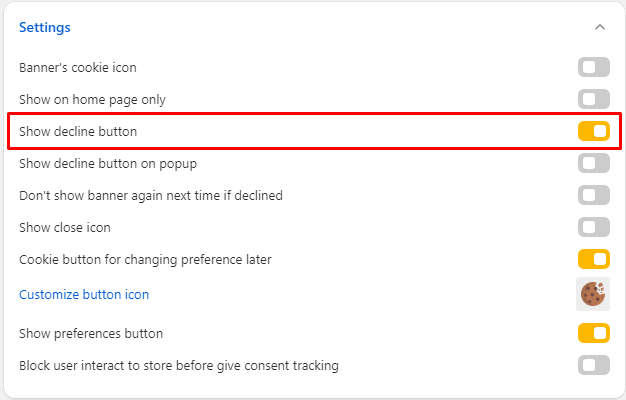
### 1. Show a "Decline" button
Customers have a right to refuse your website tracking, so you should put a "Decline" button on your cookie banner. You can put it on cookie bar or on preferences poup or both
On cookie bar:
On Perferenes popup:
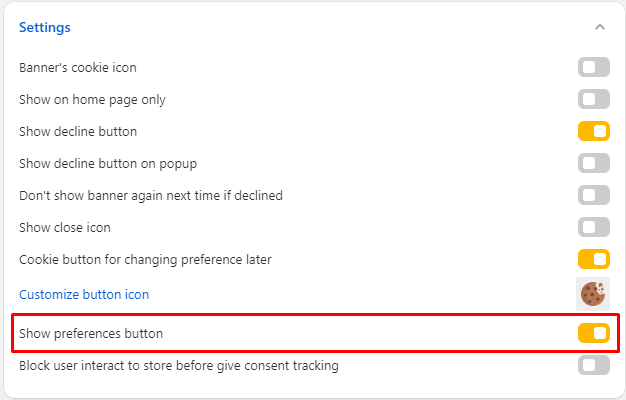
### 2. Show a preferences button on cookie bar to select cookie categories
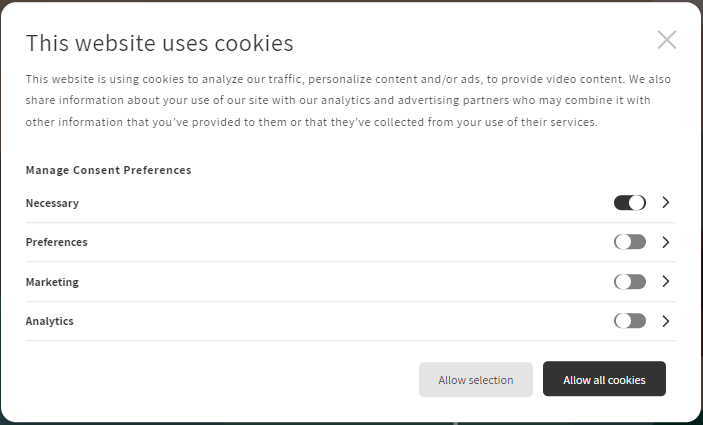
Customers have a right to choose which cookies are allowed for tracking, so you should show a "Preferences" button which opens Preferences popup and shows cookie categories on your store
Preferences popup looks like this:
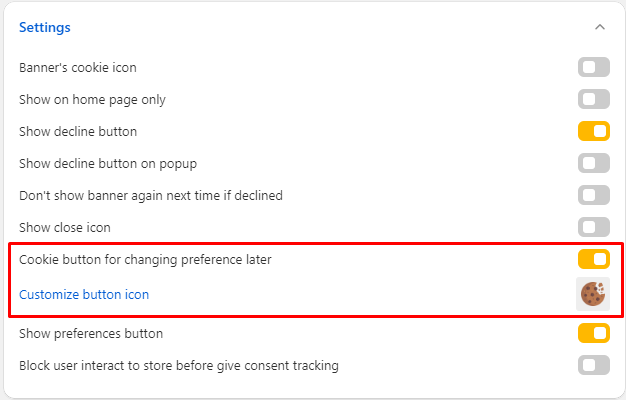
### 3. Show a cookie re-opener (cookie button) for change consent option
Customers have a right to change their consent anytime, so you should show a re-opener for changing their consent. You can choose a icon on gallery or upload your own logo.
Set up here:
Look like this on your online store:
### 4. Add privacy policy link to cookie banner
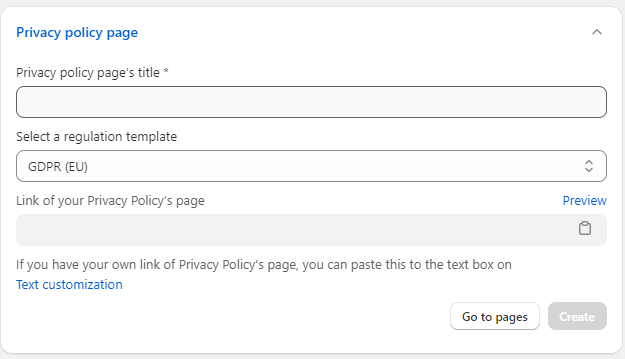
You can show a link which will direct to your policy page on your store. If you have your own page, copy page URL and paste to text box below:
If you do not have any page, you can generate a new one by our Privacy Policy Generator:
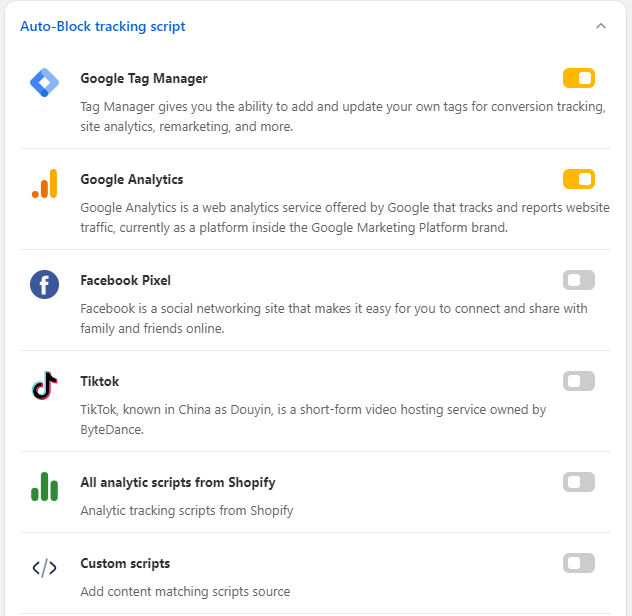
### 5. Enable auto-block tracking script
If you use a tracking service like Facebook Pixel, TikTok Pixel, Google Analytic or Shopify Analytics, you should block it tracking before customer give the consent. You can select services on admin setup, then copy the generated code and paste to below `` tag on `theme.liquid` on your theme
### 6. Data request management
Check it here: [Data Request Management](data-request-management)